The best way to translate while reading is an on-demand selection tool or a bilingual overlay, not full-page auto-translate. Both let you decode a word or line the moment you hit it, then drop straight back into the text. Full-page translation swaps out the language entirely, which kills the one thing that actually builds vocabulary: struggling with the original just long enough to remember it.
Success looks like this: you finish an article having learned ten new words instead of having read a machine-translated version of it in your native language.
-
Install a selection or highlight-to-translate extension for daily browsing
-
Reserve full-page translation for skimming, not studying
-
Save anything you look up twice. If you needed it once, you’ll need it again
Key Takeaways
On-demand selection and bilingual overlay tools preserve reading comprehension and build vocabulary better than full-page auto-translation, which removes the original text entirely.
| Point | Details |
|---|---|
| Choose selection over auto-translate | Highlight-to-translate preserves the source text so you still see and learn the word. |
| Use bilingual overlay for dense text | Side-by-side reading cuts context-switching for technical or academic material. |
| Handle scanned PDFs with Assist/OCR | Draw a region to translate image-based text that normal selection can’t reach. |
| Capture what you look up | Save translations to a collection or export to Anki so they turn into long-term vocabulary. |
| WordByWord unifies the workflow | One extension handles web pages, PDFs, and YouTube subtitles, with Spotlight mode and flashcards built in. |
Table of Contents
Practical Methods for Translating Text on a Page
Every reading situation calls for a different tool. Here’s what actually works, ranked by how much reading flow you keep.
-
Chrome’s built-in page translator. Right-click anywhere on a page, or hit the Translate icon in the address bar, and Chrome swaps the whole page into your language in seconds. It’s the fastest option for understanding a page’s gist, but it replaces the original text, so you never see the word you didn’t know. Good for news skimming, bad for study.
-
Select-and-translate popups. Highlight a word or phrase and a small popup gives you the translation without leaving the page. Tools like Select Translate add an “Explain” mode for idioms and grammar that a literal translation mangles. This is the closest thing to reading normally with occasional help.
-
Bilingual overlay, or side-by-side reading. The original and translated text sit next to each other, paragraph by paragraph. Projects like Dual-Read build this directly into the browser, which suits dense or technical material where you want the source language visible at all times.
-
PDF and scanned-document workflow. Regular text selection fails on scanned pages and image-based PDFs. Assist or OCR mode lets you draw a box around the text you want translated, pull it out as an image, and read the result without exporting the file first.
-
Mobile apps and ebook readers. These trade flexibility for convenience: fewer customization options, but translation baked into the reading experience itself, which matters if most of your reading happens on a phone rather than a laptop.
Pro Tip: Keep two workflows on hand: one fast tool for casual browsing and one bilingual or selection tool for anything you’re actually trying to learn from. Using the wrong one for the job is the most common reason people give up on reading-based study.
Which Features Actually Help You Learn, Not Just Translate
Not every feature helps retention, and a few actively work against it.
-
On-demand translation beats auto-translate for learning. Forcing yourself to attempt the word first, then check it, is what psychologists call effortful retrieval, and it’s a large part of why on-demand tools outperform automatic ones for memory even when both give you the same answer.
-
Bilingual display keeps your reading rhythm intact. You’re not toggling between two browser tabs or two apps, so you reduce the cognitive cost of switching contexts mid-sentence.
-
Explain or rephrase modes matter more than raw translation for idioms. A literal translation of a phrase like “it’s raining cats and dogs” is useless. A rephrase feature catches that.
-
Text-to-speech support lets you shadow pronunciation while you read, which turns a silent activity into listening practice at the same time.
-
Vocabulary capture and spaced repetition are what separate a translation tool from a learning tool. Without a way to save and review what you looked up, you’ll translate the same word forty times and never actually learn it.
Advanced learners tend to get more out of on-demand translation paired with explain features than from automatic full-page translation, since decoding the sentence yourself is part of what makes the word stick.
How to Set Up Your Reading Translation Workflow in Minutes
-
Install a selection or hover-based translation extension, or enable Chrome’s native translate as a fallback for quick skims.
-
Set your source and target languages once so you’re not re-selecting them every session.
-
Pick your trigger: highlight text, double-click a word, or set a keyboard shortcut. Whichever takes the least effort is the one you’ll actually use.
-
Turn on Assist or OCR mode if you plan to read scanned PDFs or image-based documents. Save the extracted phrases so you’re not retranslating the same passage twice.
-
Route anything worth remembering into a collection or export it to Anki or a CSV file for spaced repetition. Translating a word and never reviewing it again is functionally the same as never looking it up.
Pro Tip: If translations stop appearing on a page, check for blocked scripts first. Some sites, especially those built with heavy JavaScript frameworks, prevent extensions from reading selected text. A quick page reload after enabling the extension fixes this more often than you’d expect.
Scanned PDFs and legal or academic documents are the most common source of missing translations. If your text-selection tool comes back empty, switch to Assist/OCR mode rather than assuming the tool is broken.

Privacy, Speed, and Cost Tradeoffs You Should Know About
Every translation method makes a tradeoff between speed, privacy, and cost, and it’s worth knowing which one you’re accepting.
-
LLM-based bilingual tools can feel slower on the first pass. Translating a full paragraph through a language model takes longer than a quick dictionary lookup, though a local cache or self-hosted proxy cuts that delay dramatically for anything you revisit.
-
Chrome’s built-in translation is faster but not built for study. It has no vocabulary capture and no memory of what you’ve already looked up.
-
Where your data goes depends on the tool. Local-only or open-source options keep your reading activity off a vendor’s servers; hosted tools may log queries for analytics.
-
Heavy readers should watch API costs. Developers can configure their own API endpoint to control both privacy and per-call spending, which the wider AI translation tooling ecosystem has increasingly standardized around.
How WordByWord Fits Into a Reading Translation Workflow
WordByWord builds every one of these workflows into a single extension instead of forcing you to juggle three tools. Click a word on any website, in a PDF, or in a YouTube subtitle track, and you get an instant translation across more than 50 languages, no page reload or full-text swap required.
-
Spotlight mode highlights words on the page itself by how well you know them, from unknown to mastered, so you can see at a glance what you’re about to struggle with.
-
Comprehension level tells you what percentage of an article, PDF, or video you already understand before you commit to reading it, which solves the “is this text too hard for me” problem before you waste twenty minutes finding out the hard way.
-
Every word you click can be saved into a collection, generated into flashcards automatically, or imported from Anki, Quizlet, or a spreadsheet if you already have a study system in place.
-
Review happens through seven training modes, including typing, listening, and a 60-second sprint, scheduled by spaced repetition so the words you translated last week don’t evaporate.
For a deeper look at tracking vocabulary while reading or setting up bilingual reading mode, WordByWord’s blog covers the workflow end to end.
| Feature | What it solves |
|---|---|
| One-click translation | Replaces context-switching between page and dictionary |
| Spotlight mode | Shows what’s unfamiliar before you get stuck on it |
| Comprehension level | Flags whether a text matches your level |
| Flashcards + spaced repetition | Turns a lookup into long-term memory |
What Most Reading Advice Gets Wrong
Most guides treat translation like a convenience feature: turn it on, understand the page, move on. That framing misses the actual goal for a language learner, which isn’t comprehension in the moment. It’s comprehension without help six months from now.
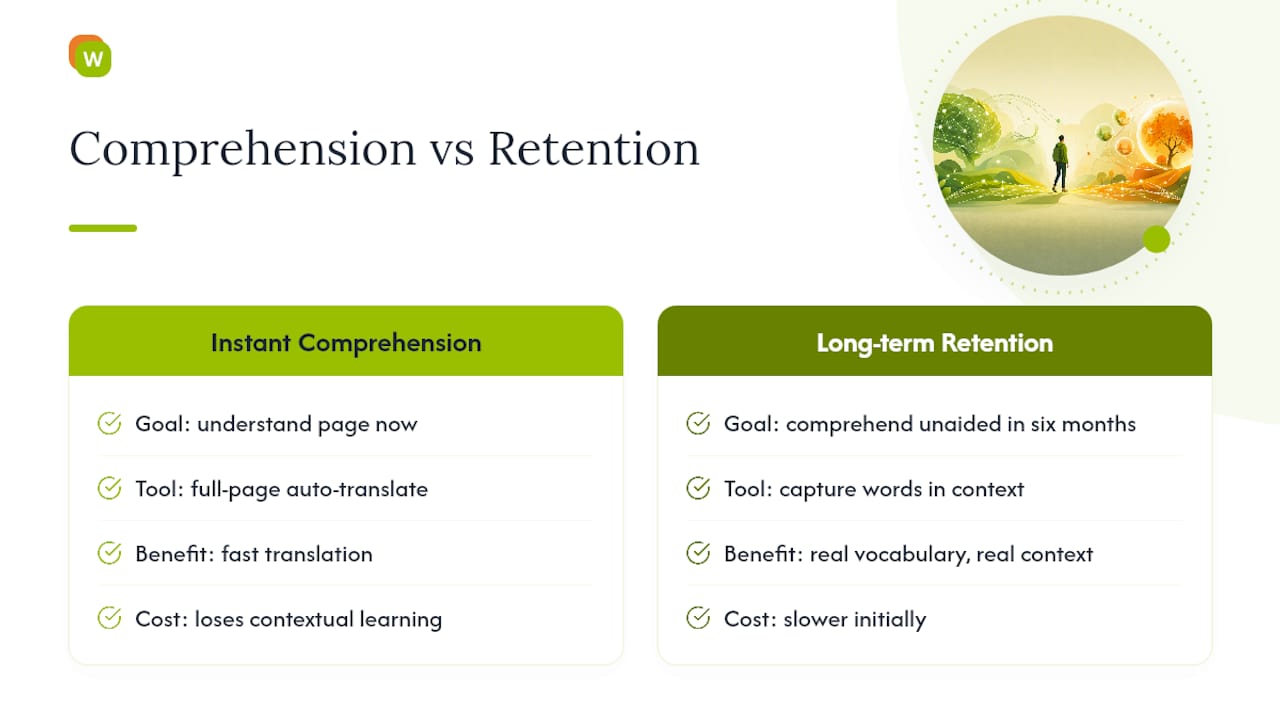
The conventional advice to “just use Google Translate on everything” optimizes for the wrong variable. Reading is one of the few study activities that gives you real vocabulary, in real context, at zero extra cost. Full-page auto-translate throws that away in exchange for speed you didn’t need.
If you take one thing from this, prioritize capture over convenience. A tool that translates fast but doesn’t let you save what you looked up will leave you exactly where you started: rereading the same word for the fifth time next month, wondering why it never sticks. The translation was never the hard part. Remembering it was.
— WordByWord Team
Turn Every Page You Read Into a Vocabulary Lesson
Chrome’s native translator and standalone selection extensions solve the immediate problem of understanding a word. Neither one remembers what you looked up yesterday. WordByWord closes that gap by combining instant, one-click translation with the study system underneath it: every word you click on a website, in a PDF, or in a YouTube subtitle becomes a flashcard automatically, scheduled for review before you forget it.

That matters most for intermediate learners stuck at the plateau where they can read real text but bleed vocabulary as fast as they meet it. Spotlight mode shows you exactly which words on a page still need work, and comprehension level tells you upfront whether an article is worth your time or too far above your level. Free accounts get full access with usage limits; Premium removes them.
Start reading something you actually want to read, click the words you don’t know, and let WordByWord turn that into a growing vocabulary instead of a one-time lookup.
Sources
-
Translate pages and change Chrome languages - Computer - Google Chrome Help
-
Select Translate: Highlight, Translate, Explain - Chrome Web Store