

Hover translation is exactly what it sounds like: you move your mouse over a foreign word, and a translation pops up instantly, no copy-pasting, no new tab, no interruption. The technical term for this interaction is mouseover translation or translate on hover, and it has become one of the most practical features in modern browser extensions. Under the hood, the extension listens for a mouseover event on a text node, sends the detected string to a translation engine (typically Google Translate, DeepL, or a ChatGPT-based API), and renders the result in a lightweight tooltip within milliseconds. Supported content types now go well beyond basic web pages:
- Web text: any paragraph, heading, or link on a standard webpage
- PDFs: opened in-browser or via a dedicated reader with OCR support
- Video captions: YouTube subtitles and other streaming platforms via subtitle preloading
- Images with embedded text: handled through optical character recognition layers
Most tools include a trigger hotkey such as Alt+T or a held Control key, so the tooltip only fires when you want it. That single design choice prevents the popup from appearing every time you accidentally drift your cursor across a page.
What features should you look for in a hover translation tool?
Not every hover translate extension is built the same. The gap between a basic popup and a genuinely useful tool comes down to a handful of features that separate passive display from real utility.
- Auto language detection: the extension identifies the source language without manual configuration, covering 11 or more languages in most modern builds
- Text-to-speech: pronunciation playback directly from the tooltip, critical for learners building listening skills alongside reading
- On-demand hotkeys: toggle translation mode so it activates only when you press a key, keeping normal browsing uninterrupted
- Multi-format support: clean handling of websites, PDFs, and video captions without layout breakage
- AI engine choice: the ability to switch between Google Translate, DeepL, or ChatGPT-based models depending on the content type and accuracy needed
- Privacy controls: extensions that process data locally or operate offline protect your reading habits; Chrome’s current privacy standards now require extensions to disclose data usage transparently and many top tools meet this by avoiding account requirements entirely
- Vocabulary saving: the option to save a hovered word directly to a personal collection for later review
The privacy point deserves more than a checkbox mention. If you read sensitive professional documents or personal correspondence in a foreign language, you want to know whether your text is being sent to a remote server. Look for extensions that explicitly state local processing or offer an offline mode.
Who actually uses hover-over translation tools?
The user base is broader than most people assume. Five distinct groups get real, daily value from this technology.
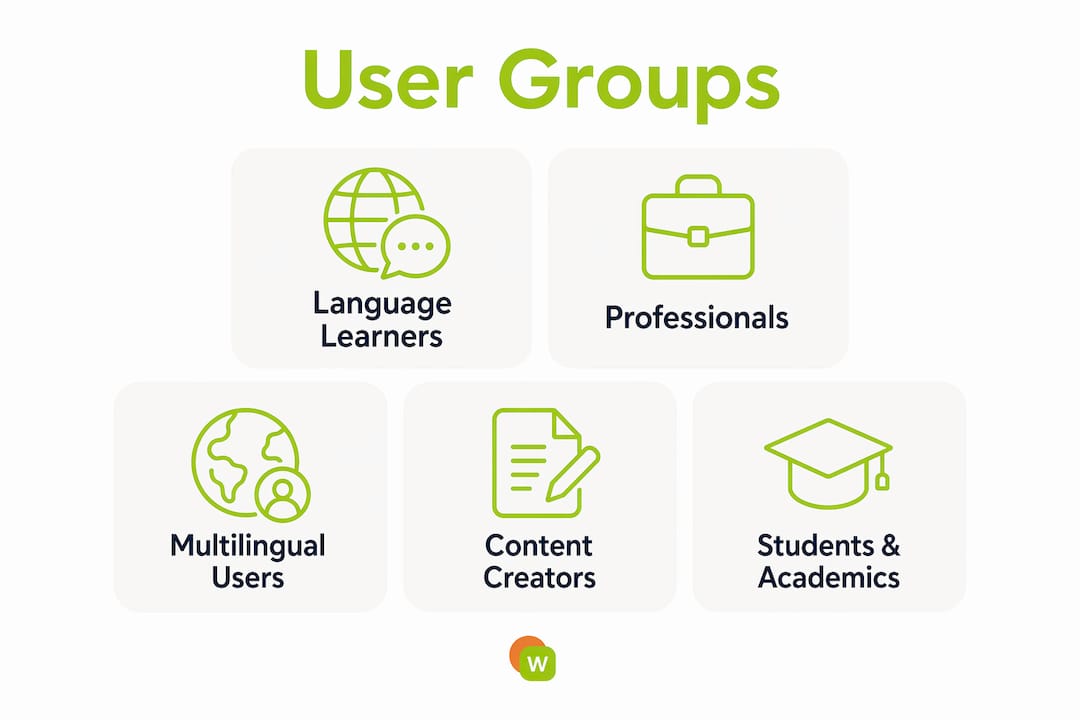
Language learners are the most obvious fit. A Spanish learner reading a news article can hover over an unfamiliar verb form and get the translation without losing their place in the sentence. The key is that the reading context stays intact, which is something a dictionary tab cannot replicate.

Professionals reading international research rely on hover translation for speed. A biomedical researcher scanning a German-language paper, or a lawyer reviewing a French contract, needs fast access to terminology without full document translation that might distort technical phrasing.
Multilingual internet users browsing foreign-language social media, forums, or news sites use hover translation as a lightweight layer that keeps the original text visible. They are not trying to learn the language; they just need enough context to follow a thread.
Content creators and translators use dual-subtitle or side-by-side video translation to cross-reference their work against the source material in real time. This is especially common on YouTube, where subtitle files can be preloaded and hovered.
Students and academics working with non-native PDFs benefit from context-aware translation that preserves document structure, since a mistranslated term in an academic paper can send an entire analysis in the wrong direction.
Advanced uses that go beyond single-word lookups
Single-word tooltips are the entry point. The more interesting applications show up when hover translation is combined with other technologies.
Inline paragraph translation lets you hover over an entire sentence or block of text and receive a contextual translation rather than a word-by-word literal output. This matters for academic papers where sentence structure carries meaning that word-level translation destroys.
Dual-subtitle video translation places both the original and translated subtitle on screen simultaneously. Bilingual subtitle displays improve comprehension more than basic hover text because learners can hear the native pronunciation while reading both versions, reinforcing the connection between sound and meaning.
AI-driven vocabulary tracking turns a passive hover into a learning event. When a tool logs every word you look up, it can surface those words again in flashcard sessions timed to spaced repetition intervals, converting a momentary translation into a word you actually retain.

PDF and image translation via OCR solves a problem that trips up most basic extensions. Standard hover tools only read selectable text. OCR-enabled tools scan the rendered image of a PDF page and make even non-selectable text hoverable, which is critical for scanned academic papers or image-heavy documents. Context-aware AI translation also preserves formatting, so a translated table cell stays in its column rather than spilling into the margin.
Local AI processing via Chrome Native Messaging is a newer development worth knowing about. Some extensions connect to a locally installed AI model, meaning your text never leaves your machine. Offline AI translation through this method is faster on repeat lookups and eliminates the privacy risk of cloud-based APIs entirely.
How hover translation actually supports language learning
Instant translation reduces friction, but retention improves dramatically when hover data feeds into active recall methods. Seeing a translation once is passive exposure. Being tested on that word 24 hours later, then again a week later, is how it moves into long-term memory. That is the testing effect, and it is the cognitive science principle that separates a vocabulary-building tool from a simple lookup utility.
WordByWord is built around this principle. Its Spotlight mode highlights words directly on the page based on your current knowledge level, from words you have never seen to words you have fully mastered. Unknown words stand out visually, so you can assess whether a text is at your level before you commit to reading it. As your vocabulary grows, the highlights fade, giving you a visible record of progress on the actual content you care about.
Pro Tip: When you hover a word in WordByWord, save it immediately to a collection tied to the topic you are reading. Thematic collections (cooking vocabulary, legal terms, tech jargon) outperform random word lists because the context cues from the original article reinforce memory during review.
WordByWord’s AI trainer takes the words you have hovered and looked up, then generates exercises calibrated to your current level across over 50 languages. It also integrates with YouTube subtitles, so you can hover over captions while watching a video and have those words queued for your next flashcard session. Privacy is handled by keeping user data within the platform rather than selling it to third parties, which aligns with the stricter extension privacy standards now enforced across major browsers.
How do popular hover translation tools compare?
The tools available in 2026 fall into a few clear categories based on what they prioritize.
General-purpose hover extensions like the Translate on Hover add-on for Microsoft Edge focus on speed and simplicity. They cover most languages, fire on mouseover, and connect to Google Translate or Microsoft Translator. Setup takes under two minutes. The tradeoff is that they do not save vocabulary, track progress, or integrate with learning workflows.
AI-powered translation tools like those built on DeepL or ChatGPT APIs produce more natural output, especially for idiomatic phrases and technical terminology. They handle context better than statistical translation engines, though they typically require an API key and may involve per-request costs at higher volumes.
Learning-focused extensions go further by combining hover translation with vocabulary tracking, flashcards, and spaced repetition. WordByWord sits in this category, adding Spotlight mode and an AI trainer on top of the core translation layer. For learners who want to do more than just understand a page, this category is the right fit.
Privacy-first tools with local processing, as discussed in the advanced applications section, suit professionals handling sensitive documents. They sacrifice some translation quality compared to the best cloud models but eliminate data exposure entirely.
The right choice depends on your primary use case. Casual browsing in a foreign language? A general-purpose extension is enough. Actively building vocabulary while reading? You need a tool that captures and reinforces what you look up.
How to set up hover translation in Chrome, Firefox, and Edge
Setup across all three major browsers follows the same basic pattern, with minor differences in where you find the extension.
Google Chrome: open the Chrome Web Store, search for your chosen extension by name, click “Add to Chrome,” and confirm the permissions prompt. Most hover translate extensions request access to all websites (to read page text) and optionally to storage (to save vocabulary). Once installed, the extension icon appears in your toolbar. Click it to open settings and configure your target language, hotkey preference, and translation engine.
Mozilla Firefox: go to addons.mozilla.org, search for the extension, and click “Add to Firefox.” Firefox’s permission model is slightly stricter than Chrome’s, so some extensions prompt you to grant access per-site on first use. You can change this to “Always allow on all sites” in the extension settings.
Microsoft Edge: the Edge Add-ons store carries a dedicated Translate on Hover extension alongside the broader catalog. Edge also accepts Chrome extensions directly via the Chrome Web Store, so your options are not limited to what Microsoft lists. The process mirrors Chrome exactly.
For PDFs: most extensions work on PDFs opened in the browser’s built-in viewer. If you use Adobe Acrobat or another desktop reader, you will need an extension that supports that environment specifically, or open the PDF in Chrome or Edge instead.
For YouTube: extensions that support subtitle translation typically require you to enable YouTube’s closed captions first. Once captions are on, the extension intercepts the subtitle text and makes it hoverable. Some tools, including WordByWord, handle this automatically when you visit a YouTube page with subtitles available.
What are the real limitations of hover translation?
Hover translation is genuinely useful, but it has hard limits worth knowing before you rely on it.
Accuracy drops with context-heavy language. A single hovered word stripped from its sentence can produce a misleading translation. The word “bank” in English translates differently depending on whether the surrounding text is about finance or rivers, and many basic tools get this wrong.
Browser translation conflicts cause flicker. When Chrome’s built-in page translation runs at the same time as a hover extension, the two systems fight over the same text nodes, producing visual glitches and duplicate tooltips. The fix is to disable the browser’s native translation for pages where your extension is active. Most good extensions include a toggle for this.
Non-selectable text in PDFs and images requires OCR, which adds processing time and occasionally misreads characters, especially in stylized fonts or low-resolution scans.
Technical or highly specialized vocabulary often falls outside the training data of general translation models. Medical, legal, and engineering terminology requires either a specialized model or a tool that lets you import custom terminology libraries.
Performance on slow connections can make cloud-based translation feel sluggish, particularly on pages with dense foreign text where every hover triggers a network request. Local processing tools sidestep this, but they require an initial setup that is more involved than a standard extension install.
Key Takeaways
Hover translation tools work best when they combine instant display with active learning features like vocabulary tracking and spaced repetition flashcards.
| Point | Details |
|---|---|
| Hotkeys prevent accidental popups | Use a trigger key like Alt+T to activate translation only when you need it. |
| AI engines vary in accuracy | DeepL and ChatGPT-based models handle idiomatic and technical text better than basic statistical engines. |
| Vocabulary tracking drives retention | Tools that log hovered words and feed them into flashcard sessions produce better long-term learning than passive lookup alone. |
| Privacy requires local processing | Extensions that run offline or avoid account requirements protect sensitive reading from cloud exposure. |
| Browser conflicts cause flicker | Disable native browser translation when using a hover extension to prevent duplicate tooltips and visual glitches. |
WordByWord turns every page into a vocabulary lesson
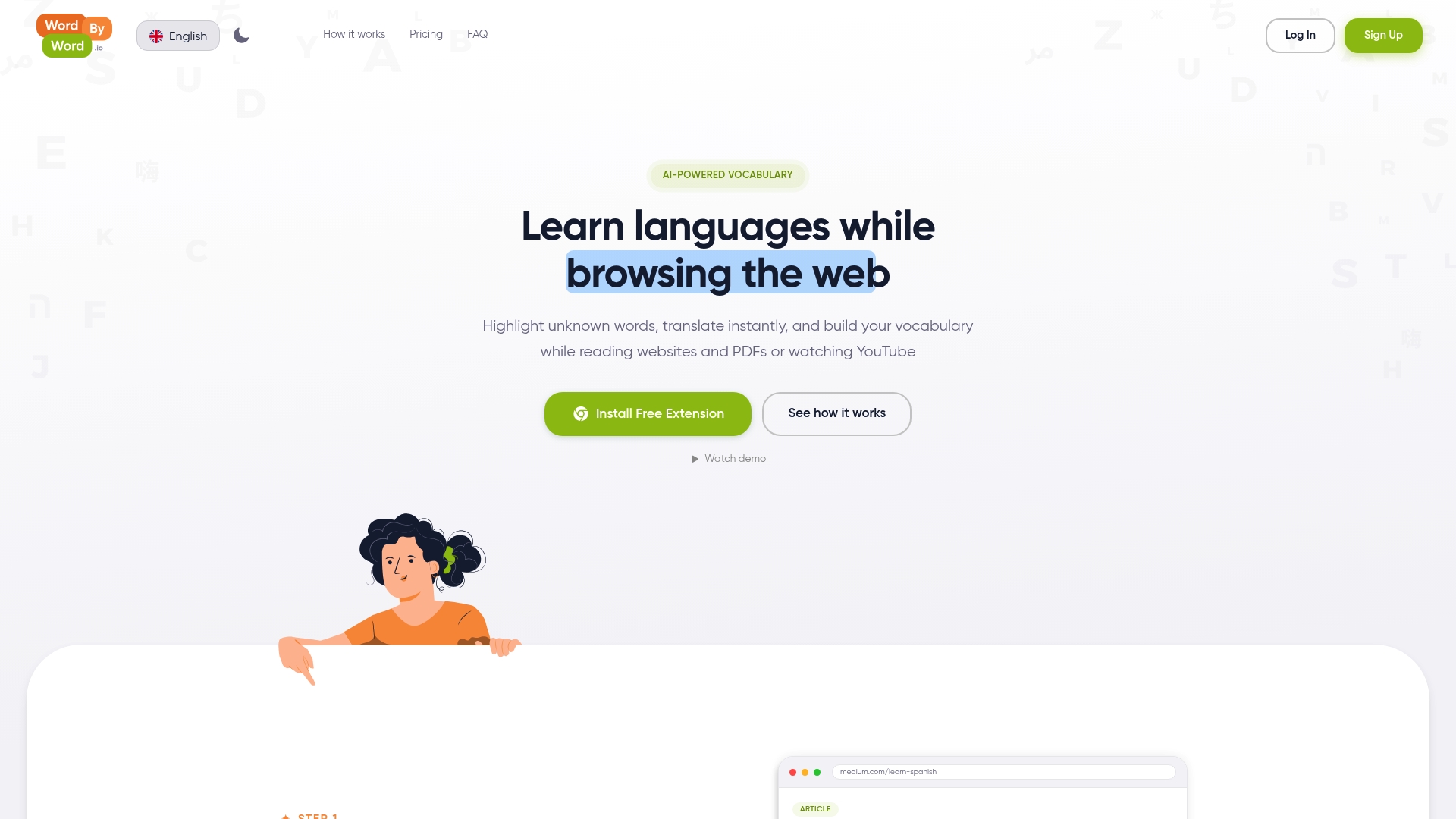
WordByWord does what a basic hover translate extension cannot: it connects every word you look up to a learning system that actually makes it stick. Spotlight mode shows you exactly which words on any page you already know and which ones you do not, so you can pick reading material at the right level and watch your knowledge grow in real time. The AI trainer builds exercises from your own reading history across more than 50 languages, covering websites, PDFs, and YouTube.
If you are serious about building vocabulary while you browse, try WordByWord and see how fast a reading habit becomes a learning habit.


