
TL;DR:
- The best PDF translator for language learners translates in place and captures vocabulary automatically. It maintains reading flow and turns each lookup into a long-term study activity. Using in-browser tools like WordByWord enhances vocabulary retention through instant translation and spaced repetition integration.
The best PDF translator for language learners is an in-browser extension that translates words in place, without uploading files or switching tabs, and automatically captures lookups into a vocabulary system you can actually study from. Tools built around spaced repetition and instant selection translation keep you reading instead of bouncing between apps. WordByWord is the leading option in this category, combining instant in-context translation across websites, PDFs, and YouTube with Spotlight mode, smart flashcards, and an AI trainer that turns every lookup into a durable memory.
Table of Contents
- Why in-browser translation keeps you reading and actually learning
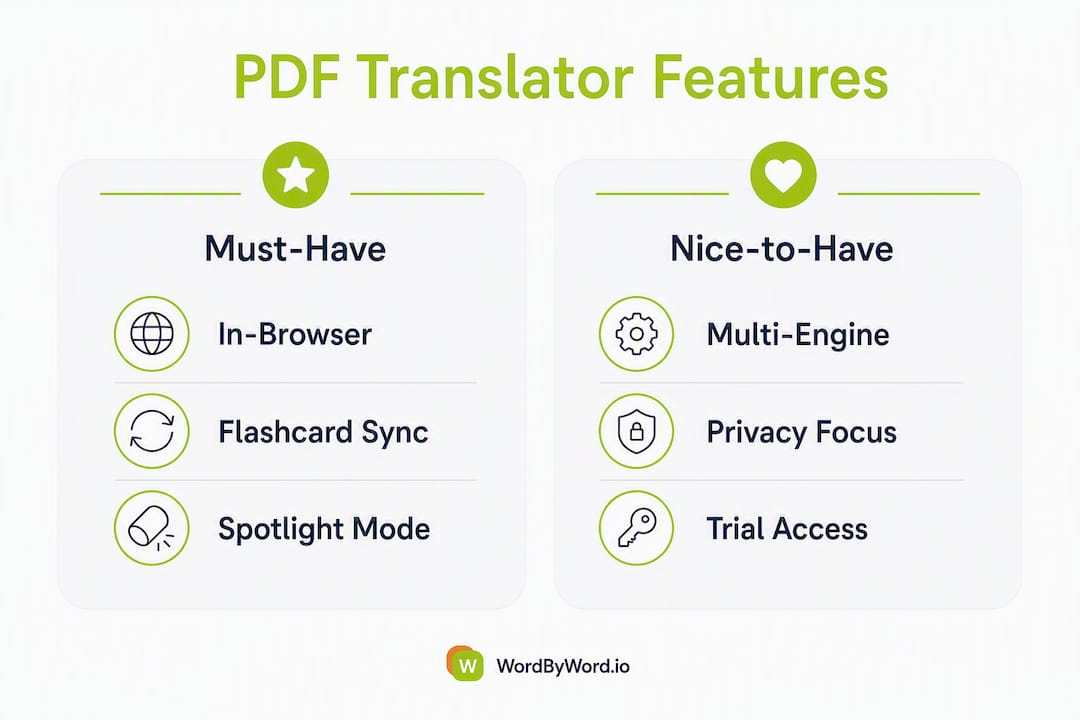
- What the best PDF translator must have for language learners
- How WordByWord handles PDF lookups and turns them into study material
- Security and privacy: what to check before translating sensitive PDFs
- Pricing at a glance: freemium vs. premium and who should upgrade
- Compatibility and technical limits: OCR, scanned PDFs, and browser support
- Three workflows language learners use with PDF translators
- How translation quality compares across PDF tools for learning purposes
- How to integrate translated PDFs into your regular study routine
- How to customize translation settings for better learning outcomes
- Combining PDF translation tools with other language learning methods
- Key Takeaways
- What most PDF translator guides get wrong
- WordByWord turns your PDF reading into a vocabulary-building session
- Useful sources
Why in-browser translation keeps you reading and actually learning
Experts consistently flag the same problem with upload-and-download PDF translators: they break the reading session. You stop, upload, wait, download, and by the time you return to the text, the sentence that prompted the lookup is cold. In-browser, in-context translation solves this by keeping the word in front of you while the definition appears beside it.
The practical advantages for learners:
- No context switching. Inline tooltips appear on the same page, so the surrounding sentence stays visible and helps you infer meaning, which is how incidental vocabulary acquisition actually works.
- Instant capture. AI-powered extensions let you save a word to a personalized collection in one click, right at the moment of lookup, before the context fades.
- Multi-provider fallback. Extensions that pull from ChatGPT, Microsoft Translator, and Google API simultaneously give you a better translation for idiomatic phrases than any single engine alone.
- Flow state protection. Reading flow, the state where comprehension feels effortless, collapses the moment you open a new tab. Inline translation is the only approach that preserves it.
Pro Tip: Before opening a PDF in your browser, click anywhere in the document and try selecting a word. If you can highlight it, the text is selectable and your extension will work reliably. If nothing highlights, the file is image-based and needs OCR first.
What the best PDF translator must have for language learners
Not every PDF language converter is worth your time. Here is the checklist that separates genuinely useful tools from ones that just produce a translated file you never study from.
Core features:
- Instant selection translation with an inline popup (not a redirect)
- Vocabulary capture with SRS export or built-in flashcard creation
- Support for multiple translation engines, including premium options like DeepL or GPT-4, for higher fidelity on idiomatic text
- Keyboard shortcuts to minimize hand movement during reading
- Local file support (PDFs stored on your computer, not just URLs)
Security flags to check:
- Encrypted API transfers or local processing (no file upload to external servers)
- Clear auto-deletion policy for any files processed server-side
- A readable privacy policy that names the third-party APIs used
Usability flags:
- OCR support or clear guidance on scanned PDF limitations
- Language coverage that includes your target language pair
- Layout preservation so translated text stays readable in context
Pro Tip: Prioritize tools that feed lookups directly into a flashcard or SRS queue. A translation you look up once and never review again has a retention rate close to zero. The vocabulary tracking loop is what separates a dictionary from a learning system.
How WordByWord handles PDF lookups and turns them into study material
WordByWord works directly inside your browser, so the workflow for PDFs is the same as for any webpage. Here is the typical flow from first lookup to long-term retention:
- Open your PDF in Chrome. Navigate to the file in your browser tab. For local PDFs, grant the extension “Allow access to file URLs” in Chrome’s extension settings.
- Select a word or phrase. A small selection icon appears instantly. Click it, or use the keyboard shortcut, and a translation tooltip pops up inline without moving you off the page.
- Review the translation in context. The popup shows the translation alongside the original sentence. You can switch translation engines if the first result feels off.
- Save to your vocabulary collection. One click adds the word to a personalized collection. WordByWord logs it as a new item and schedules it for review.
- Activate Spotlight mode. This overlays color-coded highlights on the PDF based on your current knowledge level: unknown words stand out, mastered ones fade. You can tune the difficulty threshold to match your CEFR level.
- Review with flashcards or the AI trainer. After your reading session, the AI trainer generates exercises from the words you saved, moving them from passive recognition toward active recall.
Progress tracking appears in the WordByWord dashboard, where you can see which words are moving from “unknown” to “mastered” and export your collection as a CSV for use in Anki or other SRS tools.
Pro Tip: Set Spotlight mode to highlight only words at or just above your current level. Seeing every unknown word highlighted at once is discouraging and counterproductive. A narrow difficulty band keeps reading enjoyable while still surfacing useful vocabulary.

Security and privacy: what to check before translating sensitive PDFs
The core rule is simple: if the PDF contains anything you would not email to a stranger, use a tool that processes it locally or encrypts the transfer end-to-end.
Key signals to look for before using any PDF translation service:
- Local processing. Some tools, like those using the Bergamot WebAssembly neural network, translate entirely inside your browser without sending the file anywhere. This is the gold standard for sensitive documents.
- Encrypted API transfers. If the tool sends text to an external API, it should use enterprise-grade TLS and document that policy clearly.
- Automatic deletion. Any service that uploads files should state explicitly how quickly those files are deleted from their servers. DeepL’s document translation, for example, publishes its deletion timeline.
- Named third-party APIs. A privacy policy that vaguely references “translation partners” without naming them is a red flag.
Avoid uploading to free online translators when the PDF contains medical records, unpublished research, legal contracts, or any personally identifiable information. For those cases, local processing or a self-hosted solution is the right call.
Pricing at a glance: freemium vs. premium and who should upgrade
Most PDF translation tools for learners follow a freemium model. The free tier covers basic lookups; premium unlocks the features that actually drive retention.
| Feature | Free tier | Premium tier |
|---|---|---|
| Inline word translation | Yes | Yes |
| Vocabulary collections | Limited | Unlimited |
| Flashcard creation | Basic | Advanced + AI trainer |
| Premium engines (DeepL, GPT-4) | No | Yes |
| CSV export / Anki import | No | Yes |
| Shared / community collections | No | Yes |
| Voiceover / pronunciation | Limited | Full |
Who should upgrade: Students working through large reading lists, professionals reading technical documents in a second language, and educators who need CSV export and shared collections for classroom use. If you are doing more than casual browsing, the vocabulary limits on free tiers become a ceiling fast.
Test any premium plan with non-sensitive PDFs during the free trial period before committing. Most tools offer a one-to-two-week free trial period. For context on how freemium language tools compare across the board, the WordByWord freemium guide breaks down what is worth paying for.
Compatibility and technical limits: OCR, scanned PDFs, and browser support
| PDF type | In-browser extension | Upload-based translator |
|---|---|---|
| Text-based (selectable) | Full support | Full support |
| Scanned / image-based | Requires OCR first | Varies by tool |
| Password-protected | Not supported | Not supported |
| Multi-column academic layout | Partial (selection works) | May scramble layout |
| Large files (over 10 MB) | Depends on browser memory | Google Translate caps at 10 MB |
Troubleshooting steps when your extension stops working on a PDF:
- Try selecting a word manually. If you cannot highlight text, the PDF is image-based and needs an OCR pass first (Adobe Acrobat, Tesseract, or a free online OCR tool).
- For local files, go to
chrome://extensions, find your extension, and toggle on “Allow access to file URLs.” - If a multi-column layout is breaking word selection, try exporting the PDF to plain text or HTML and opening that in your browser instead.
- Password-protected PDFs cannot be translated inline. Remove the protection first if you have the rights to do so.
Three workflows language learners use with PDF translators
Workflow A: Intensive study (45–60 minutes) Open a short academic paper or graded reader. Activate Spotlight mode at a narrow difficulty band. Read one paragraph at a time, saving every unknown word. After finishing, run a 10-minute flashcard session on the words you captured. This approach works best for deliberate vocabulary building around a specific topic.
Workflow B: Light immersion (20–30 minutes) Skim-read a longer article or news PDF. Only save words that appear more than once or feel important to the topic. Skip the flashcard session immediately after; instead, batch your review every two or three days. This keeps reading enjoyable and prevents lookup fatigue.
Workflow C: Classroom or shared study (ongoing) A teacher curates a PDF passage and shares a vocabulary collection with students via CSV or a community collection link. Students read independently, add their own saves, and review the shared list before class. Exporting to Anki at the end of the week keeps the SRS queue current.
Pro Tip: Batch your review sessions rather than reviewing after every single lookup. Stopping to flip flashcards mid-reading breaks flow just as badly as switching tabs. Read first, review later.
How translation quality compares across PDF tools for learning purposes
Translation quality for language learners is not the same metric as translation quality for publishing. A learner needs a translation that is contextually accurate enough to infer meaning, not one that is polished enough to submit to a journal.
Single-engine tools using Google Translate’s free API are adequate for common vocabulary in widely-spoken languages. Where they fall short is idiomatic phrases, technical terminology, and low-resource language pairs. Premium engines like DeepL and GPT-4 handle these cases noticeably better, particularly for European languages and academic register. The difference is most obvious when you are reading a legal or scientific text and the free engine returns a word-for-word translation that makes no sense in context.
For learners, the practical recommendation is to use a tool that lets you switch engines on a per-lookup basis. That way, you use the fast free engine for common words and escalate to a premium engine when the translation feels wrong.
How to integrate translated PDFs into your regular study routine
The gap between looking a word up and actually remembering it is almost entirely a scheduling problem. Lookup without review is just a dictionary session.
Effective integration looks like this: read with your extension active, save words as you go, and schedule a dedicated review block at least 24 hours later. The delay matters because spaced repetition works by testing memory at the point it is about to fade. Reviewing immediately after reading is less effective than reviewing the next morning.
Keep your vocabulary collections organized by source. A collection called “Spanish economics paper, March 2026” is far more useful than a single undifferentiated list, because you can return to the source PDF when a word needs more context. WordByWord’s collection system supports this kind of organization natively.
How to customize translation settings for better learning outcomes
The literal-versus-contextual setting is the one most learners ignore and most regret ignoring. A literal translation tells you what each word means individually. A contextual translation tells you what the phrase means as a unit. For beginners, literal is often more useful because it builds word-level knowledge. For intermediate and advanced learners, contextual translations accelerate reading speed because they confirm meaning at the phrase level without requiring word-by-word parsing.
Most extensions let you set a default engine and toggle between literal and contextual output. Set your default to contextual for reading sessions and switch to literal when you want to understand a specific word’s base meaning. Some tools also let you display both simultaneously, which is the most informative option when you have the screen space.
Keyboard shortcuts are worth configuring from day one. A shortcut that triggers translation without a mouse click cuts the interruption to under a second, which is the threshold below which flow state is not meaningfully disrupted.
Combining PDF translation tools with other language learning methods
PDF translation works best as the input layer of a broader system. It surfaces vocabulary in context; other tools handle the retention side.
Anki remains the most flexible SRS tool for learners who want full control over their decks. Export your WordByWord collection as a CSV and import it into Anki weekly. The combination gives you contextual discovery (WordByWord) plus battle-tested spaced repetition (Anki) without duplicating effort.
For speaking and listening, pair your PDF reading sessions with a tool focused on audio input in the same topic area. Reading a Spanish economics article and then listening to a podcast on the same subject reinforces the vocabulary you just saved through a different modality, which strengthens retention more than either input alone.
Grammar tools work best as a separate session, not mixed into reading. Stopping to analyze grammar while reading a PDF breaks flow in the same way that over-translating does. Keep grammar study as a distinct block, and let your PDF sessions focus purely on vocabulary and comprehension.
Key Takeaways
The best PDF translator for language learners is one that translates in place, captures vocabulary automatically, and feeds lookups into a review system you will actually use.
| Point | Details |
|---|---|
| In-browser translation wins | Inline translation preserves reading flow and supports incidental vocabulary acquisition better than upload-based tools. |
| Checklist before choosing | Prioritize selection translation, SRS export, encrypted transfers, and OCR guidance before committing to any tool. |
| Privacy rule | Use local processing or encrypted API tools for sensitive PDFs; avoid free online services for confidential documents. |
| Upgrade trigger | Free tiers work for casual reading; upgrade when vocabulary collection limits or lack of CSV export slow your progress. |
| Try WordByWord | Install WordByWord, open a non-sensitive PDF, and run a 10-minute Spotlight session to see your vocabulary gaps in real time. |
What most PDF translator guides get wrong
Most comparisons treat PDF translation as a document-conversion problem. They rank tools by how cleanly the output file looks. For language learners, that is the wrong question entirely.
The right question is: does this tool keep me reading, and does it make the words I look up stick? A beautifully formatted translated PDF teaches you nothing about the language. It just removes the friction that was doing the teaching. The friction of encountering an unknown word, looking it up in context, and then reviewing it later is not a bug in the reading process. It is the process.
The tools worth using are the ones that make that friction productive rather than eliminating it. Inline translation, vocabulary capture, and spaced repetition are not premium add-ons. They are the core feature set for anyone who is actually trying to learn.
WordByWord turns your PDF reading into a vocabulary-building session
Reading PDFs in a foreign language is one of the most efficient ways to build academic and professional vocabulary, and WordByWord is built specifically for that workflow. Spotlight mode color-codes every word on the page by how well you know it, so you can see at a glance whether a text matches your level before you commit to reading it. Every lookup feeds directly into smart flashcards and an AI trainer that schedules review at the right moment, not just when you remember to open a study app.

The free tier covers core translation and vocabulary features across more than 50 languages. Premium unlocks unlimited collections, AI-generated exercises, CSV export for Anki, and full voiceover. Install the WordByWord browser extension and open any PDF you have been meaning to read. Run a 10-minute Spotlight session and watch your vocabulary gaps appear on the page in real time.
Useful sources
- Instant Multilingual PDF/HTML/TXT Translator — Chrome Web Store: feature list for in-browser selection translation and local file permissions
- Translate PDF Online — In-Browser PDF Translator, No Upload: local Bergamot-based processing, privacy and no-upload workflow
- PDF AI Translator: GPT-4, DeepL & Google — Chrome Web Store: multi-engine premium translation options
- Google Translate — document translation help: file-size limits and scanned document limitations
- DeepL — document translation features: privacy policy and auto-deletion documentation
- WordByWord — Your Vocabulary on Every Page: product landing page, Spotlight mode, flashcards, and AI trainer features