

The fastest way to improve reading comprehension in a new language is to install a TTS browser extension that reads aloud with synchronized word highlighting and instant translation. You hear the word, see it highlighted, and can translate it on the spot. WordByWord combines all three into one extension, making it the most direct starting point for language learners.
Table of Contents
- What does a TTS browser extension actually do?
- How does TTS improve comprehension and vocabulary retention?
- What features should language learners look for?
- How do you set up and start your first TTS reading session?
- Study routines that turn TTS reading into real vocabulary gains
- Accessibility settings worth adjusting
- Privacy, compatibility, and cost basics
- Key Takeaways
- Why low-friction TTS integration matters more than any single feature
- WordByWord brings all of this together in one free extension
- Useful resources for setup and deeper reading
What does a TTS browser extension actually do?
Text to speech for reading converts on-screen text into spoken audio while visually tracking each word or sentence as it plays. That synchronized highlighting is what separates a browser extension from a standalone audio file. You follow the text in real time, which keeps your eyes and ears working together.
Most extensions work across:
- Web articles and news sites — click the toolbar icon or right-click a selection to start playback
- PDFs and academic papers — upload or open directly in the browser
- Google Docs — the extension reads the document without any export step
- YouTube transcripts — listen to subtitles read aloud while the video plays
One practical detail worth knowing: article extraction strips ads, cookie banners, and sidebars before synthesis begins, so you hear the actual content rather than navigation noise. Extensions that skip this step often stumble on dynamic web pages.
How does TTS improve comprehension and vocabulary retention?
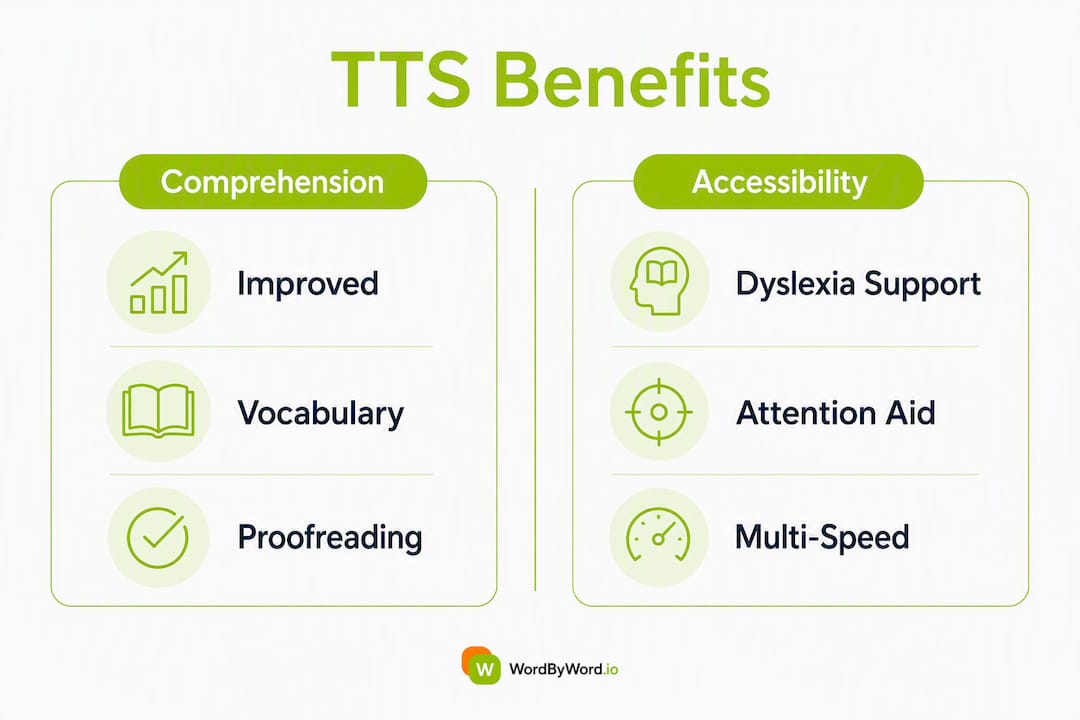
Listening while following text reduces the working-memory load that silent reading in a foreign language demands. Instead of decoding spelling, pronunciation, and meaning simultaneously, you offload the pronunciation layer to the audio. That frees up mental bandwidth for meaning.
Neural TTS voices model native cadence and intonation, which makes pronunciation practice far more realistic than older robotic engines. Shadowing, where you speak along with the audio, becomes genuinely useful when the voice sounds like a real speaker rather than a synthesizer.
“Synchronized word-by-word highlighting plus vocabulary collection and export is the exact feature set that converts incidental encountering of words into deliberate practice.” — WordByWord product overview
TTS also works as a secondary proofreading method: hearing your own writing read aloud catches missing words and awkward phrasing that silent reading misses. For learners writing in their target language, that is a concrete bonus.
Pro Tip: Slow the playback to 0.7x when reading dense academic text in your target language. You will catch pronunciation patterns you miss at normal speed, and your brain has time to process unfamiliar syntax.

Educators and ed-tech practitioners consistently flag TTS as essential accessibility technology for learners with dyslexia or attention differences. Audio-led sessions turn dense texts into manageable chunks, reducing eye strain and keeping engagement higher across longer sessions.
What features should language learners look for?
Not every TTS tool is built for vocabulary acquisition. These are the features that actually move the needle:
- Word-by-word highlighting — tracks exactly which word is being spoken, essential for connecting sound to spelling
- Sentence highlighting — a less granular alternative, better for fluency-focused reading
- Neural or expressive voices — natural cadence for realistic pronunciation modeling
- Adjustable playback speed — per-domain speed memory lets you set faster speeds for news and slower for textbooks
- Jump-to-sentence navigation — click any sentence to resume from that point
- Instant translation — hover or click to translate unknown words without leaving the page
- Vocabulary tracking and flashcard export — saves words you look up into a reviewable collection
- Spotlight or difficulty mapping — highlights words by known/unknown status so you can gauge text difficulty before committing
On-device vs. cloud voices
| Feature | On-device voices | Cloud voices |
|---|---|---|
| Privacy | Processes locally, no data sent | Audio sent to external servers |
| Offline use | Yes, after model download | Requires internet connection |
| Model download | 330 MB one-time download | None |
| Voice variety | Limited to installed models | Hundreds of voices and accents |
| Latency | Near-zero after download | Slight delay per request |
| Best for | Privacy-conscious learners, offline study | Widest accent and language choice |
For vocabulary learning specifically, the three features that matter most are instant translation, word tracking, and spaced-repetition (SRS) export. Everything else is useful; those three are what convert reading into lasting retention.
How do you set up and start your first TTS reading session?
Getting from zero to your first session takes about three minutes.
- Install the extension — find it in the Chrome Web Store or your browser’s extension marketplace and click “Add to browser.”
- Grant permissions — the extension needs access to page content to read it; most also request optional microphone access for voice commands (you can skip that).
- Open your target page or PDF — navigate to an article, open a PDF tab, or upload a document.
- Start playback — click the toolbar icon to read the full page, or select a passage and right-click to read only that section.
- Set your voice and speed — open the extension settings, choose a neural voice in your target language, and set speed to 0.8x–1.0x for a first session.
- Use translate-and-read — when you hit an unknown word, click or hover to translate it, then save it to your vocabulary collection.
- Save words as you go — any word you look up gets added to your personal list for later review.
Troubleshooting common issues
Dynamic web content is the most common culprit when playback sounds wrong. If the extension reads navigation menus or cookie notices instead of the article, switch on reader mode in your browser first, then start playback. For PDFs with scanned images rather than real text, you need an extension with OCR support. Mispronunciations of proper nouns are normal; most extensions let you add custom pronunciation rules in settings.
Pro Tip: If playback cuts out mid-article, the page likely uses a single-page app framework that reloads content dynamically. Reload the page, wait two seconds, then start the extension again.
Study routines that turn TTS reading into real vocabulary gains
Pairing TTS listening with active tasks, specifically highlighting, saving, and reviewing, produces far better retention than passive listening alone. Here is a weekly structure that works:
- Session 1 — Extensive reading (20 min, 1.1x–1.2x speed): Read a news article or blog post in your target language. Focus on flow, not every word. Save any word that stops you.
- Session 2 — Intensive reading (20 min, 0.8x speed): Take a shorter, harder text. Slow the audio, pause on unfamiliar sentences, and save every unknown word. Use extensive vs. intensive reading strategies to choose the right text for each mode.
- Session 3 — Shadowing drill (15 min): Pick two or three paragraphs from Session 1. Play them at 0.9x and speak along with the audio. Focus on matching the voice’s rhythm and stress patterns.
- Session 4 — SRS review (10–15 min): Open your saved vocabulary collection and run through the flashcard queue. Words you saved during Sessions 1 and 2 are waiting. Pushing saved words into a spaced-repetition queue with short daily reviews converts incidental exposure into durable learning.
Pro Tip: Before Session 2, use WordByWord’s Spotlight mode to scan the text. Words highlighted in darker shades are the ones you don’t know yet. If more than 30% of the page is highlighted, the text is probably too hard for intensive reading right now. Pick something with fewer highlights.
Accessibility settings worth adjusting
TTS is not just a learning convenience. For learners with dyslexia, ADHD, or low vision, it can be the difference between engaging with a text and abandoning it.
Practical settings to configure before your first session:
- Highlighting granularity — switch to sentence highlighting if word-by-word feels too fragmented
- Playback speed — start at 0.75x; many learners with dyslexia find slightly slower audio easier to track
- Font size and contrast — increase font size in reader mode before starting playback
- Voice clarity — choose a voice with clear articulation over an expressive one; clarity matters more than naturalness for learners with auditory processing differences
- Reader mode first — strip the page of visual clutter before starting TTS to reduce cognitive load
TTS is recognized as essential accessibility technology for learners with dyslexia or attention differences, turning dense texts into audio-led sessions that are easier to sustain. Using TTS to read your own writing aloud is also one of the most effective proofreading techniques available, catching errors that silent reading consistently misses.
Privacy, compatibility, and cost basics
Choose on-device voices when privacy matters or when you study offline. Choose cloud voices when you want the widest selection of accents and languages.
Before installing any extension, check these:
- Permissions requested — page content access is standard; be cautious if an extension requests access to all browsing history
- Browser and OS support — most TTS extensions target Chrome and Edge on Windows and macOS; mobile support varies
- Offline mode — on-device engines require a one-time model download (around 330 MB) but then work without internet
- Character limits on free tiers — some web-based tools cap free conversions at 5,000 characters per session for guests, with registered free accounts getting up to 10,000 characters
| Tier | Character limit per conversion | Offline | Voice quality |
|---|---|---|---|
| Guest (web tools) | 5,000 characters | No | Standard |
| Free registered | 10,000 characters | No | Standard to neural |
| On-device engine | Unlimited (local) | Yes | Neural (after ~330 MB download) |
| Paid cloud plan | Up to 20,000 characters | No | Premium neural |
Browser extensions with on-device engines sidestep character limits entirely once the model is downloaded, which makes them the better long-term choice for daily reading sessions.
Key Takeaways
A TTS browser extension with word-by-word highlighting, instant translation, and vocabulary tracking is the most direct tool for building reading comprehension and vocabulary in a new language.
| Point | Details |
|---|---|
| Start with neural voices | Neural TTS models native cadence, making shadowing and pronunciation practice genuinely effective. |
| Match speed to session type | Use 1.1x–1.2x for extensive reading and 0.75x–0.8x for intensive study or accessibility needs. |
| Save words actively | Push every saved word into a spaced-repetition queue; 10–15 minute daily reviews build durable retention. |
| Check privacy before installing | On-device engines (330 MB download) run locally with no data sent; cloud voices offer more accents but require internet. |
| Try WordByWord first | WordByWord combines instant translation, Spotlight difficulty mapping, and SRS flashcards in one free extension. |
Why low-friction TTS integration matters more than any single feature
The tools that actually improve your language skills are the ones you use every day, not the ones with the longest feature list. Isolated app drills have a ceiling: you finish the lesson, close the app, and return to browsing in your native language. Nothing sticks because nothing connects.
Integrating TTS into your existing browsing habit changes that equation. You read the news, a recipe, a research paper, and the extension is already there. You hear the word, see it highlighted, save it, and review it later. That loop, repeated across ordinary browsing sessions, builds vocabulary faster than any dedicated drill session because the context is real and the repetition is natural.
The friction argument also applies to setup. An extension that takes three minutes to install and works immediately on any page is one you will actually use. One that requires a separate app, a login, and a content import step is one you will skip on a busy Tuesday.
WordByWord brings all of this together in one free extension
Reading in a foreign language gets measurably easier when you can hear every word, translate the ones you don’t know, and save them for review, all without switching tabs. WordByWord does exactly that.

Install WordByWord and you get Spotlight mode, which highlights words on any page by how well you know them so you can gauge difficulty before you start. Instant translation works across websites, PDFs, and YouTube in over 50 languages. Every word you look up goes into a personal vocabulary collection, and the built-in flashcard system with AI-powered training turns those saved words into long-term knowledge. The free tier covers core translation and vocabulary features. The Premium plan unlocks unlimited collections, advanced AI exercises, and enhanced voiceover for learners who want to go deeper.
Add WordByWord to your browser and run a 7-day experiment: read one article per day in your target language, save every unknown word, and review the flashcard queue each morning. Track how many new words you save by day seven.
Useful resources for setup and deeper reading
- How to Track Vocabulary While Reading — WordByWord’s practical guide to saving words and building an SRS review queue while reading
- Extensive vs. Intensive Reading for Language Learners — background on choosing the right reading mode for each study session
- Best YouTube Language Learning Extensions — how to pair TTS and subtitle tools for video-based vocabulary practice
- Read Aloud: A Text to Speech Voice Reader — Chrome Web Store listing with technical details on voice options and supported formats
- Text to Speech for Google Chrome — Chrome Web Store page with on-device engine specs, including model download size details


