
This reading translator is designed for anyone who wants to actually learn from what they translate, not just get through it. It works inside the browsing and reading you already do, across websites, PDFs, and YouTube subtitles, in multiple languages. Instead of dumping a translated block of text and moving on, it preserves your reading flow, shows an estimate of how much of a text you already understand, and turns every unfamiliar word into a flashcard. Check the testing checklist below to verify it fits your specific files before you commit.
TL;DR:
- WordByWord supports EPUB, PDF, and SRT files, but may struggle with complex layouts or scanned PDFs without OCR capabilities.
- The tool shows both source and translation side by side, aiding structural comparison and vocabulary mapping during reading.
- It allows saving unfamiliar words into collections for review, with flashcards that include voiceover and multiple training modes.
- Running simple tests for idioms, tables, and OCR quality helps determine if the tool can handle your specific content before full use.
- Privacy, offline mode, and local caching are important considerations for sensitive or large-scale projects, especially with open-source or extension-based options.
Table of Contents
- Why WordByWord Fits the Reading Translator Job
- How Do You Choose the Right Reading Translator?
- What Actually Separates One Reading Translator From Another?
- How Do You Test a Reading Translator Before You Commit?
- Real Workflows for Ebooks, PDFs, Web Pages, and Subtitles
- What Backs This Recommendation Up
- When Should You Trust a Machine Translator, and When Not?
- Try WordByWord on Your Next Book, PDF, or Article
- Sources
Why WordByWord Fits the Reading Translator Job
Most translation tools solve a narrow problem: turn text A into text B. That’s fine for a menu or an email. It falls apart the moment you’re reading a 300-page EPUB novel or a PDF full of footnotes, because what you actually need is comprehension over time, not a one-off swap.
WordByWord treats reading as a repeated activity, not a single event. Here’s how the pieces map to that:
- On-page translation: click any unknown word on a website, in a PDF, or in YouTube subtitles and get an instant translation without leaving the page.
- Bilingual reading support: the source stays visible, so you’re mapping new vocabulary to context instead of just reading a substitute version.
- Collections: every word you translate can be saved into a custom collection, built by hand, generated by AI from a prompt, or imported from Anki, Quizlet, or a spreadsheet.
- Comprehension level: before you even start an article, PDF, or video, you see what share of the vocabulary you already know, so you can judge whether the text matches your level.
- Spotlight mode: highlights every word on the page by how well you know it, from unknown to mastered, and the highlighting fades as your vocabulary grows.
A typical workflow looks like this: open a PDF or EPUB, click through unfamiliar words as you read naturally, save the ones worth keeping to a collection, then review them later with spaced repetition flashcards that include voiceover and seven training modes, including a 60 second sprint for quick review.
Pro Tip: Turn on Spotlight mode before you start a new book or long PDF. Seeing your unknown words highlighted in advance tells you in seconds whether the text is too easy, too hard, or right where you want it.
How Do You Choose the Right Reading Translator?
Every reading translator claims accuracy. Few of them survive contact with a real EPUB, a scanned PDF, or a subtitle file with slang in it. Run through this checklist before trusting any tool with a book-length project:
- File and export support. Confirm the tool actually opens EPUB, PDF, DOCX, and SRT files, and check whether it hands back a usable file for review rather than just a translated snippet. Book-focused apps typically support EPUB and PDF natively, while general-purpose translators often cap input length, which makes them a poor fit for anything longer than a page.
- Bilingual display versus replace-only. A tool that replaces your source text loses the original word order and grammar you need for learning. One that shows both side by side lets you compare structure directly.
- OCR and image-text handling. Scanned pages and comics need optical character recognition before translation is even possible; not every extension includes it.
- Vocabulary capture and review. Does the tool let you save words for later, or does the translation disappear the moment you scroll past it?
- Privacy, offline mode, and speed. Local caching and configurable engines matter if you’re translating sensitive documents or working without a stable connection.
- The literature test. Feed the tool a paragraph with an idiom, a named entity, and a short table, and then see what breaks.
That last point isn’t optional advice. A translator’s own head-to-head review of four popular apps found real accuracy gaps on exactly this kind of material, which is why a quick literature test beats trusting any headline accuracy claim.
What Actually Separates One Reading Translator From Another?
The differences that matter aren’t the ones vendors advertise. They’re the small design decisions that decide whether you finish a book or give up halfway through.
- Parallel view vs. replacement. Keeping the original text visible next to the translation speeds up how fast you map new vocabulary to something you already know, since you can compare word order and morphology in context rather than losing the source structure entirely, a point Grammarly’s own translation guidance backs up.
- In-place editing vs. copy-paste. Tools that translate directly inside your EPUB reader or PDF viewer save you the tedium of copying paragraphs into a separate box and losing your place.
- Subtitle handling. For language learners, catching a phrase in a YouTube video and saving it straight to a study collection is worth more than a generic subtitle dump.
- Privacy and configuration. Open-source, extension-based readers like FluentRead show what’s possible when a tool lets you switch translation engines and cache results locally, which matters if you care about where your reading data goes.
None of this shows up in a feature comparison chart. It shows up on page 40, when you’re still reading or you’ve already closed the tab.
How Do You Test a Reading Translator Before You Commit?
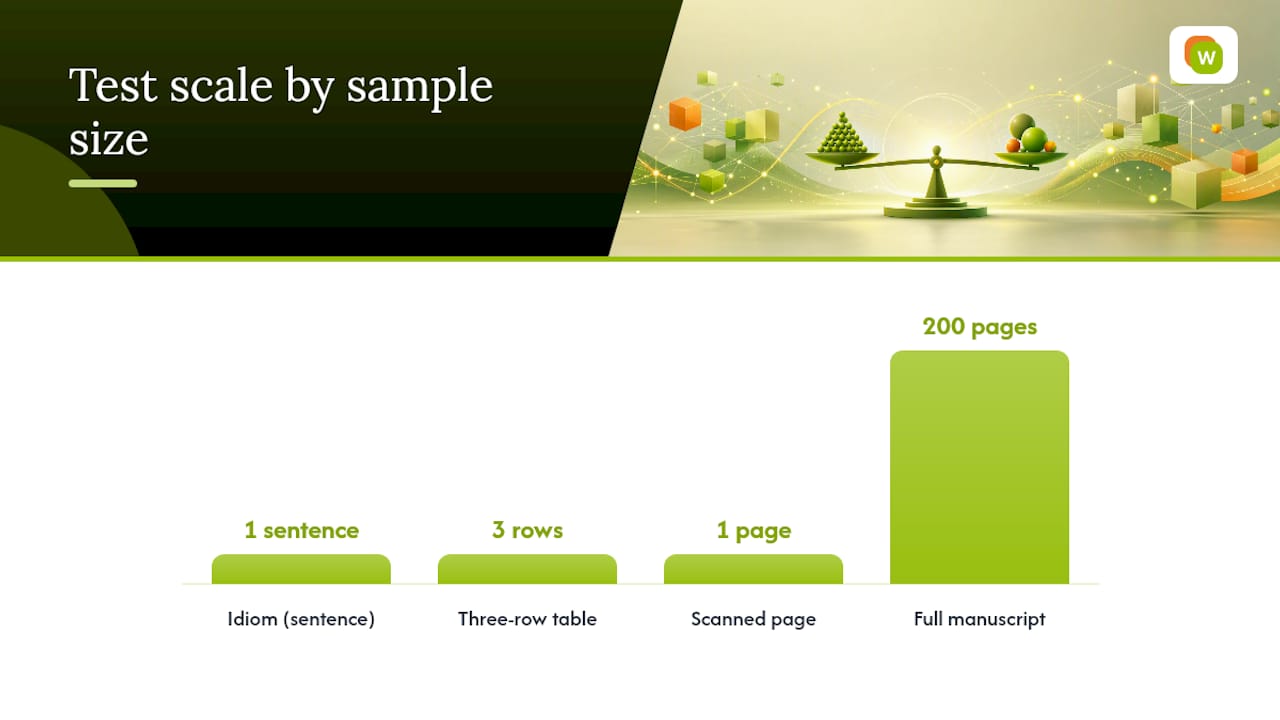
Skip the marketing copy and run three quick tests yourself. This takes about ten minutes and tells you more than any review.
- Idiom test. Pick a sentence with a common idiom in your source language and see if the translation renders the meaning or just the literal words.
- Technical table test. Translate a short table with numbers and labels, then check if the layout survives or collapses into a jumbled paragraph.
- Scanned page test. Run a scanned or photographed page through OCR and translation together, then check whether the layout and reading order hold up.
For each test, record how long it took, how faithful the result was to meaning, and whether key terms stayed consistent across the sample. A tool that translates “bank” as a financial institution in one sentence and a riverbank in the next isn’t ready for a full book.
Pro Tip: Red flag: if a tool struggles with a single idiom or a three-row table, don’t hand it a 200-page manuscript. Scale problems compound, they don’t average out.
Real Workflows for Ebooks, PDFs, Web Pages, and Subtitles
The right workflow depends on the file type, and forcing one tool to handle all four the same way is where most reading translators fall short.
- EPUB: import the book, read in bilingual mode, click unfamiliar words to translate and save them to a collection, then export your vocabulary notes when you finish a chapter.
- PDF: check OCR quality first if the file is scanned, and pay attention to whether tables and footnotes stay intact after translation rather than getting flattened into running text.
- Web articles: hover or select text for quick one-off translation when you’re skimming, but switch to a full bilingual reader mode when you’re studying a longer piece closely.
- Subtitles: translate SRT files line by line while watching, and save standout phrases directly to a collection instead of trying to remember them after the video ends.
Each workflow rewards a slightly different feature. What stays constant is the payoff: vocabulary you actually retain instead of translations you forget the moment you close the tab.
What Backs This Recommendation Up
WordByWord’s case for being the best reading translator rests on features you can check yourself, not marketing language:
- Spotlight mode, which highlights vocabulary by mastery level directly on the page you’re reading.
- Comprehension level, which tells you what share of a text’s words you already know before you start.
- Collections, buildable by hand, by AI prompt, or imported via CSV from Anki or Quizlet.
- Flashcards with seven training modes, including typing, sentence builder, and listening, scheduled by spaced repetition.
For a closer look at specific pieces of this system, see how bilingual reading mode works for classroom and self-study use, and how PDF translation handles vocabulary capture while you read. The free plan is a reasonable place to start if you want to see the workflow before committing to anything.
When Should You Trust a Machine Translator, and When Not?
Machine translation paired with bilingual reading works well for study, comprehension, and research; you get the gist fast and build vocabulary as you go. It’s the wrong tool for legal documents, certified translations, or anything headed for publication, where a single misread clause has real consequences. If you’re studying, the biggest lever isn’t the tool’s accuracy score. It’s whether you actually review the words you save instead of letting collections pile up unused.
— WordByWord Team
Try WordByWord on Your Next Book, PDF, or Article
WordByWord’s free plan gives you the full core workflow with usage limits lifted by Premium: click-to-translate on any website, PDF, or YouTube subtitle, save words to collections, and review them with spaced repetition flashcards. There are no usage windows that expire, just limits that Premium removes once you outgrow them.

Pick a PDF you’ve been putting off or an article in a language you’re learning, and run it through the WordByWord extension to see your comprehension level before you read a single line. If vocabulary from real content matters more to you than drilling flashcards from a fixed course, that starting point tells you fast whether the workflow fits. For learners building specialized vocabulary, the business English collection shows how this works beyond casual reading, and families building bilingual reading habits with kids may also find Sol Book Box worth a look for structured, age-appropriate material.
Sources
The ATA Compass translation app review tests real accuracy limits. BookTranslator’s guide covers file workflow priorities. FluentRead’s open-source project documents bilingual reading design choices.
- Best Translation Apps: A Translator Puts Four to the Test — ATA Compass
- FluentRead (GitHub)
- BookTranslator — Google Play listing