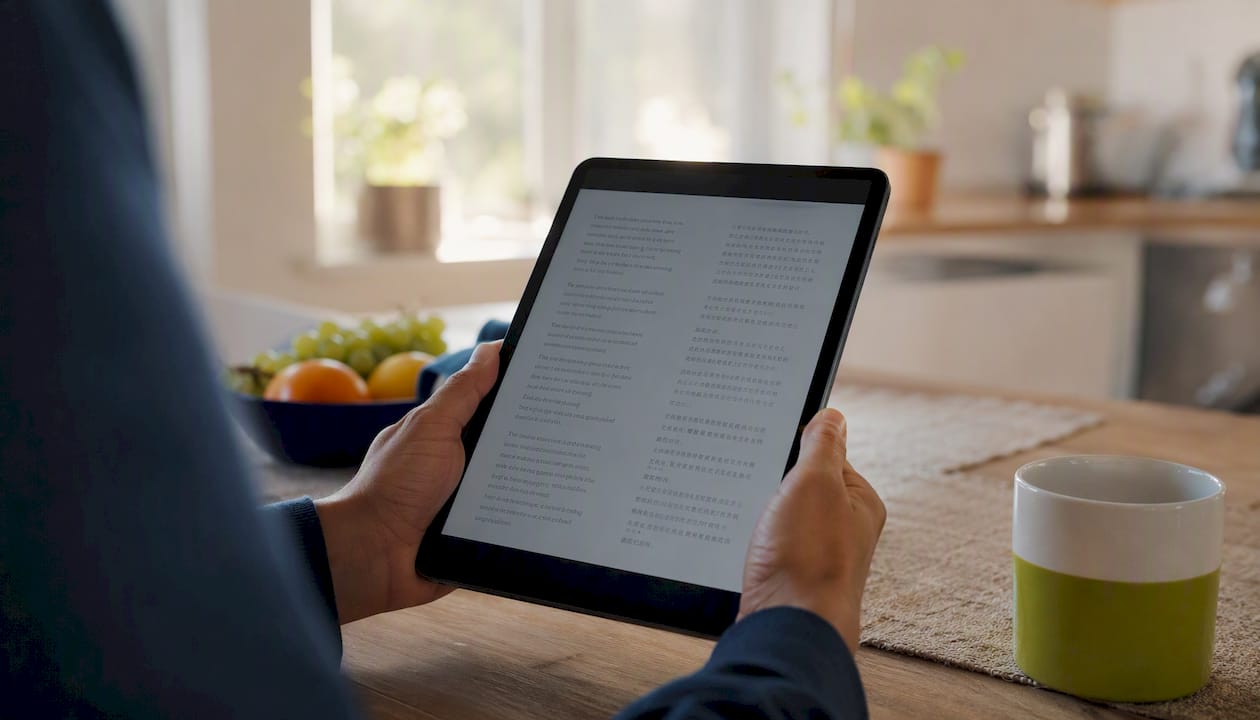
A bilingual reading mode displays a text in your target language alongside a translation so you can read and check meaning without breaking your flow. The most effective default for most learners is aligned side-by-side (parallel) display with on-demand popovers for challenging sentences. If you’re a beginner or intermediate learner, start there. Tools like WordByWord build on this foundation by adding instant word lookup, vocabulary capture, and spaced review directly inside your browser.
Quick orientation before diving in:
- Parallel/side-by-side: target language on the left, translation on the right, aligned by sentence or paragraph
- Interlinear: translation printed directly below each word or line
- Overlay/replace: original text replaced in place by a translation
- Popover/hover reveal: translation appears only when you hover or tap a word
- Audio-sync: bilingual subtitles or captions synced to spoken audio
CEFR levels matter here. Beginners (A1–A2) benefit most from full parallel display. Intermediate learners (B1–B2) can shift toward popovers. Advanced learners (C1–C2) often do best with popover-only or overlay modes that force them to process the target language first.
Table of Contents
- What does “bilingual reading mode” actually mean?
- Which bilingual reading mode fits your level and goals?
- How to use dual language reading to actually build vocabulary
- How to set up bilingual read mode on webpages, PDFs, and YouTube
- How WordByWord implements bilingual reading mode
- A practical one-week study plan using bilingual reading mode
- Key Takeaways
- Why integrated vocabulary capture changes everything about bilingual reading
- WordByWord turns bilingual reading into a full vocabulary system
- Useful sources for parallel texts and further reading
What does “bilingual reading mode” actually mean?
The phrase covers any reading setup that shows two languages at once, but the formats differ significantly in how they present that second language.
Parallel (side-by-side aligned) splits the screen into two columns or panels. The target-language text sits on one side; the translation mirrors it on the other, aligned at the sentence or paragraph level. Alignment is the key word: when a paragraph on the left matches the paragraph on the right, your eye can jump between them without losing your place. Misaligned parallel text, where the translation drifts ahead or behind, is genuinely harder to use than no translation at all.
Interlinear places the translation directly beneath each source word or line, like a gloss. It’s the format linguists use for grammar analysis, and it’s the fastest way to absorb word-level meaning. The tradeoff is that it fragments the reading experience, so it works better for short passages than for long-form reading.
Overlay/replace swaps the original text for the translation in the same position on the page. You see one language at a time, which creates a cleaner visual but removes the comparison benefit.
Popover/hover reveal keeps the target-language text intact and shows a translation only when you hover or tap a word. This is the least disruptive format for fluent reading. Research on bilingual storybooks confirms that parents naturally switch between these strategies depending on the child’s comprehension level, which mirrors how adult learners should think about mode selection.
Audio-synced bilingual subtitles combine reading with listening: the target-language subtitle appears alongside a translation, synchronized to the speaker’s voice. This is the video equivalent of parallel text.
Which bilingual reading mode fits your level and goals?
The right mode depends on three things: your proficiency, your material, and whether you’re studying intensively or reading for pleasure.
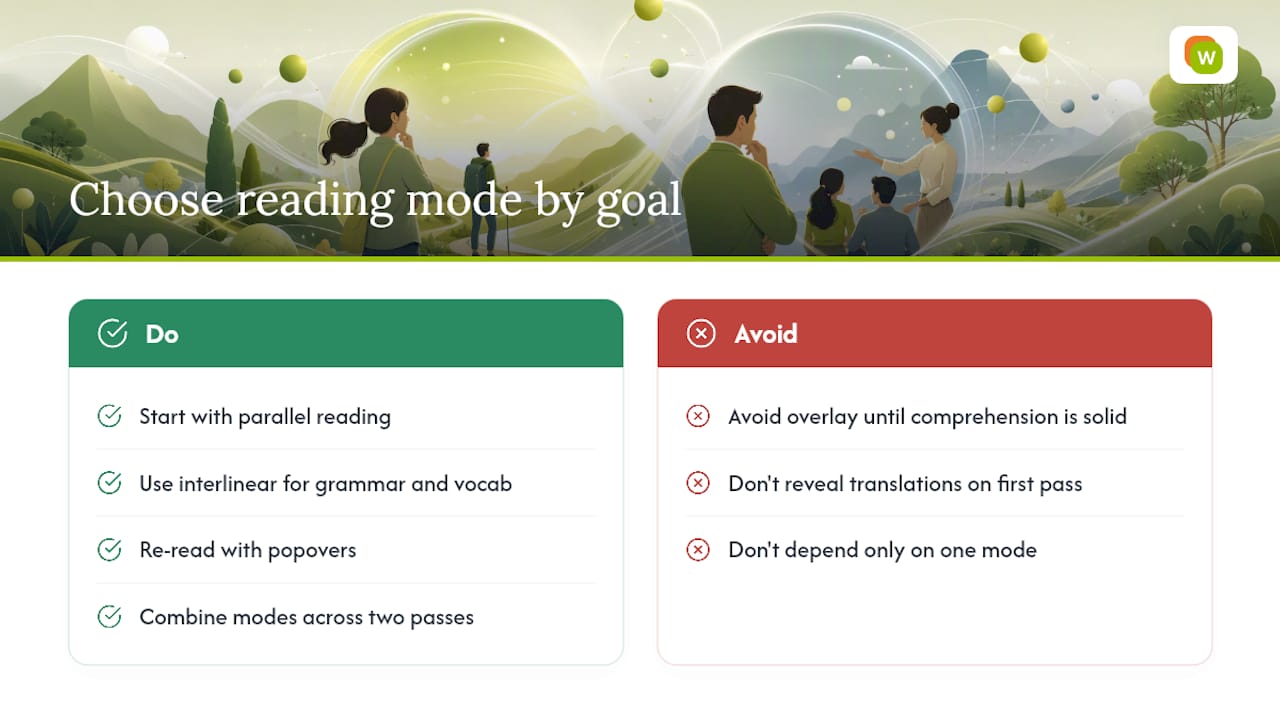
Parallel/side-by-side is the best default for steady comprehension and vocabulary extraction. Parallel and interlinear formats help intermediate learners bridge the gap between graded textbooks and native materials, because you can read interesting content at native level while checking difficulties immediately. Use it for articles, short stories, and any text where you want to build reading stamina.
Interlinear shines for vocabulary-heavy study and grammar analysis. If you’re working through a dense passage and want to understand every word’s role, interlinear alignment gives you that without requiring a dictionary lookup. It’s slower, but the comprehension is deeper.
Overlay/replace suits immersive practice sessions where you want to feel the rhythm of the target language without the visual crutch of a parallel column. The risk is that you lose the comparison benefit entirely, so use it only when your comprehension is already solid.
Popover/hover reveal is the advanced learner’s tool. Forcing yourself to attempt comprehension before revealing the translation builds the kind of active processing that sticks. Use it on a second or third pass through a text you’ve already read in parallel.
Audio-sync integrates listening and reading in a single session, which is particularly effective for pronunciation and prosody. It works best with video content and podcasts that have transcripts.
Pro Tip: Combine modes across passes. Read a new text in parallel first to build comprehension, then re-read it with popovers only to test retention. The two-pass method uses each mode for what it does best.
How to use dual language reading to actually build vocabulary
Reading in two languages is not the same as studying vocabulary. The difference is what you do with the words you notice.
- Shadowing with audio-sync — On a fourth pass (or a separate session), play the audio and read aloud with the bilingual subtitles. This locks pronunciation and sentence rhythm into muscle memory.
For text selection, starting with a book you already know in your native language is one of the most practical beginner strategies. You already know the plot, so your brain can focus on language rather than comprehension.
The intensive vs. extensive reading distinction matters here too. Intensive reading (short texts, deep analysis, every word captured) pairs well with parallel and interlinear modes. Extensive reading (longer texts, faster pace, fewer lookups) pairs better with popovers or overlay, where the translation is available but not constantly visible.
Pro Tip: Use aligned paragraph-level translation rather than full-page replacement on complex web pages. Full-page translation often breaks layouts and shifts paragraph positions, which destroys the alignment that makes parallel reading work.
How to set up bilingual read mode on webpages, PDFs, and YouTube
For browser pages:
- Install a bilingual reading extension from your browser’s extension store.
- Open the extension settings and select your language pair (e.g., Spanish → English).
- Choose your default mode: parallel/side-by-side or overlay.
- Set per-site rules if you want parallel mode on news sites but popover-only on social media.
- Reload the page and confirm alignment is working at the paragraph level.
For PDFs and ebooks:
- Open the PDF in a browser tab (most modern browsers render PDFs natively) and activate the extension.
- For scanned PDFs, convert to HTML first using a tool like Adobe Acrobat or a free OCR service, then apply the extension.
- Check whether the tool uses interlinear or paragraph alignment for PDFs — interlinear works better for dense academic text; paragraph alignment works better for narrative.
For YouTube and video:
- Enable bilingual subtitle mode through your extension’s settings, or use a dedicated YouTube language learning extension that syncs target-language and translation subtitles simultaneously.
- If the video has auto-generated captions, verify accuracy before relying on them for study.
Troubleshooting:
- If full-page translation breaks the layout, switch to paragraph-level or block-level translation. Dynamic pages with JavaScript-rendered content are especially prone to this.
- If translated segments don’t update after navigating within a single-page app, clear the extension’s cache or reload the tab.
How WordByWord implements bilingual reading mode
WordByWord operates as a browser extension that works across websites, PDFs, and YouTube, covering the three main surfaces where learners encounter target-language text.
Core reading features:
- Instant word and phrase lookup on hover or tap, without leaving the page
- PDF support for academic papers, ebooks, and downloaded articles
- YouTube subtitle integration for bilingual audio-sync reading
- Text-to-speech voiceover for pronunciation support during reading sessions
Vocabulary workflow:
- Highlight any word to save it to a personal collection
- AI-powered flashcards generated from saved words
- Spaced review built into the flashcard system
- CSV import/export for classroom sharing or backup
- Progress tracking that shows how your vocabulary is growing over time
Spotlight mode is the feature that sets WordByWord apart from a basic translation tool. It maps every word on a page by how well you know it, from unknown (highlighted) to mastered (no highlight). As you learn words, the highlights fade. This gives you an instant visual read on whether a text is at your level before you commit to reading it, and it turns progress into something you can see rather than just feel.
For teachers: WordByWord supports shared vocabulary collections, exportable word lists for homework assignments, and class-level progress tracking. A teacher can assign a target-language article, share a collection of key vocabulary, and check which words students are still struggling with after a week.
Pricing: WordByWord runs on a freemium model. The free tier covers core lookup and vocabulary features. The Premium subscription unlocks unlimited collections, advanced AI exercises, enhanced voiceover, and deeper personalization. There’s no commitment required to test the core features.
Pro Tip: Enable per-site rules in WordByWord to set paragraph-level alignment on complex news sites and full-page Spotlight mode on simpler blog posts. This prevents layout breakage on dynamic pages while keeping the vocabulary map active everywhere.
A practical one-week study plan using bilingual reading mode
Pick one text at your level of moderate length in your target language. A short news article or a chapter from a graded reader works well. Bilinguator offers a searchable library of bilingual books across many language pairs if you need a starting point.
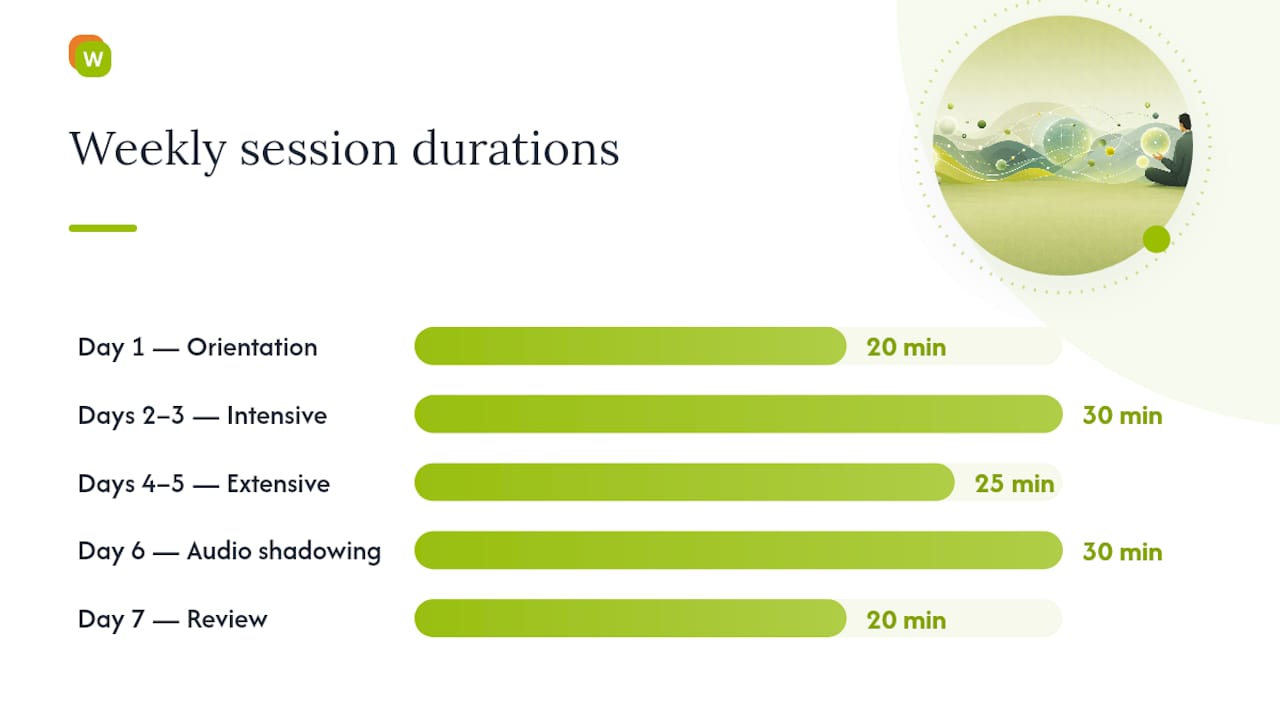
Day 1: Orientation and text selection (20 minutes)
- Read the target-language text once without any translation support.
- Note sentences where you lost meaning.
- Enable parallel mode and skim the translation side to confirm overall comprehension.
Days 2–3: Intensive passes (30 minutes each)
- Read sentence by sentence in parallel mode.
- Save 8–12 unknown words per session to your vocabulary collection.
- Create flashcards for each saved word immediately after the session.
Days 4–5: Extensive reading (25 minutes each)
- Switch to popover-only mode. Read the full text without stopping.
- Look up only words that block comprehension entirely.
- Aim for reading speed over precision.
Day 6: Audio-sync and shadowing (30 minutes)
- Find an audio version of the text or a related recording.
- Read along with bilingual subtitles or the parallel text open beside the audio.
- Shadow the speaker: read aloud at the same pace, matching rhythm and intonation.
Day 7: Review and flashcard consolidation (20 minutes)
- Run through all saved flashcards from the week.
- Note which words you still miss. Flag them for a second review cycle.
- Re-read the original text one final time in target-language-only mode.
Metrics to track: number of new words saved, flashcard review success rate, and reading speed in the target language (words per minute on the final read-through). For classroom use, teachers can assign Days 1–3 as homework, run Day 6 as a group shadowing exercise, and use Day 7 review data to identify shared vocabulary gaps.
Key Takeaways
Parallel side-by-side display with on-demand popovers is the most effective default bilingual reading setup for learners at A2–B2 level, combining comprehension support with active vocabulary capture.
| Point | Details |
|---|---|
| Default mode | Aligned parallel (side-by-side) display works best for A2–B2 learners reading new material. |
| Advanced practice | Switch to popover-only on second pass to force active comprehension before revealing translations. |
| Vocabulary capture | Save, review, and export words using spaced repetition to convert reading into long-term retention. |
| Setup tip | Use paragraph-level translation on complex pages to prevent layout breakage and preserve alignment. |
| WordByWord | Combines parallel lookup, Spotlight vocabulary mapping, flashcards, and YouTube/PDF support in one browser extension. |
Why integrated vocabulary capture changes everything about bilingual reading
Most bilingual reading tools stop at translation. That’s the gap worth talking about.
A parallel text shows you what a word means in context. That’s genuinely useful. But context alone doesn’t create retention. The research on spaced repetition is clear: you need to encounter a word multiple times, across varied contexts, with active retrieval in between. A tool that translates but doesn’t capture has done the easy half of the job.
Teachers feel this gap acutely. You can assign a bilingual article and trust that students will understand it. What you can’t verify is whether any of the vocabulary stuck. Exportable word lists and shared collections change that dynamic. When a student’s saved words are visible to the teacher, vocabulary instruction becomes data-driven rather than anecdotal.
For self-study learners, the Spotlight mode approach is worth taking seriously. Seeing highlights fade as you master words is not just motivating. It’s a calibration tool. If you open a new article and 40% of the words are highlighted, that text is probably too hard for extensive reading and better suited to an intensive session. If 10% are highlighted, you’re in the ideal extensive reading zone.
The conventional wisdom says “read more in your target language.” The more precise advice is: read at the right level, capture what you don’t know, and review it on a schedule. Bilingual reading mode is the delivery mechanism. The vocabulary system is what makes it stick.
WordByWord turns bilingual reading into a full vocabulary system
Reading a parallel text is a great start. What WordByWord adds is everything that happens after you encounter an unknown word: instant lookup without leaving the page, automatic saving to a personal collection, AI-generated flashcards, and spaced review that brings words back at the right intervals.

The Spotlight mode alone is worth the install. Open any target-language article and see immediately which words you know and which you don’t, color-coded directly on the page. Pick your language pair, enable Spotlight, and open any article in your target language. The extension works across websites, PDFs, and YouTube, so your study session isn’t limited to one content type.
The free tier covers core lookup and vocabulary features with no time limit. The Premium plan unlocks unlimited collections, advanced AI exercises, and enhanced voiceover for learners who want the full system. Install WordByWord from your browser’s extension store and run your first bilingual reading session in under two minutes.
Useful sources for parallel texts and further reading
Resources worth bookmarking, organized by what they offer:
- How are bilingual storybooks read? Parents’ language choice during …
- Bilingual Books – Learnlangs
- Free Spanish/English Parallel
- Parallel Texts (Dual Language)
- Bilinguator — online library of bilingual books
- Reading in a Foreign Language: The Key To Fluency? - Medium