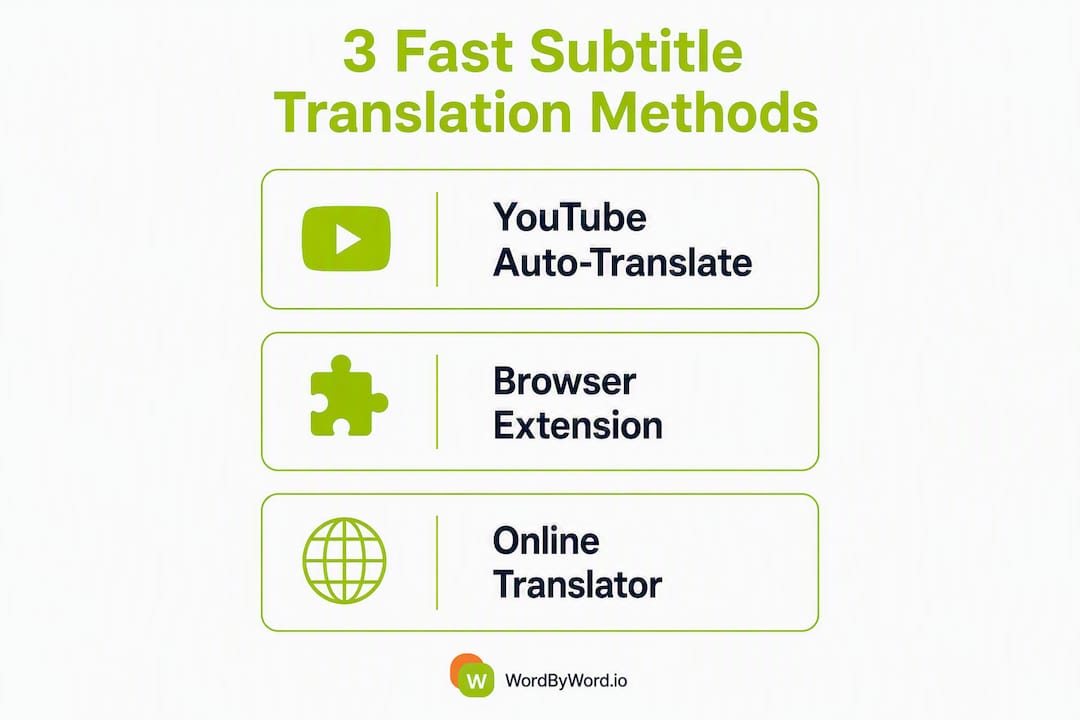
The fastest way to translate YouTube subtitles is to use YouTube’s built-in auto-translate feature, a browser extension with a live overlay, or an online subtitle translator that exports SRT files. Each method takes under two minutes to set up, and which one you pick depends on whether you want a quick watch, a study session, or a downloadable file.
Here’s when each method wins:
-
YouTube auto-translate: Best for a quick, no-install view in another language. Works in seconds if the video already has captions.
-
Browser extension overlay: Best for language learners who want dual subtitles, hover-to-translate, and vocabulary saving while watching.
-
Online subtitle translator / SRT exporter: Best when you need a downloadable SRT or VTT file, or you’re processing multiple videos at once.
One precondition applies to all three: the video needs an existing caption track. If there’s no CC button, you’ll need a tool with automatic speech recognition (ASR) to generate captions first. ASR works, but it’s slower and more error-prone than translating an existing track.
Table of Contents
-
How WordByWord turns subtitle translation into real vocabulary learning
-
WordByWord: translate and learn from YouTube without switching tabs
How do you translate YouTube subtitles step by step?
Three methods, three workflows. Here’s exactly how each one works.
Method A: YouTube’s built-in auto-translate
YouTube’s native feature is the fastest starting point. No installs, no accounts.
-
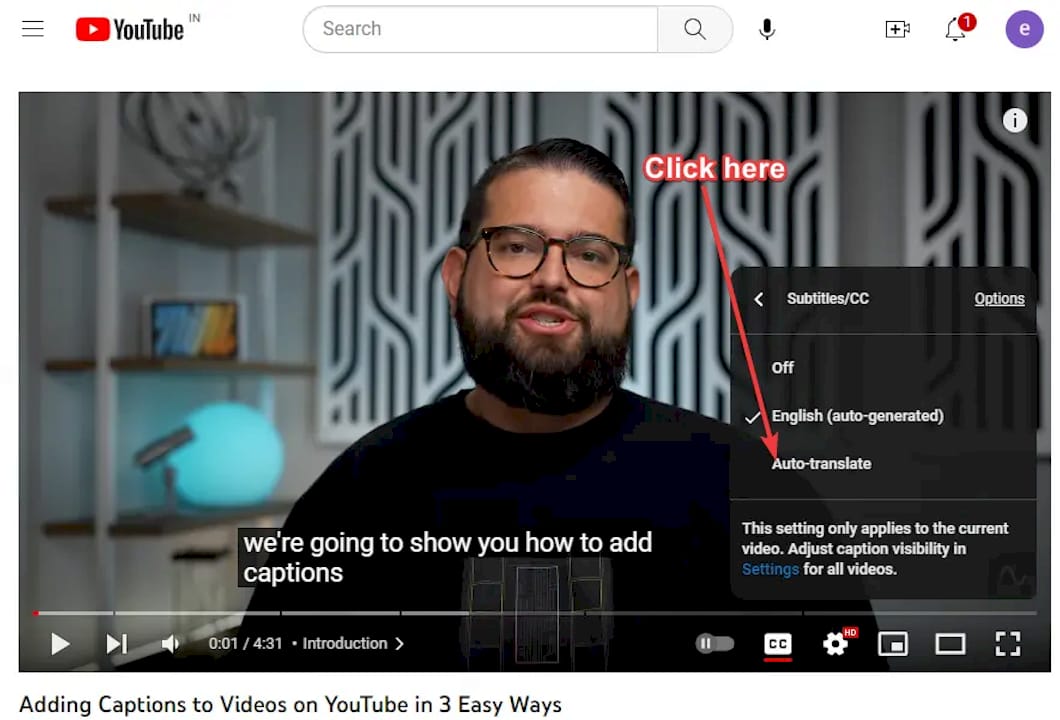
Open the video and click the CC (Subtitles/Closed Captions) button in the player controls.
-
Click the Settings gear icon (bottom right of the player).
-
Select Subtitles/CC, then choose Auto-translate.
-
Pick your target language from the list.
YouTube will overlay machine-translated captions in real time. If the CC button isn’t visible, the video may not have published captions. In that case, click the three-dot menu below the video and select Show transcript. You can copy the transcript text and paste it into any translation tool manually.
Method B: Browser extension with live overlay
Extensions give you dual-language subtitles and vocabulary tools that YouTube’s native player can’t match. The setup takes about 90 seconds.
-
Go to the Chrome Web Store or Firefox Add-ons and search for a YouTube subtitle translator extension.
-
Click Add to Chrome (or Add to Firefox) and confirm permissions.
-
Open any YouTube video. The extension’s toolbar or overlay should appear automatically.
-
Select your target language in the extension panel.
-
Toggle Dual subtitles to display the original and translation side by side.
-
Optional: enable text-to-speech (TTS) to hear pronunciation in both languages.
Open-source extension projects can show dual-language subtitles in real time with minimal delay, and some support TTS for both languages simultaneously. Some extensions also let you export captions as SRT files and offer local or cloud AI options for higher-quality output.
Method C: Online subtitle translator or SRT exporter
This is the right path when you need a file you can keep, share, or upload elsewhere.
-
Copy the YouTube video URL.
-
Paste it into an online subtitle translation tool (or upload an SRT you’ve already exported).
-
Select the source and target languages.
-
Let the tool auto-transcribe (if needed) and translate.
-
Review the output in the editor, then download the translated SRT, VTT, or TTML file.
Professional subtitle platforms let you upload a video or SRT, auto-transcribe and translate into multiple languages, review in an editor, and export with timestamps intact. For channel owners processing many videos, bulk automation tools can handle multiple languages at once.
Pro Tip: If a video has no CC button at all, open the three-dot menu under the video and select “Show transcript.” If no transcript appears either, you’ll need an ASR-based tool to generate one before any translation can happen. Expect lower accuracy on videos with heavy accents, background noise, or fast speech.


What accuracy and timing problems should you watch for?
Auto-translation is fast, but it’s not perfect. Knowing where it breaks down saves you from trusting a bad translation.
| Issue | When it happens | How to reduce it |
|---|---|---|
| ASR transcription errors | Poor audio, heavy accents, fast speech | Use videos with published (human) captions instead of auto-generated ones |
| Idiom and slang mistranslation | Casual speech, humor, cultural references | Manually correct key lines; use purpose-built subtitle tools |
| Technical term errors | Medical, legal, scientific content | Add a glossary or manually edit specialized vocabulary |
| Timestamp drift | Editing SRT files without timing-aware tools | Use subtitle-specific editors, not plain text editors |
| Privacy exposure | Cloud-based tools that send transcripts to third-party APIs | Check extension permissions; prefer tools with local processing options |
Generic text translators often miss context and timestamp data that subtitle-specific tools preserve. A purpose-built subtitle tool processes lines with awareness of surrounding cues, which produces more natural-sounding output. Pasting a raw transcript into a general-purpose translator strips the timing entirely.
For technical content, machine translation accuracy drops noticeably, and a quick manual review of domain-specific terms makes a real difference.
Pro Tip: Before translating, switch the video to its highest available quality and enable the original subtitles (not auto-generated ones). Even a few manual corrections to technical terms in the source transcript will cascade into a cleaner translation throughout.
Which method fits your situation?
| Method | Speed | Accuracy | SRT export | Learning features |
|---|---|---|---|---|
| YouTube auto-translate | Instant | Machine only | No | None |
| Browser extension overlay | Instant | Machine (API upgrades available) | Some extensions | Dual subtitles, hover-translate, vocab saving |
| Online subtitle translator | 1–5 minutes | Machine + editor review | Yes | Limited |
The decision usually comes down to one question:
-
Quick watch? Use YouTube’s auto-translate. It’s already built in and takes three clicks.
-
Studying a language? Use a browser extension with dual-subtitle display and hover-to-translate. The side-by-side view lets you compare the original and translation line by line without losing your place.
-
Publishing or sharing translations? Use an online subtitle translator that exports SRT or VTT files. For creators with many videos, bulk automation tools that work with YouTube Studio are far more efficient than exporting and importing files one by one.
How WordByWord turns subtitle translation into real vocabulary learning
Translating a subtitle tells you what a word means once. WordByWord makes that word stick.
The extension works directly inside YouTube. When you hover over any word in the subtitles, you get an instant translation without pausing or switching tabs. Words you want to keep go straight into a personal vocabulary collection with one click. From there, smart flashcards and an AI trainer turn those saved words into long-term knowledge through spaced repetition and active recall.
Key features for YouTube learners:
-
Instant hover translation on any subtitle word, across 50+ languages
-
Dual-subtitle support to compare original and translated lines side by side
-
Vocabulary saving directly from the video into organized collections
-
Smart flashcards and AI-powered exercises for retention after the session
-
Progress tracking and CSV export so you can see what you’ve learned and take it anywhere
WordByWord runs on a freemium model. The free tier covers core translation and vocabulary features. The paid plan unlocks unlimited collections, enhanced voiceover, and AI-powered exercises for learners who want the full workflow.
The difference between WordByWord and a one-off translation tool is the loop: you watch, you save, you practice. Learning-focused features like dual subtitles, hover-to-save, and flashcards convert passive viewing into active study, which research consistently links to better retention than single-exposure translation. Watching a video with translated captions is useful. Watching it while building a vocabulary list you’ll review tomorrow is how fluency actually grows.
Key Takeaways
YouTube’s built-in auto-translate is the fastest option for a quick watch, but a browser extension with dual subtitles and vocabulary saving is the most effective method for language learners who want lasting results.
| Point | Details |
|---|---|
| Fastest method | YouTube’s auto-translate takes three clicks and requires no install. |
| Best for learning | A browser extension with dual subtitles and hover-to-translate turns watching into active study. |
| Best for exporting | Online subtitle translators preserve timestamps and export SRT or VTT files for sharing or uploading. |
| Accuracy limits | ASR and machine translation struggle with accents, idioms, and technical terms — manual review helps. |
| WordByWord advantage | Combines instant hover translation, vocabulary saving, and AI flashcards directly inside YouTube for retention-focused learners. |
The part most translation guides skip
The most common mistake learners make with subtitle translation is treating it as a comprehension shortcut rather than a learning tool. You watch a video in French with English subtitles, you follow the plot, and you feel like you learned something. You probably didn’t, at least not much.
The research on language acquisition is consistent on this: passive exposure to translated text produces weak retention. What works is the moment of noticing, the instant you encounter an unfamiliar word, look it up, and then encounter it again in a slightly different context. That’s the loop that builds vocabulary.
Dual subtitles help because they force you to hold both versions in your head at once, rather than just reading the translation and ignoring the original audio. Hover-to-translate helps because the friction of looking something up is low enough that you’ll actually do it. Flashcard review the next day helps because spaced repetition is one of the most replicated findings in memory research.
The tools that combine all three steps inside a single workflow, watching, saving, and reviewing, are genuinely more useful than the ones that only handle the translation step. That’s not a knock on YouTube’s auto-translate. It does exactly what it promises. But if you’re learning a language, the translation is the beginning of the work, not the end of it.
WordByWord: translate and learn from YouTube without switching tabs
Most subtitle translation tools stop at the translation. WordByWord goes further: you watch, hover over any word you don’t know, save it to your vocabulary collection, and practice it with AI-powered flashcards, all without leaving YouTube.

That’s the concrete difference for language learners. You’re not just reading a translated caption and moving on. You’re building a personal vocabulary list from real content you actually chose to watch, then reinforcing it with exercises designed around how memory works. The free plan gets you started with core translation and vocabulary features. The paid tier removes limits on collections and adds enhanced voiceover and AI-generated exercises for learners who want the full loop.
Install WordByWord free and try it on the next YouTube video you watch in your target language.
Useful sources and official documentation
The sources below are worth bookmarking if you want to go deeper on any part of this workflow.
| Source | Best for |
|---|---|
| YouTube Help: Add subtitles & captions | Official steps for enabling, editing, and publishing captions in YouTube Studio |
| HoverTranslate on Firefox Add-ons | Extension features: hover translation, vocabulary export, and CC requirements |
| YouTube Translate & Speak on Chrome Web Store | SRT export, bilingual overlays, and TTS options for Chrome users |
| Subtitle Auto-Translator on Chrome Web Store | Bulk translation workflow for YouTube Studio and channel owners |
| Subly subtitle translator | Upload-and-export workflow for SRT/VTT/TTML with editor review |
| WordByWord language learning blog | Tutorials on hover translation, dual subtitles, and vocabulary-building workflows |
For bulk channel translations, start with the Subtitle Auto-Translator documentation. For SRT editing and timestamp accuracy, Subly’s editor is the most practical reference. For privacy details on any extension, check its Chrome Web Store or Firefox Add-ons permissions page before installing.