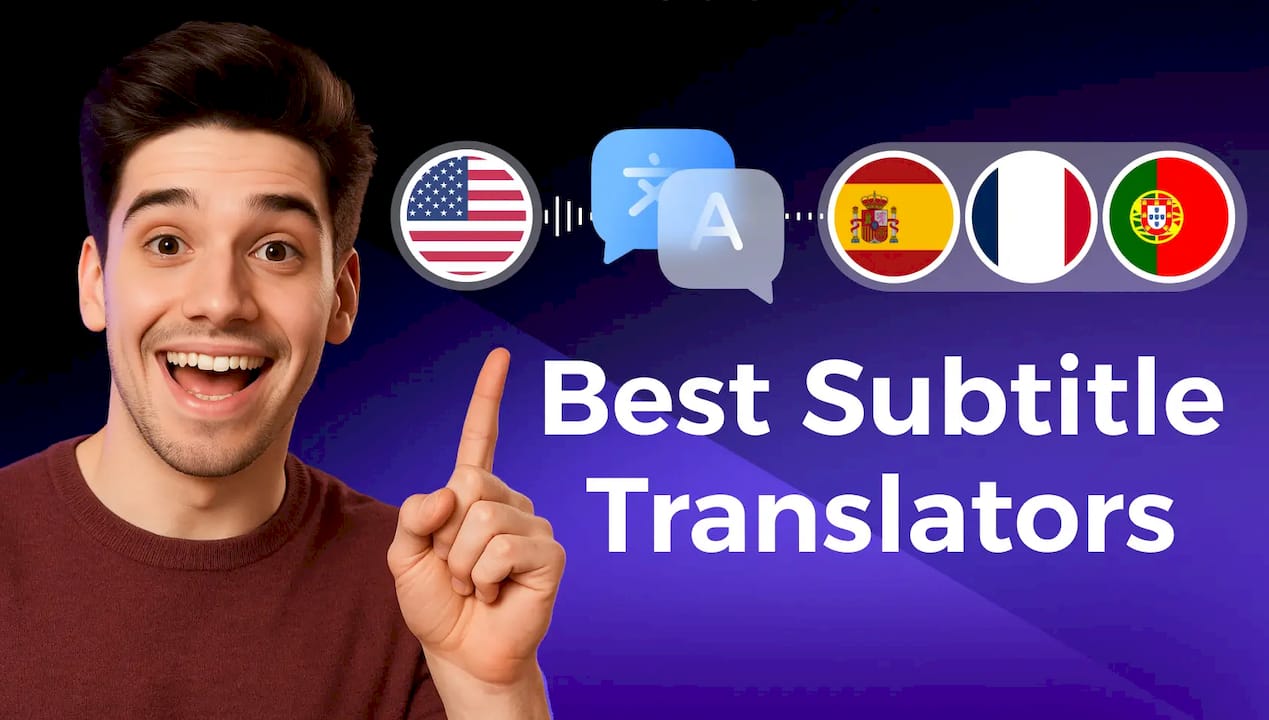
Yes — you can display two subtitle languages on YouTube simultaneously. YouTube’s built-in player only shows one caption track at a time, so you need either a browser overlay extension or a system-wide caption app to get both languages on screen. The fastest free option is a Chrome/Edge overlay extension that reads the existing captions and renders a translated line underneath. For learners who want vocabulary tracking, flashcards, and deeper study features built into the same workflow, WordByWord is the stronger pick.
Quickest setup:
-
Browser overlay extension: install from the Chrome Web Store, open a YouTube video, enable captions, and the extension adds the second language automatically.
-
WordByWord: install the extension, open YouTube, and enable the subtitle integration to get instant word lookups alongside your bilingual subtitles.
Key trade-offs at a glance:
-
No-install vs. extension: System-wide caption apps work without a browser extension but require a desktop app download; browser extensions are one-click installs.
-
Works without creator captions: System-level apps generate captions from audio, so they work on any video. DOM-based overlays depend on an existing caption track.
-
Privacy/permissions: Extensions request access to page content; review every permission prompt before installing.
Dual subtitles on YouTube are not a native feature — every method here adds a layer on top of the player. Knowing which layer fits your setup saves you from installing three tools before finding one that works.
Key Takeaways
YouTube’s built-in player cannot show two subtitle tracks at once — every dual-subtitle method adds an overlay layer, and the right layer depends on whether you want quick access or a full study workflow.
| Point | Details |
|---|---|
| YouTube has no native dual-track | Every bilingual subtitle method requires a browser extension, web app, or system-wide caption tool. |
| Browser overlays are fastest | Chrome/Edge extensions install in one click and work on any captioned video with no account required. |
| System apps handle uncaptioned video | Audio-capture apps generate captions from any video, including live streams, with sub-second latency. |
| Mobile support is limited | No extension-based method works on iOS or Android; web app players and system audio apps are the closest alternatives. |
| WordByWord adds study features | Beyond a second language line, WordByWord tracks vocabulary, runs flashcards, and integrates SRS directly into YouTube watching. |
Table of Contents
-
How do browser overlay extensions work for dual subtitles on YouTube?
-
API-enabled bilingual extensions: when are they worth the extra setup?
-
Web apps and system-wide caption apps: the no-extension alternative
-
Troubleshooting dual subtitles: fixes for the most common problems
-
Which method should you pick for learning a language on YouTube?
Why dual subtitles help language learners
Seeing two languages at once lets you map spoken phrases to their translations in real time, without pausing the video. That direct, in-context connection speeds vocabulary acquisition faster than looking words up separately, because the meaning arrives while the audio is still fresh.
The core benefits for learners:
-
Contextualized input: You see grammar and phrasing in a real sentence, not a dictionary entry.
-
Phrase-level mapping: Whole expressions translate together, so you pick up idioms, not just isolated words.
-
Reduced pausing: You stay in the flow of the video instead of stopping every few seconds.
-
Listening comprehension: Matching the spoken line to the written translation trains your ear and your eye simultaneously.
-
Vocabulary acquisition: New words appear in context repeatedly across a video, reinforcing retention.
Pro Tip: Try scanning the translation line first to get the meaning, then shadow the original-language line aloud. This two-pass technique builds both comprehension and pronunciation in a single viewing.
One real limit: if both subtitle lines are large, high-contrast, or poorly positioned, the visual load can compete with the video itself. Keep the secondary line smaller and slightly transparent so it reads as a reference, not a headline.
How do browser overlay extensions work for dual subtitles on YouTube?
Browser overlay extensions are the fastest desktop method. Install one in Chrome, Edge, or any Chromium-based browser, and it handles everything inside the tab — no separate app, no account required.
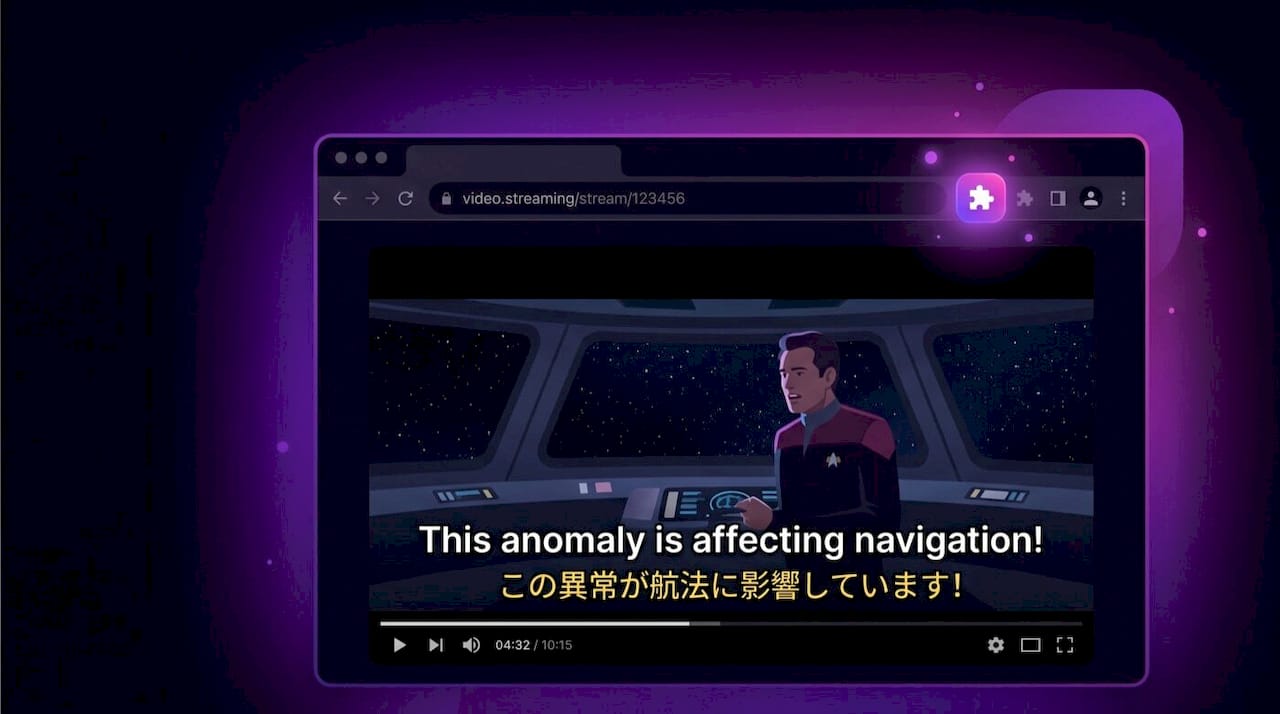
Under the hood, these extensions extract caption text from the page DOM in real time, send it to a translation service, and render a floating second line directly over the YouTube player. Most offer options to hide the native captions so you only see the overlay, and many let you drag the overlay to reposition it.
Step-by-step setup
-
Open the Chrome Web Store (or the Microsoft Edge Add-ons store) and search for a dual-subtitle or bilingual subtitle extension.
-
Click “Add to Chrome” (or “Get” in Edge) and confirm the permission prompt.
-
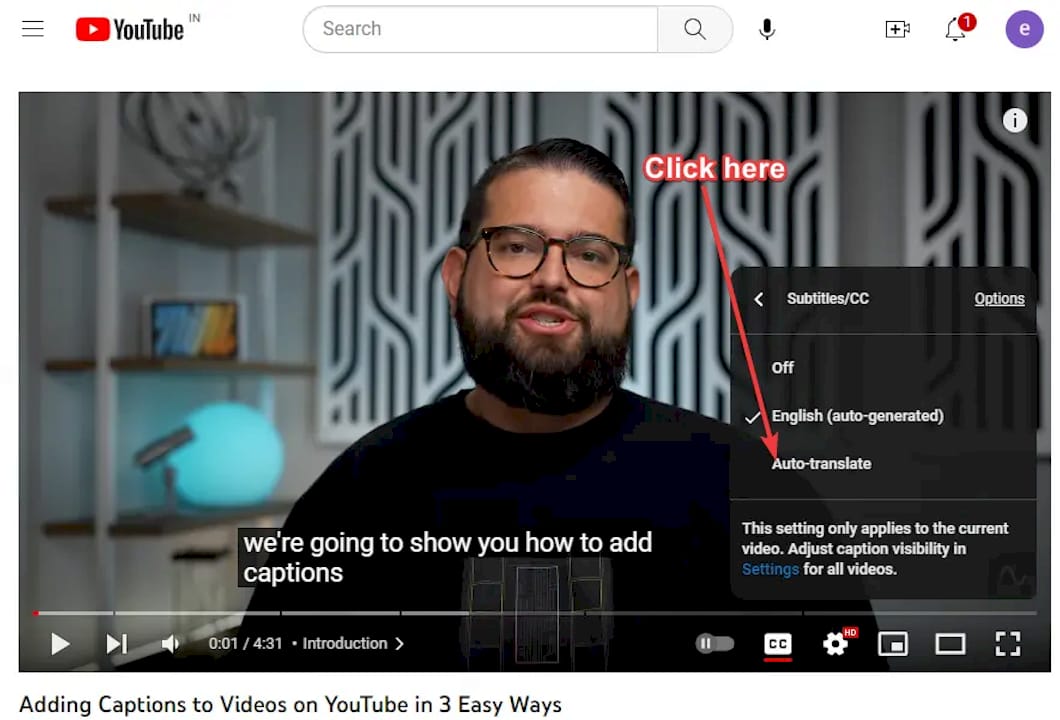
Open a YouTube video and turn on captions using the CC button in the player.
-
Click the extension icon in your toolbar and select your primary language (the video’s original language) and secondary language (your target or native language).
-
The overlay appears below the native captions. Drag it to your preferred position and adjust font size and opacity in the extension settings.
-
Optional: hide the native YouTube captions in the player settings to avoid seeing the same line twice.
Common gotchas
-
Duplicated captions: If you leave native captions on and the overlay also shows the original language, you’ll see the same line twice. Turn off native captions in the YouTube player.
-
Timing mismatches: DOM-based overlays read captions as they appear on screen, so a slight delay between the audio and the overlay is normal. Most extensions have a manual sync offset setting.
-
UI conflicts: The overlay can cover the progress bar or volume controls. Use the draggable handle to move it above the timeline.
-
Permission prompts: The extension needs access to YouTube’s page content to read captions. This is expected behavior — but read the prompt carefully before clicking “Allow.”
-
Firefox support: Most of these extensions are built for Chrome/Edge APIs. Firefox support varies; check the extension’s listing for an explicit Firefox-compatible version.
The second language stays readable without competing with the video or the primary line.
API-enabled bilingual extensions: when are they worth the extra setup?
Some extensions go beyond basic DOM extraction and let you connect your own API key from providers like OpenAI, Gemini, or Claude. The translation quality is noticeably better for complex sentences, idiomatic speech, and lower-resource languages.
Setup steps
-
Install the extension from the Chrome Web Store (search for “YouTube bilingual subtitle translator” or similar).
-
Open the extension settings and locate the API provider field.
-
Enter your API key from your chosen provider. Many extensions store this key locally, meaning it never leaves your browser — check the extension’s privacy policy to confirm.
-
Set your source and target languages, then open a captioned YouTube video to test.
-
If the translation looks off on the first video, try a different provider or adjust the prompt settings if the extension exposes them.
When this method makes sense
-
You’re studying a language where machine translation quality varies widely (Japanese, Arabic, Korean).
-
You want custom styling, export options, or the ability to switch providers without reinstalling.
-
You’re comfortable managing an API key and reviewing what data the extension sends.
A short privacy note: extensions that call external APIs send caption text to a third-party server. That’s the trade-off for better quality. Prefer extensions that store your API key locally and clearly describe their server-side behavior. Firefox’s permission-request documentation explains what each permission type actually grants — worth reading before you install anything that touches page content.
Web apps and system-wide caption apps: the no-extension alternative
Browser overlay extensions depend on an existing caption track. If the creator didn’t upload captions, or if you’re watching a live stream, they fall short. System-wide caption apps solve this by capturing audio directly and generating captions on the fly.
How these apps work:
-
They capture system audio (or browser audio) from your device.
-
A speech recognition engine transcribes the audio in near real time.
-
A translation layer adds the second language.
-
Both lines display as a floating overlay that sits on top of any window — the YouTube player, an embedded video, or a live stream.
System-level caption apps can generate AI captions from audio and display original plus translation simultaneously, including on videos with no creator captions. Some implementations advertise live-stream latency in the sub-second range and cover many languages — which makes them the more reliable option for live content compared with DOM-based overlays.
Compatibility notes
-
Desktop: Works across Chrome, Firefox, Safari, and Edge because the overlay sits at the OS level, not inside the browser.
-
Embedded players: Works on any video embedded in a webpage, not just YouTube.
-
Mobile: Most system-wide apps are desktop-only. A few have mobile counterparts, but iOS and Android restrictions on audio capture limit what’s possible.
| Feature | Browser overlay extension | System-wide caption app |
|---|---|---|
| Works without creator captions | No | Yes |
| Cross-browser support | Chrome/Edge primarily | All browsers |
| Live stream support | Limited | Yes |
| Cost shape | Usually free | Free trial, then subscription |
Paid tiers on system-wide apps typically unlock faster processing, more languages, and export options. For heavy learners watching hours of content weekly, the subscription cost is often worth it. Casual viewers can usually stay on a free tier.
How do you get dual subtitles on mobile?
Mobile is the hardest environment for bilingual subtitles on YouTube. Neither iOS nor Android supports browser extensions, and the YouTube app doesn’t expose a dual-track option. That said, a few workarounds get you close.
Mobile workarounds
-
Use a system audio caption app with a mobile version. Some apps that generate captions from audio have iOS or Android versions. Open YouTube in the app, play the video, and the caption app overlays both languages on top.
-
Picture-in-picture plus a second device. Enable PiP on your phone, then use a tablet or laptop alongside it to display the translation. Not elegant, but it works for focused study sessions.
-
Mobile web browser with a compatible web app. A handful of web-based dual-subtitle tools run in mobile Chrome or Safari without requiring an app install. Open the tool’s website, paste the YouTube URL, and watch inside the web app’s player.
Compatibility notes
-
iOS: App Store restrictions prevent browser extensions entirely. Your options are system audio apps with iOS versions or web-based players.
-
Android: More flexibility — some Android browsers support limited extension-like functionality, and system audio apps are easier to install.
-
Mobile Safari/Chrome: Neither supports Chrome Web Store extensions. Web app players are the most reliable mobile route.
Pro Tip: On Android, split-screen mode lets you run a translation app alongside the YouTube app. It’s not a true overlay, but for short study clips it’s a practical substitute.
Troubleshooting dual subtitles: fixes for the most common problems
Most issues with bilingual subtitles on YouTube come down to four categories: timing, duplicates, UI conflicts, and permissions. Here’s the fastest path through each.
Timing mismatches
-
Open the extension settings and look for a “subtitle delay” or “sync offset” slider.
-
If the overlay consistently runs behind the audio, increase the offset by 200–300 ms and retest.
-
DOM-based overlays read captions as they render on screen, so a small lag is structural, not a bug.
Duplicate captions
-
Turn off native YouTube captions (click CC in the player, then select “Off”).
-
The overlay will show both languages; the native track is no longer needed.
UI conflicts and covered controls
-
Drag the overlay above the progress bar, not below it.
-
Reduce font size so the overlay doesn’t span the full player width.
-
If the overlay is stuck behind the player, try refreshing the page with the extension active.
Extension not loading
-
Confirm captions are enabled in the YouTube player before the extension can read them.
-
Check that the extension has permission to run on YouTube specifically — some installs default to “on click” mode rather than running automatically.
-
For persistent issues, Mozilla’s add-on developer documentation covers how to report extension conflicts and where to find support channels.
Privacy and permissions
-
Every overlay extension requests access to page content on YouTube. That’s necessary for DOM extraction.
-
Prefer extensions that process translations locally or clearly state they don’t log caption text.
-
If an extension requests access to “all websites” rather than just YouTube, that’s a broader permission than it needs — consider a more scoped alternative.
Before installing any extension, open its Chrome Web Store or Edge Add-ons listing and read the “Privacy practices” section. An extension that reads page content on every site you visit has a much larger data footprint than one scoped to YouTube alone.
Verification sequence after setup:
-
Open a YouTube video with known captions (a popular English video works well for testing).
-
Enable captions in the player.
-
Open the extension and confirm both languages are selected.
-
Play 10 seconds of video and confirm both lines appear.
-
Pause the video — both lines should hold on screen.
-
Check that the overlay doesn’t cover the timeline or volume slider.
Which method should you pick for learning a language on YouTube?
The right choice depends on how you watch and what you want to get out of it.
Quick recommendation: if you’re watching casually and just want a second language line without setup friction, a free browser overlay extension is enough. If you’re doing focused study — building vocabulary, reviewing words later, or working through a playlist systematically — WordByWord gives you the tools to turn watching into actual learning.
| Goal | Best method | Key trade-off |
|---|---|---|
| Quick casual watch | Free browser overlay | No learning features, depends on creator captions |
| Active vocabulary study | WordByWord | Requires extension install |
| Videos without captions | System-wide caption app | Subscription cost for full features |
| Mobile watching | Web app player or mobile caption app | Limited overlay control |
| Classroom or playlist use | WordByWord | Best cross-video vocabulary tracking |
Trade-offs in plain terms:
-
Ease: Free browser overlays win on setup speed. One install, no account.
-
Works without captions: Only system-wide audio apps handle uncaptioned videos reliably.
-
Mobile support: No method is seamless on mobile; web app players come closest.
-
Learning features: Instant word lookup, flashcards, and spaced repetition exist only in dedicated learning extensions like WordByWord.
-
Cost: Free overlays cost nothing. System-wide apps typically run on a subscription. WordByWord has a free tier with core features and a Premium plan for unlimited collections and AI-powered exercises.
For learners who want to do more than watch, the overlay-only approach hits a ceiling fast. You can see the translation, but you can’t save a word, review it later, or test yourself on it. That gap is where WordByWord earns its place.
Why WordByWord stands out for YouTube language learning
WordByWord combines bilingual subtitle support with a full vocabulary study system, so you’re not just watching with two languages on screen — you’re building a word bank as you go.
Core features for YouTube learners:
-
Instant translation on hover: Click or hover over any word in the subtitle to get an immediate translation without pausing.
-
Spotlight vocabulary mode: Words are highlighted based on how well you know them, so unfamiliar terms stand out visually while you watch.
-
Smart flashcards and spaced repetition (SRS): Words you save from YouTube subtitles feed directly into a review queue.
-
YouTube subtitle integration: Works across Chrome and Edge with YouTube’s caption system, supporting over 50 languages.
-
Vocabulary collections: Build personalized word lists from any video, exportable as CSV for use in other tools.
-
AI-powered exercises: The Premium plan generates practice exercises from your saved vocabulary.
Setting up WordByWord with YouTube
-
Install the WordByWord extension from the Chrome Web Store or Edge Add-ons.
-
Open YouTube and navigate to a video with captions.
-
Enable captions in the YouTube player.
-
Click the WordByWord icon and select your target language.
-
Enable the YouTube subtitle integration in the extension settings.
-
Hover over any subtitle word to see an instant translation; click to save it to your vocabulary collection.
Use cases:
-
Self-study sessions: Watch a video once for comprehension, then review saved words with flashcards immediately after.
-
Classroom playlists: Teachers can assign YouTube videos and have students build vocabulary collections from the same content.
-
Repeat listening: Play a segment multiple times, using the Spotlight mode to track which words you’ve mastered across viewings.
Pro Tip: Pair WordByWord’s hover translation feature with dual subtitles for a two-layer approach: the second language line gives you the sentence meaning, and hover translation gives you word-level precision when something doesn’t click.
A perspective from the WordByWord team
Most learners who try dual subtitles for the first time treat the second language line as a crutch — something to glance at when they’re lost. That’s a reasonable starting point, but it undersells what the setup can do.
The real value shows up when you stop reading the translation and start noticing when you don’t need it. That shift — from relying on the second line to catching yourself understanding without it — is one of the clearest signals of actual progress. A plain overlay extension won’t tell you when that’s happening. A tool that tracks which words you’ve seen, saved, and reviewed will.
The learners who get the most out of bilingual subtitles are the ones who treat each video as a vocabulary session, not just entertainment. The method matters less than the habit. Pick a setup you’ll actually use consistently, and the language acquisition follows.
WordByWord: free to start, built for serious learners
Most browser overlay extensions give you a second language line and nothing else. WordByWord gives you that plus a full vocabulary system built around your YouTube watching.

The free plan includes core translation, instant word lookup on YouTube subtitles, and basic vocabulary collections — enough to see whether the workflow fits how you study. The Premium plan unlocks unlimited collections, AI-powered exercises, enhanced voiceover, and advanced personalization across all 50+ supported languages.
For learners who watch YouTube regularly and want each session to count toward real fluency, WordByWord turns passive viewing into active study without adding a separate app or a separate study block to your day. Install WordByWord and enable YouTube integration in under two minutes.
Sources
Extension resources and setup:
Browser permissions and extension safety:
Further reading: