For self-directed language learners, the best subtitle translators are browser extensions that combine on-page translation, one-click vocabulary saving, and built-in spaced repetition. WordByWord does all three inside your normal browsing session. No separate app, no copy-pasting into Anki, no broken workflow. You watch, you save, you review. That loop, anchored by an FSRS-style scheduling algorithm and sentence-level context capture, is the fastest path from first encounter to lasting retention. CEFR level doesn’t matter much here: the approach works whether you’re at A2 or B2, because the content you choose sets the difficulty, not the tool.
Key Takeaways
The fastest path from subtitle encounter to long-term retention is a single integrated tool that translates, saves sentence context, and schedules reviews automatically.
| Point | Details |
|---|---|
| Integrated workflow wins | Choose a tool that translates, saves context, and runs SRS review without requiring a separate app. |
| Context capture is critical | Flashcards built from full subtitle sentences outperform isolated word lists for collocation and recall. |
| Check permissions early | Limit extension access to active tab only; confirm CSV export exists before committing to any tool. |
| Free tier is enough to start | Core translation and saving features are available without paying; upgrade when you hit collection limits. |
| WordByWord fits this job | WordByWord covers the full subtitle-to-SRS loop across 50+ languages with Spotlight mode and seven review modes. |
Table of Contents
-
What should you check for privacy and compatibility before installing?
-
WordByWord turns your YouTube sessions into a vocabulary system
What do the best subtitle translators actually do?
The feature set separates tools that genuinely build vocabulary from ones that just display a translation and disappear. Before you install anything, check for all of the following:
-
Dual/bilingual subtitle overlay — target and native language on screen simultaneously, so you read in context rather than pausing to look things up
-
Click-to-translate or hover-to-translate — instant popup with the word’s meaning, part of speech, and example sentence, without leaving the video
-
One-click save-to-vocab with sentence context — the saved flashcard carries the full subtitle line and a timestamp, not just the isolated word
-
Built-in flashcards with SRS scheduling — reviews come back at the right interval, not whenever you remember to open a separate app
-
Transcript panel with export — SRT, TXT, or CSV so you can study offline or back up your progress
-
Pronunciation audio and phonetic transcription — critical for tonal languages and for training listening recognition alongside reading
-
Adjustable subtitle styling — font size, position, and color so the overlay doesn’t block the video
-
AI-transcription fallback — when a video has no native captions, the tool generates them rather than leaving you with a blank subtitle bar
Context capture is the feature most learners underestimate. Saving a word in isolation (“ephemeral”) gives you a definition. Saving it with the subtitle sentence gives you a collocation, a register signal, and a memory hook tied to something you actually watched. That difference compounds over hundreds of saved words.
Pro Tip: Prioritize extensions that attach the subtitle sentence and video timestamp to every flashcard. When you review three weeks later, you can jump back to the exact moment in the video and rehear the word in the original context.
How do you set up a subtitle translator on YouTube?
Getting from zero to first review session takes about 15 minutes. Here’s the sequence:
-
Install the extension from the Chrome Web Store (or your browser’s equivalent). Grant only the permissions the tool actually needs: active tab access and, if you want cloud sync, storage permission.
-
Open a YouTube video in your target language. Click the CC button to confirm native captions are available, or let the extension’s AI-transcription fallback generate them.
-
Enable the dual subtitle overlay in the extension’s settings panel. Set your native language as the translation target.
-
Hover or click any word in the subtitle to see the popup translation. Read the example sentence before saving.
-
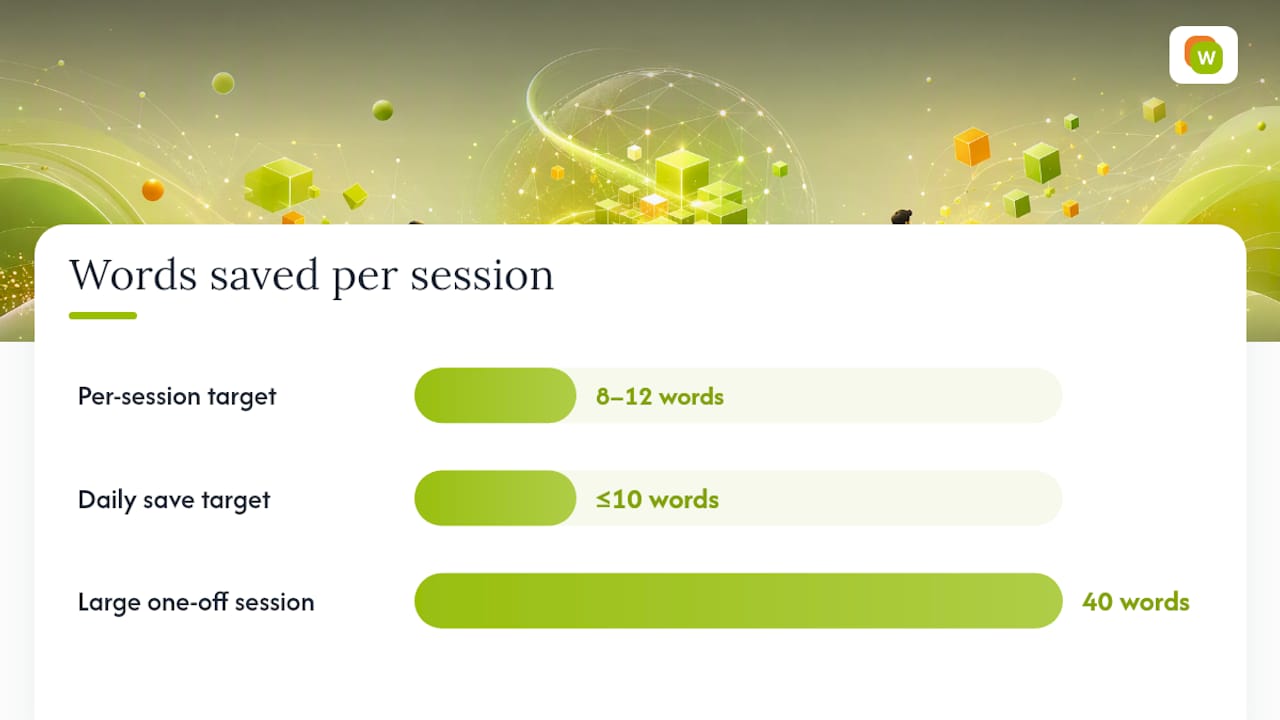
Save 8–12 words to a named collection (e.g., “Spanish cooking vocab” or “French news”). Don’t save everything; aim for words you almost know.
-
Open the transcript panel to scan the full video text and catch any words you missed during playback.
-
Run your first flashcard review immediately after the session, while the video is still fresh. Even five minutes of review locks in the first repetition.
A few things to set up before your second session:
-
Enable CSV or Anki export so your vocabulary is never locked inside one app
-
Turn off autoplay on YouTube to avoid drifting into a second video before reviewing
-
Tag each collection by topic or difficulty so you can filter reviews later
Pro Tip: During your first few sessions, use focus mode or close other tabs. The goal is deliberate saving, not passive watching. Passive watching builds listening fluency; active saving builds vocabulary.
Why do built-in flashcards and spaced repetition matter?
The short answer: without scheduled review, most new words are gone within a week. The mechanism behind spaced repetition, spacing out reviews at increasing intervals based on how well you recalled a word, is one of the most replicated findings in memory research.
Video-based input makes the initial encounter richer. A systematic review following PRISMA 2020 guidelines analyzed 13 studies on YouTube and vocabulary learning and found that YouTube videos provide context-rich input that supports both acquisition and learner motivation. A separate controlled classroom study found that students who watched YouTube clips during instruction outperformed a control group on vocabulary post-tests. The encounter quality matters, but it doesn’t replace review.
What FSRS-style scheduling adds is precision. Rather than reviewing every word on the same fixed schedule, the algorithm adjusts each word’s next review date based on your actual recall performance. Words you know well come back less often; words you keep forgetting come back sooner. Pair that with context-linked flashcards, and reviews feel like mini-clips rather than rote drills.
The practical benefits of an integrated subtitle-to-SRS workflow:
-
Words saved with sentence context produce richer collocation learning than isolated word lists
-
Timestamp links let you return to the source video for a full-context rehear
-
Built-in review removes the friction of exporting to a separate app, which most learners skip
-
Customizable SRS scheduling lets you tune review frequency to your study schedule rather than a one-size cadence
What should you check for privacy and compatibility before installing?
Browser extensions sit between you and every page you visit, so a quick permissions audit before installing is worth two minutes of your time.
Permissions to check:
-
Active tab access: standard and acceptable
-
“Read and change all your data on all websites”: a broad permission that not all tools need; prefer extensions that scope to specific sites
-
Cloud sync opt-in: should be optional, not automatic
-
Browsing history access: a red flag for a vocabulary tool; no subtitle translator needs your full history
-
Export/import: confirm you can get your data out in CSV or a standard format before you commit
Platform limits to expect:
-
Netflix and other DRM-protected streaming services block most browser extensions from reading subtitle tracks; YouTube remains the most reliable platform for this workflow
-
Mobile browsers (Chrome for Android, Safari for iOS) do not support Chrome extensions; the workflow described here is desktop-only
-
Videos without captions require AI-transcription fallback; quality varies by language and audio clarity
Pro Tip: After installing, open the extension’s permissions page in Chrome settings and verify it’s set to “On click” rather than “On all sites.” That one change limits data exposure without breaking any feature.
How do you choose the right subtitle translator?
Work through this checklist in order. Stop when a tool fails a criterion.
-
Does it save sentence context and a timestamp with every word? If not, your flashcards will be isolated definitions. Move on.
-
Does it include built-in SRS review, not just export to Anki? Export is useful as a backup; it shouldn’t be the only review path.
-
Does it support your target language pair? Check the extension’s language list before installing, not after.
-
Does it work on YouTube without requiring a premium subscription for basic subtitle overlay? A free tier should cover the core workflow.
-
Can you export your vocabulary as CSV or in a standard format? If the answer is no, your data is hostage to the tool’s continued existence.
-
Does it offer AI-transcription fallback for videos without captions? Without this, a significant share of YouTube content is off-limits.
Red flags to walk away from:
-
Requires upload of your browsing history to function
-
No export option of any kind
-
SRS is only available as an Anki export with no built-in review
-
No subtitle fallback when native captions are missing
-
Permissions request for “all websites” with no explanation
The WordByWord blog on YouTube language learning extensions covers additional feature comparisons if you want to go deeper on specific criteria.
What does the first month actually look like?
Day one: you save your first words within minutes of installing. The friction is genuinely low. Pick a 6–8 minute YouTube clip in your target language, enable dual subtitles, and aim to save 8–12 words. Run a 10-minute flashcard session immediately after. That’s the whole session.
Week one: you’ll notice which words keep coming back in review and which ones you already know. The SRS schedule surfaces the gaps. Keep collections small and topic-specific; “episode 3 cooking vocab” is more useful than a single giant list.
Month one: measurable retention usually shows up around the 2–4 week mark for words reviewed consistently. The translate-on-hover workflow accelerates this because every encounter on any webpage, not just YouTube, adds a repetition.
A few habits that make the difference between month one and month six:
-
Tag collections by topic so you can filter reviews by subject
-
Export your vocabulary periodically as a backup, even if you never open the file
-
Use review streaks as a commitment device, not a source of anxiety; missing one day doesn’t reset your learning
Pro Tip: Keep your daily save target at 10 words or fewer. Saving 40 words in one session feels productive; reviewing 40 words the next day feels like a chore. Smaller batches reviewed consistently outperform large batches reviewed sporadically.
The real problem with most subtitle translator advice
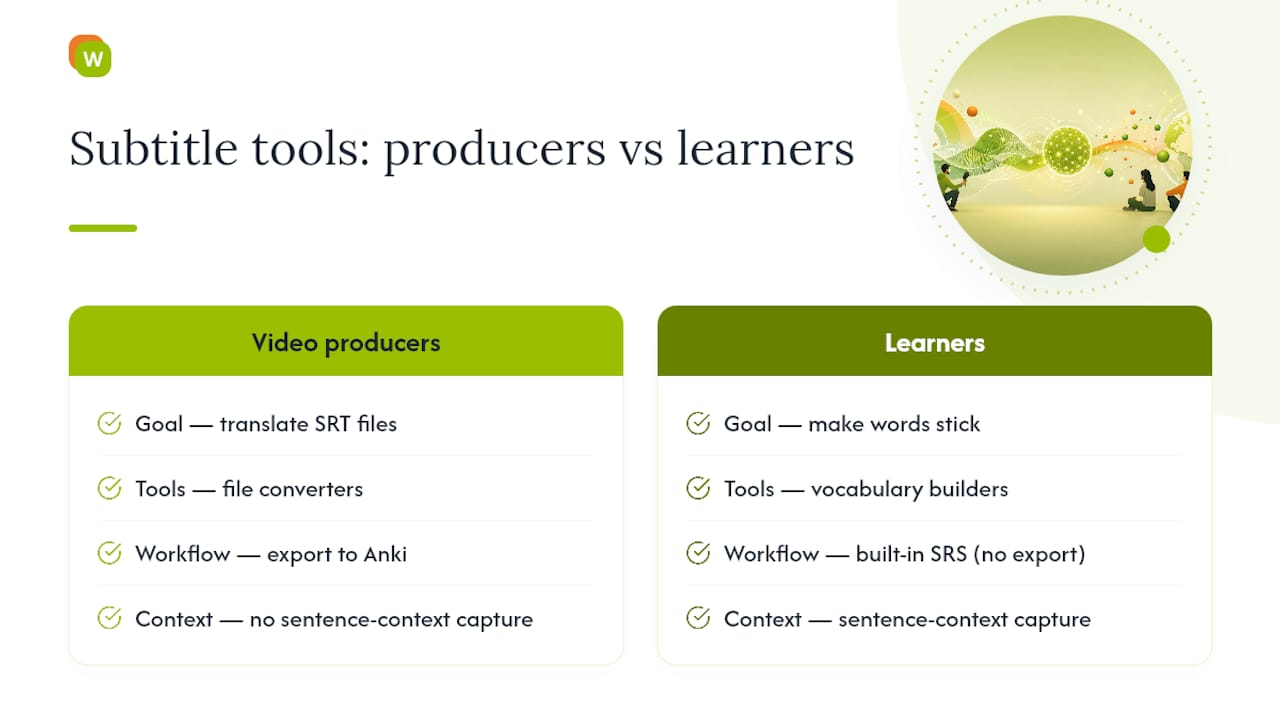
Most “best subtitle translators” roundups are written for video producers who need SRT files translated, not for learners who need words to stick. The tools they recommend are file converters, not vocabulary builders. That’s a different job entirely.
For learners, the conventional advice to “use a dictionary extension and export to Anki” breaks down at the friction point. Most people don’t export. Most people don’t open Anki after a YouTube session. The workflow that actually works is the one that requires the fewest steps between “I just heard that word” and “I will remember it next month.” Built-in SRS removes the export step. Sentence-context capture removes the need to reconstruct why you saved a word. Spotlight mode, which highlights words on any page by how well you know them, removes the need to decide what to study next.
The tools worth recommending are the ones where the review happens inside the same environment as the learning. That’s not a nice-to-have. It’s the whole mechanism.
WordByWord turns your YouTube sessions into a vocabulary system
WordByWord is built for exactly this workflow. The Chrome extension translates words on hover across any website, PDF, or YouTube subtitle track in 50+ languages. Spotlight mode highlights unfamiliar words directly on the page, fading as your knowledge grows. Every saved word carries its sentence context and source, so flashcard reviews feel like real usage, not rote drilling.

Install the extension, open a YouTube video, enable captions, and save your first 10 words. The free tier covers core translation, saving, and flashcard review with no time limit. Premium unlocks unlimited collections, cloud sync, enhanced voiceover, and advanced personalization. Your spaced repetition schedule starts working from the first word you save.