
WordByWord is the best sentence translator extension for anyone who wants translations that stick, not just flash by. It pairs one-click sentence and word translation with flashcards and spaced repetition, so what you look up today shows up in review tomorrow. If privacy or raw accuracy matters more than learning, extensions like Linguist or DeepL cover those angles instead, and we get into both below.
TL;DR:
- WordByWord is ideal for language learners who want their translations to help build and review vocabulary through automatic logging and spaced repetition.
- Privacy-focused extensions like Linguist process text locally, making them suitable for sensitive documents but often at the cost of translation quality and language coverage.
- DeepL offers the most natural, nuanced translations, especially suitable for professional use, with a clear non-retention policy on its paid plans.
- Media-heavy users benefit from Immersive Translate’s support for subtitles, PDFs, and OCR, making it better for video and document browsing than simple text translators.
- When choosing an extension, prioritize features like offline processing, media support, learning tools, and privacy policies aligned with your specific needs and usage habits.
Table of Contents
- The Best Sentence Translation Extensions, Ranked by Priority
- How Do Translation Extensions Actually Differ Under the Hood?
- How Do You Choose the Right Sentence Translator Extension?
- Why WordByWord Fits Language Learners Specifically
- What Do Users Actually Say About These Extensions?
- Our Take: Translation Should Be a Habit, Not a Lookup
- Turn Every Translation Into Vocabulary You Actually Keep
- Where These Feature and Privacy Claims Came From
The Best Sentence Translation Extensions, Ranked by Priority
Most people install a translation extension for one of four reasons: they’re learning a language, they’re paranoid about where their text ends up, they need airtight accuracy, or they’re drowning in subtitles and PDFs. Here’s the shortlist broken down by exactly that.
WordByWord, best for learners who want translation to double as study time. Click a sentence, get the translation, and the words inside it get logged into your personal vocabulary bank automatically. Its Spotlight mode highlights words on the page itself, color coded by how well you know them, so a glance at any article tells you whether it’s within reach or a stretch. A comprehension indicator estimates how well you might understand the words before you commit to reading. Pricing is freemium: a free plan with usage limits is available, with paid options removing these limits. Action: install it, translate one article in a language you’re learning, and watch which words light up as unfamiliar.
- Best for: learners who want translations to turn into retained vocabulary
- Standout feature: Spotlight highlighting plus spaced-repetition flashcards
- Pricing shape: free tier with limits, Premium unlocks unlimited use
- Try it: translate a sentence, save the new word, review it later
A privacy-first, offline-capable option, best for sensitive documents and travel. Extensions like Linguist include an offline translator mode that processes text locally instead of routing it through a third-party server. That matters if you’re translating a legal document, a medical form, or anything you’d rather not send to a remote API. The trade-off is real: local models tend to cover fewer language pairs and produce rougher translations than cloud-based engines. Action: check the extension’s settings for an explicit offline or local-processing toggle before you trust it with anything sensitive.
- Best for: sensitive content, spotty Wi-Fi, or anyone who just doesn’t want text leaving their machine
- Standout feature: local processing, no API roundtrip
- Pricing shape: typically free, open-source
- Try it: flip on offline mode and translate a paragraph with your Wi-Fi off
An accuracy-first engine, best for writing you can’t afford to get wrong. DeepL’s Chrome extension is built around natural-sounding, nuance-aware output, and its paid Pro tiers state that submitted content isn’t used to train future models. The free tier may have different data-usage terms, so it’s worth reading before you paste anything private into it. Action: run the same sentence through the free tier and a competitor, and compare which one actually sounds like a native speaker wrote it.
- Best for: professional emails, cover letters, anything going out under your name
- Standout feature: natural phrasing, non-retention guarantee on Pro
- Pricing shape: free tier plus paid Pro subscription
- Try it: translate an email draft and read it back for tone
A media specialist, best for video and document-heavy browsing. Immersive Translate handles bilingual paragraph translation, subtitle overlays, PDF translation, and OCR for translating text baked into images. If your day involves foreign-language YouTube videos, scanned research papers, or manga panels, this category of tool earns its keep in ways a simple text-selection translator never will. Action: try it on a subtitled video first, since that’s where the gap versus basic extensions is most obvious.
- Best for: heavy video, PDF, or image-based reading
- Standout feature: subtitle and OCR translation in one extension
- Pricing shape: free tier plus paid unlocks for higher usage
- Try it: turn on subtitle translation for a foreign-language video
How Do Translation Extensions Actually Differ Under the Hood?
The gap between a good sentence translator extension and a mediocre one comes down to six things: accuracy, media support, privacy, offline capability, learning tools, and cost. Most reviews skip straight to “which one’s best” without explaining why any of these move the needle, so here’s the breakdown.
Accuracy depends on the engine doing the work. Neural machine translation engines like DeepL’s are trained specifically for fluency and idiom handling, which is why DeepL tends to produce sentences that read like a person wrote them instead of a machine. Some newer tools layer large language models on top of a base translation to smooth out awkward phrasing, a process sometimes called LLM post-editing. For single sentences with slang, sarcasm, or cultural references, that extra pass often catches nuance a pure neural engine misses.
Media support separates the general-purpose tools from the specialists. A basic extension translates whatever text you highlight. A more capable one translates the entire page in place, overlays translated subtitles on video, extracts and translates text from PDFs, and runs optical character recognition on images so you can translate text trapped in a screenshot or a photographed sign. Immersive Translate’s feature set covers most of that range, which makes it a natural fit if your reading diet includes a lot of subtitled video or scanned documents rather than plain web text.
Privacy is where extensions genuinely diverge, and it’s worth reading the fine print instead of assuming. Some vendors explicitly state that paid tiers don’t retain submitted text for model training, while free tiers may operate under looser terms. DeepL’s Chrome extension draws that exact line between its free and paid plans. If you’re translating anything you wouldn’t want stored on a server somewhere, checking that distinction before you paste text in takes thirty seconds and saves a headache later.
Offline and local processing solve the privacy question differently: instead of promising not to retain your data, the extension never sends it anywhere in the first place. Linguist’s offline mode processes text on your device, which eliminates the third-party exposure entirely. The catch is that local models generally can’t match the breadth and fluency of large cloud-based engines, so you’re trading some translation quality for a hard privacy guarantee.
Learning tools are the piece most translation extensions skip entirely, and it’s the one that matters most if you’re actually trying to learn a language rather than just get through a webpage. Saving a phrase once and never seeing it again doesn’t build vocabulary. Retention takes repetition and retrieval practice, which is exactly what spaced-repetition flashcards are built for. An extension that saves translated words automatically and resurfaces them for review does something a plain lookup tool structurally can’t.
Cost usually follows a predictable pattern across this category: a free tier with a character limit or daily cap, and a paid tier that removes the limit and adds features like automated full-page translation, custom glossaries, or unlimited daily use.
By the numbers: Chrome Web Store listings remain the most direct way to verify whether a given extension actually supports offline mode, subtitle translation, or OCR before you install it. Feature claims on marketing pages don’t always match what’s actually shipped.
- Accuracy: neural engines vs. LLM-assisted post-editing for nuance
- Media: selected text, full page, subtitles, PDFs, OCR
- Privacy: retention statements, encryption, local vs. remote processing
- Offline: local processing trades some accuracy for zero data exposure
- Learning: saved phrases plus spaced repetition beat one-time lookups
- Cost: free tier with limits, paid tier removes them
How Do You Choose the Right Sentence Translator Extension?
Pick based on who you are first, then narrow by feature. A language learner, a privacy-conscious reader, a heavy media consumer, and a professional writer are looking for almost entirely different things, even though they’d all technically describe themselves as wanting “a good translator.”
If you’re a language learner, prioritize an extension that saves what you translate and brings it back for review. If you’re privacy-first, prioritize explicit non-retention statements or a genuine offline mode, and treat vague privacy policies as a warning sign rather than an oversight. If you’re a media consumer, prioritize subtitle and PDF support over raw translation polish. If you’re a professional writer, prioritize accuracy and tone over everything else, since a stiff or literal translation in a client email reads worse than no translation at all.
Before installing anything, ask these six questions:
- Does it state a clear data retention policy, or does it stay vague about what happens to submitted text?
- Does it offer an offline or local-processing mode for sensitive content?
- Does it support subtitles, PDFs, and OCR, or only plain selected text?
- Does it integrate with a study workflow, or does a translation just vanish once you close the tab?
- What’s the free-tier character or daily-use limit, and does it fit how much you actually read?
- Does it process translations locally, or send every request to a third-party server?
Watch for a few red flags while you’re evaluating: permissions requests that go far beyond “read and change data on websites you visit,” features that force your text through an external upload with no stated privacy policy, and free tiers that lock basic translation behind a paywall while still calling themselves free.
Testing an extension safely only takes a few minutes:
- Install it and immediately check the permissions it requested.
- Open its settings and look for a privacy or data-handling section before translating anything real.
- Run a short test with a sentence you don’t mind exposing, not something sensitive.
- Check whether an offline toggle exists, and if it does, test it with your Wi-Fi off.
Pro Tip: Read the privacy or permissions link directly on the Chrome Web Store listing before installing, not the marketing page. Store listings tend to disclose data practices in plainer language than a vendor’s own landing page.
Why WordByWord Fits Language Learners Specifically
WordByWord was built around one specific workflow: you’re reading something real, in a language you’re learning, and you hit a word or sentence you don’t know. Translating it should be the easy part. What happens next, whether that word disappears the moment you scroll past it or actually becomes something you remember, is the part most translation tools ignore.
Four features do the heavy lifting. Spotlight mode highlights words directly on the page by how well you know them, so unfamiliar vocabulary stands out before you even click anything. The comprehension indicator estimates what share of a page, PDF, or video’s words you already know, so you can judge whether a text matches your level before committing to it. Collections hold your saved vocabulary, fillable by hand, generated automatically, or imported from other sources. Spaced-repetition flashcards, with voiceover and seven training modes, bring saved words back for review on a schedule instead of leaving them buried in a history log.
That combination maps directly onto the checklist above: translation plus retention, not translation as a dead end. It works across YouTube subtitles too, which matters if part of your learning routine involves video.
Where it’s not the right fit: WordByWord isn’t built for enterprise-scale document localization or professional translation workflows that need certified accuracy across thousands of pages. For that kind of work, a dedicated engine with human review is the better call.
- Spotlight mode highlights vocabulary by familiarity, directly on the page
- Comprehension indicator estimates known-word percentage before you read
- Collections support manual entry, AI generation, and CSV import
- Spaced-repetition flashcards with seven training modes bring words back for review
- YouTube subtitle integration extends the same workflow to video
What Do Users Actually Say About These Extensions?
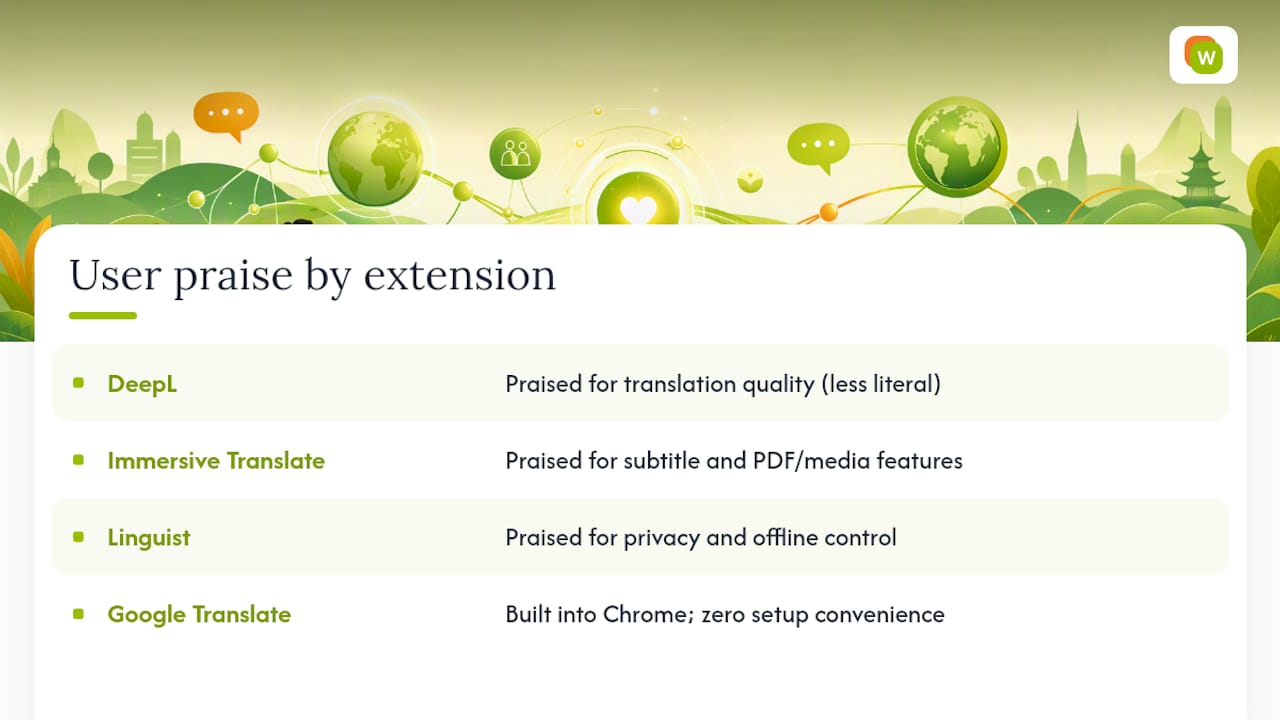
Reputation in this category tends to split along the same lines as feature focus. DeepL consistently draws praise on the Chrome Web Store for translation quality specifically, with users comparing its output favorably against more literal, word-for-word engines. Immersive Translate’s reviews lean heavily on its media features, with users calling out subtitle and PDF translation as the reason they switched from a simpler tool. Linguist’s audience skews toward people who explicitly searched for privacy or offline capability, and its reviews reflect that: fewer complaints about translation nuance, more praise for control over where data goes.
Google Translate remains the default most people never think to replace, largely because it’s built into Chrome and requires zero setup. That convenience is real, but it also means most dedicated extensions exist specifically to cover what Google Translate doesn’t: subtitle overlays, offline processing, or a learning workflow that turns lookups into retained vocabulary.
The honest takeaway across all of it: no single extension wins every category, and reviews reflect that split rather than crowning one universal favorite. Read reviews with your own priority in mind, not a general star average, since a 4.5-star tool built for professional translation won’t necessarily serve a learner well, and vice versa.
Our Take: Translation Should Be a Habit, Not a Lookup
Most advice on this topic treats translation extensions like search engines: type in a word, get an answer, move on. That framing misses what actually makes someone fluent. Fluency comes from seeing the same word enough times, in enough contexts, that it stops requiring a lookup at all. A translator that doesn’t feed that cycle is solving the wrong problem for a learner, even if it translates perfectly.
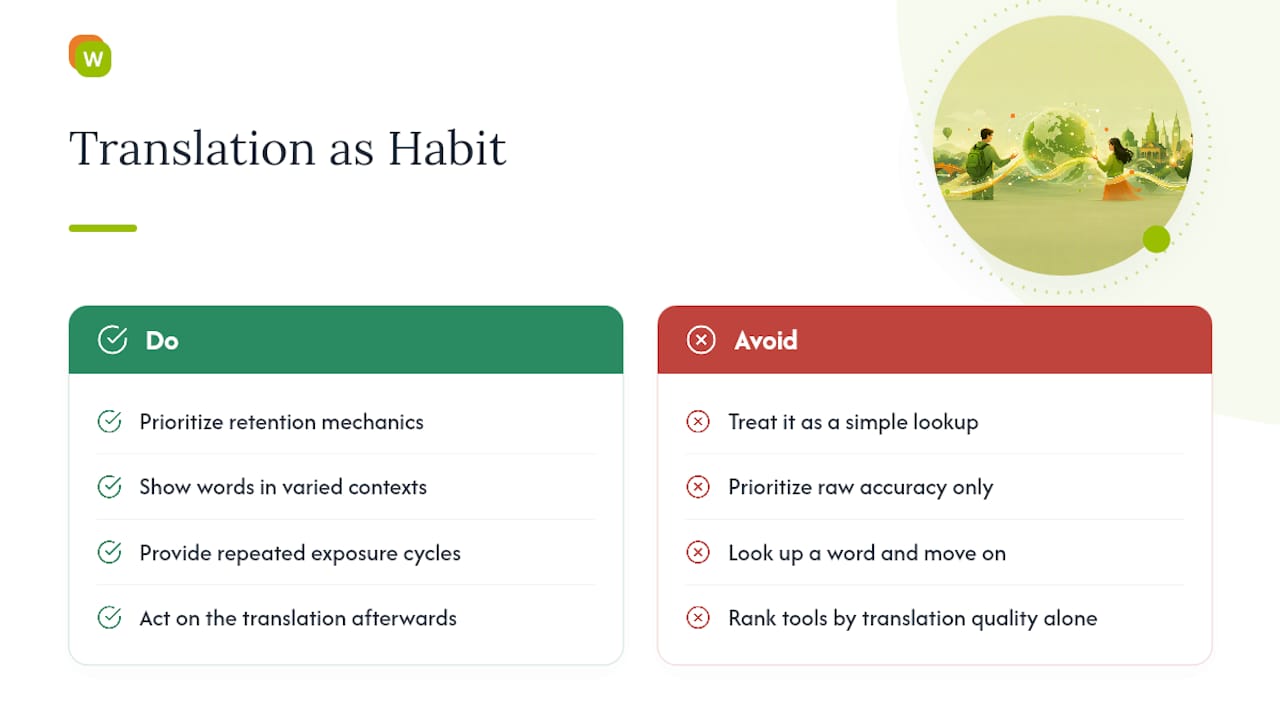
The conventional wisdom that “the most accurate engine wins” only holds if accuracy is your actual goal. For a professional writer, sure. For someone building a second language through daily reading, raw accuracy matters far less than whether the tool helps them retain what they just looked up. That’s the gap most comparison articles never address, because they’re built around ranking translation quality rather than ranking outcomes.
If you’re picking a sentence translator extension for learning, prioritize retention mechanics first and translation polish second. Accuracy differences between the major engines are smaller than most people assume. What you do with the translation after you get it is where the real difference lives.
— WordByWord Team
Turn Every Translation Into Vocabulary You Actually Keep
Every extension in this comparison translates a sentence. WordByWord is the one built to make sure you remember it. Instead of a translation disappearing the second you scroll past it, WordByWord logs it into a personal collection and schedules it for review with spaced-repetition flashcards, so the vocabulary from articles, PDFs, and YouTube videos you’re already consuming turns into words you actually retain.

If you’re learning a language and tired of looking up the same word for the third time, that’s the exact gap WordByWord was built to close. The free plan stays free indefinitely with usage limits, so there’s no risk in testing it against whatever you’re currently using. Try translating an article or a video’s subtitles, save a few unfamiliar words to a collection, and see how Spotlight highlights them differently once you’ve reviewed them a couple of times. Visit the WordByWord product page to install the extension and start your first collection, or browse a sample vocabulary set on the most common French words library to see how collections look before you commit.
Where These Feature and Privacy Claims Came From
Feature and privacy details in this article were verified against each extension’s own Chrome Web Store listing and vendor page, including DeepL’s extension listing, Immersive Translate’s listing, Linguist’s listing, and WordByWord’s own product page. For deeper reviews of specific workflows, see WordByWord’s guides on choosing a web page translator and hover-based translation.