
WordByWord is the best popup translator for language learners because it does more than translate. It turns every word you look up into a flashcard, tracks how well you know it, and schedules a review before you forget it. Most popup translators stop at the definition. WordByWord starts there.
TL;DR:
- Using WordByWord supports vocabulary retention by saving lookups into spaced repetition flashcards rather than letting words vanish after a single glance.
- It works across multiple formats including web pages, PDFs, and subtitles, making it suitable for diverse reading and viewing habits.
- Customizable trigger methods like hotkeys and hover improve usability for different reading speeds and preferences.
- Privacy is managed by choosing local data storage or cloud sync, with best practices including permission review and selective translation.
- For effective vocabulary building, it is essential to actively save unfamiliar words and review them regularly, rather than relying on quick lookups alone.
Table of Contents
- What Makes WordByWord a Standout Popup Language Translator
- What to Look for in a Popup Translation Tool
- How Popup Translators Actually Trigger and Display Results
- What Extension Permissions Actually Mean for Your Privacy
- Getting Set Up in Chrome or Firefox in Under Five Minutes
- Why Popup Lookups Actually Build Vocabulary
- Our Take: Turn Every Lookup Into a Word You Actually Keep
- Try WordByWord: One Extension for Translation and Retention
- Sources
What Makes WordByWord a Standout Popup Language Translator
Most extensions treat translation as the whole job. WordByWord treats it as step one. Select a word, hit a hotkey, or double click, and a compact popup shows the translation, the source language, and a row of levels to rate how well you know the word, and that one click is where the real difference shows up: the word doesn’t vanish once the popup closes. It lands in a collection, gets scheduled into spaced repetition, and shows up again in a flashcard a day or two later.
The extension works across multiple formats learners use, including web pages, PDFs, and subtitles. That matters more than it sounds. A learner who reads news articles, studies from a PDF textbook, and watches shows with subtitles needs one tool that follows them everywhere, not three separate ones with three separate vocabulary lists.
Here’s what the popup itself gives you:
- One click selection, double click, or a configurable hotkey to trigger a lookup
- A translation popup with text to speech playback so you hear pronunciation immediately
- Spotlight mode, which highlights words on the page by familiarity levels
- A comprehension score that estimates what portion of a text’s vocabulary you know before you start reading
- Support for multiple languages, with the ability to study more than one simultaneously
Pro Tip: Turn on Spotlight mode before you start a new article or PDF. Seeing which words are already familiar (and which aren’t) takes ten seconds and saves you from picking a text that’s either too easy to bother with or too hard to enjoy.
WordByWord is built for students working through foreign-language reading assignments, intermediate learners who’ve outgrown beginner apps, and professionals who read trade publications or contracts in a second language. It’s a browser extension paired with a web app, designed for reading digital content and video subtitles. The free plan works indefinitely with usage limits; a paid subscription offers additional features and removes some limits.
What to Look for in a Popup Translation Tool
Not every popup translator is built for retention. Some are built for one-off convenience, and that’s fine if all you want is a quick definition. If you’re trying to build vocabulary, though, the checklist looks different.
- Trigger flexibility. You want a choice between hover, double click, select-plus-icon, or a hotkey. Trigger customization matters because reading rhythm varies. Hovering suits slow, careful reading. A hotkey suits someone speeding through a long PDF.
- In-popup extras. Look for text to speech, a copy button, automatic source-language detection, and reverse translation. Extension listings for tools like Instant Selection Translator consistently flag these as the features people actually use, not just the ones marketing pages mention.
- Customization depth. Popup position, translation delay, dark mode, and font size sound minor until you’re three hours into a dense article. Granular configuration options reduce eye strain and interruption over long sessions.
- Privacy controls and provider choice. Some tools let you pick which translation engine runs behind the scenes, balancing accuracy, speed, and privacy depending on the provider.
- Format support. If you read PDFs or watch subtitled video regularly, confirm the tool handles those formats, not just standard web pages.
Pro Tip: Rank these five by your own habit before you install anything. A traveler prioritizes speed and offline mode; a student prioritizes vocabulary saving and TTS.
How Popup Translators Actually Trigger and Display Results
Four trigger methods dominate the category: hovering over a word, double clicking it, selecting text and clicking a small icon that appears, or pressing a configured hotkey. Most modern extensions let you customize which one you use, and switching between them takes seconds in the settings menu.
The popup itself typically shows a handful of consistent elements:
- The original selected text
- The translation, often with the detected source language labeled
- A copy button
- An optional text to speech icon
- A brief loading indicator while the translation resolves
Edge cases separate the polished tools from the rough ones. Dynamic content that loads after the page renders can confuse extensions that only scan static text. Text typed into form fields sometimes gets ignored entirely. Right-to-left languages like Arabic or Hebrew need proper layout handling, not just mirrored text. And PDFs require a different rendering approach than a standard webpage since the text often isn’t selectable the same way.
Under the hood, some tools run translation locally, and others send the selected text to an API from a provider like Google, Microsoft, or DeepL. That single technical choice drives most of the privacy conversation in the next section.
What Extension Permissions Actually Mean for Your Privacy
Every popup translator asks for permission to “read and change data on the site you visit.” That sounds alarming until you understand what it’s for: the extension needs to detect the text you select on any page, which is the entire mechanism that makes instant lookups possible. Without it, you’d have to copy and paste into a separate translator tab every time, which defeats the purpose.
The real privacy question is what happens after that. Some extensions keep translation history entirely local rather than syncing it to a server, which matters if you’re translating sensitive documents. Others sync your lookups to your account so you can pick up vocabulary review on a different device, trading some privacy for continuity.
A few practical habits keep you in control:
- Review the permissions list before installing, not after
- Choose on-demand translation over auto-translate-everything if you’d rather limit what gets sent to third-party providers
- Clear stored history periodically if the extension offers cloud sync
- Use separate browser profiles for sensitive browsing versus casual reading practice
Pro Tip: If you translate anything work-related or legally sensitive, favor extensions with a local-only history mode rather than one that logs every lookup to a cloud account by default.
Getting Set Up in Chrome or Firefox in Under Five Minutes
Installing a popup translator is genuinely fast, and the setup determines whether it actually fits your reading habits.
- Search the Chrome Web Store or Firefox Add-ons page for the extension and click install.
- Approve the permissions prompt. This is normal. Every popup translator needs it to function.
- Set your target language and pick a trigger method (hover, double click, selection icon, or hotkey).
- Decide whether to enable history and, if the option exists, whether to turn on text to speech and pick a voice.
- Test it immediately on a live page before moving on, translating one or two words to confirm the popup appears where you expect.
If nothing happens, check for a conflict first. Two translation extensions running at once often cancel each other out or fight over the same click behavior. Disable one and retest before assuming the extension itself is broken.
Why Popup Lookups Actually Build Vocabulary
Friction kills vocabulary building. Every time a learner has to open a new tab, paste text into a separate site, and switch back, the odds they’ll bother next time drop. Experts point to in-page lookups without tab switching as the key factor that makes repeated exposure to new words actually happen.
That’s the case for treating a popup translator as a study tool, not just a convenience:
- Extensions that save lookups into a history or collection turn a casual glance into a study list without extra effort
- AI-assisted popups that add definitions, synonyms, and context function closer to a tutor than a dictionary
- Spaced repetition scheduling, WordByWord’s core review mechanism, is what separates a word you glanced at once from one you actually retain
The lookup itself is only half the job. What happens to that word afterward is the half most tools skip.
Our Take: Turn Every Lookup Into a Word You Actually Keep
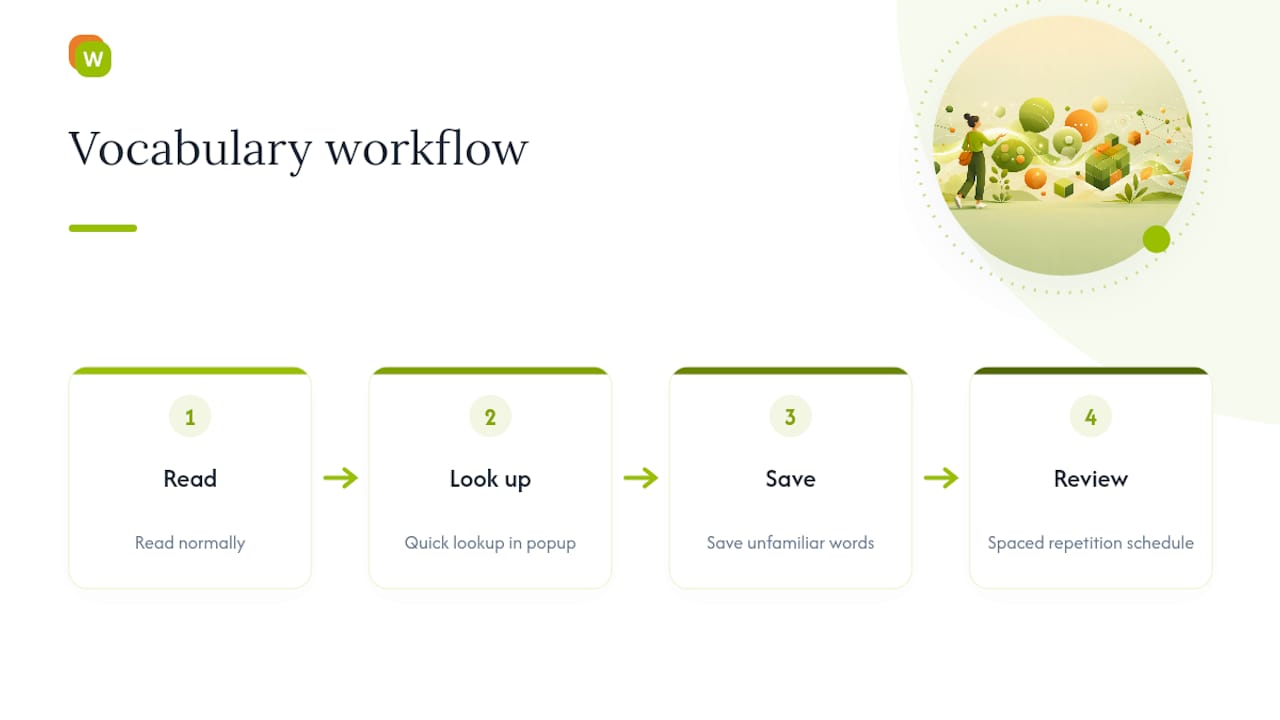
The real gap in most popup translators isn’t the translation quality. It’s that a lookup happens, satisfies your curiosity, and disappears the moment you close the popup. The workflow that actually builds vocabulary is simple: read, look up, save, review. Skip the save step and you’re re-translating the same word three weeks from now without realizing you’ve seen it before.
A five-minute daily habit works better than an hour once a week. Read normally, save what’s unfamiliar as you go, and let spaced repetition decide when you see it again. The reading doesn’t change. What you keep from it does.
— WordByWord Team
Try WordByWord: One Extension for Translation and Retention
WordByWord is the alternative to juggling a separate translator and a separate flashcard app for your foreign-language reading. You get in-page lookups across websites, PDFs, and YouTube subtitles, plus automatic vocabulary collections and spaced repetition review, all inside the browsing you’re already doing.

Casual readers and travelers get real use out of the free plan, which stays free indefinitely with usage limits. If you’re studying seriously, working toward fluency, or preparing for professional use of a language, A paid subscription removes usage limits and unlocks additional features like unlimited collections, AI-generated vocabulary sets, and enhanced voiceover across training modes.
Readers building business vocabulary can start with a ready-made business English collection, while beginners can start with essential English words. Either way, the next step is the same: install WordByWord and turn your next fifteen minutes of reading into vocabulary you’ll actually remember next month.
Sources
- AcrNischal/PopupTranslate and Definer project notes (GitHub)
- Popup Translate — Firefox Add-ons
- Best language-learning Chrome extensions guide — NoaSolutions
- Instant Selection Translator — Firefox Add-ons