

Yes, you can build real vocabulary during everyday browsing using a capture-and-review method. The method is simple: capture unknown words the moment you meet them on any page, save them to a collection, and review them with spaced repetition. Do this consistently and many learners notice comprehension gains within the first week by turning passive reading into active study.
TL;DR:
- Capturing and reviewing unfamiliar words during browsing significantly improves vocabulary retention through context-preserving translation tools and automatic highlighting.
- Using spaced repetition reviews, especially with thematic or encounter-based collections, enhances long-term memory more effectively than passive reading or drilling alone.
- Incorporating short daily routines of capturing and reviewing words from articles, videos, or PDFs can build a sustainable habit without extra time investment.
- Video subtitles and PDFs can be integrated into this workflow, but require careful management to handle mismatches and non-searchable text.
- Privacy permissions should be managed carefully, and this method primarily improves receptive vocabulary, not spontaneous speaking or complex grammar skills.
Table of Contents
- How Does Learning While Browsing Actually Work?
- How Do You Set Up Browsing-Based Language Learning?
- What Daily Routine Actually Builds Vocabulary?
- How Do Collections and Spaced Repetition Turn Captures Into Memory?
- Can You Learn From Videos and PDFs the Same Way?
- What Should You Know About Privacy and What This Method Can’t Do?
- How WordByWord Puts This Method Into Practice
- Why Browsing-Based Learning Beats Isolated Study Sessions
- Get Started With WordByWord Today
How Does Learning While Browsing Actually Work?
The mechanics matter because they explain why this beats passive exposure. Click-to-translate tools let you tap or hover over a word on any page and see its meaning without leaving the sentence it came from, which keeps the word attached to real context instead of a flashcard in isolation. That context is what makes the word stick later.
Highlight overlays go a step further. Spotlight mode can mark words on the page by how well you know them, from unknown to mastered, so your eye goes straight to the vocabulary you still need instead of rereading words you already know. As you learn a word, its highlight fades, giving you a visible signal of progress on the same page you’re already reading.
None of this becomes learning until you review it. A few things make the difference:
- Click-to-translate preserves the sentence and grammar around a word instead of showing it alone.
- Spotlight-style highlighting flags unfamiliar vocabulary automatically so you stop hunting for what to study.
- Comprehension indicators estimate what share of a text you already understand before you commit time to it.
- Spaced repetition review is what converts a captured word into something you actually remember weeks later.
Skip that last step and you’ve built a translation habit, not a vocabulary one.
How Do You Set Up Browsing-Based Language Learning?
Getting started takes less time than reading this section. Install the extension, pick your settings, and run one short session before you close the tab.
- Add the extension to Chrome, Edge, or Firefox and grant page access only on sites where you plan to read, not blanket access everywhere.
- Choose your target language and set a comprehension threshold or difficulty level so the tool knows what counts as “unknown” for you.
- Turn on subtitle capture and PDF support if you plan to learn from video or documents, not just articles.
- Open a page you’d normally read anyway, capture eight to twelve unfamiliar words as you go, then run your first review session before moving on.
Pro Tip: Start with a topic you already know in your native language, like a hobby or your industry. You’ll recognize far more words in context, and the comprehension level indicator will confirm the text is a good match before you invest time in it.
What Daily Routine Actually Builds Vocabulary?
The habit that sticks isn’t the one that demands the most time. It’s the one that fits into time you were already spending online.
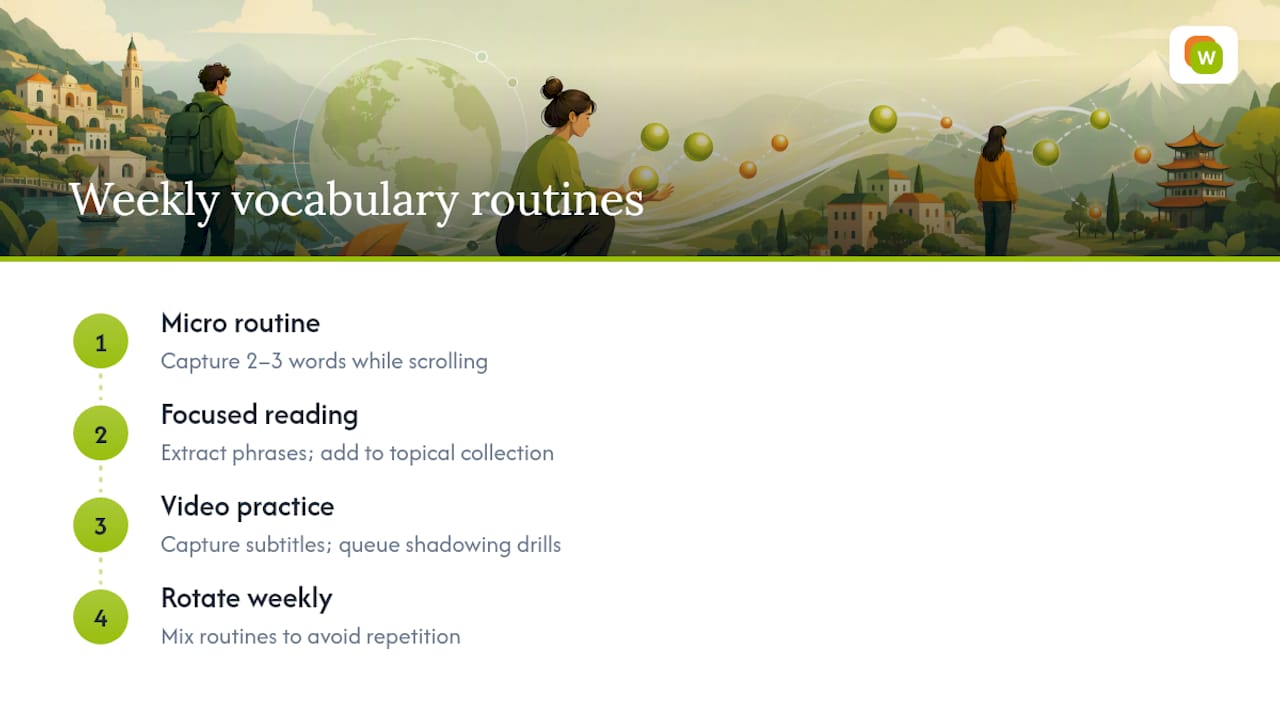
The micro-routine (5 to 10 minutes). Capture two or three unknown words while you check the news or scroll a social feed, then do a quick review burst before you set the phone down. This works because you’re not adding a new block of time, just attaching a small task to one you already do.
Focused reading (20 to 30 minutes). Pick an article that lands near your comprehension level rather than one that’s flattering, since a text that’s too hard just trains frustration. Extract useful phrases, not just single words, and drop them into a topical collection so they group with related vocabulary later.
Video-based practice. Capture subtitle lines as you watch, then queue the tricky ones for shadowing or typing drills afterward. This suits learners who absorb faster by ear than by eye, and it turns a show you’d watch anyway into listening practice.
Rotate between all three across a week rather than forcing one routine every day. Variety is what keeps the habit from feeling like homework.
How Do Collections and Spaced Repetition Turn Captures Into Memory?
Capturing a word is the easy half. Retaining it depends on how you organize and review it.
Spaced repetition works by spacing reviews further apart as you prove you know a word, and pulling struggling words back sooner. Expect early lapses on new words. That’s normal, not a sign the method isn’t working. Cadence matters more than intensity: five short reviews across a week beat one long cram session every time.
Collection design also affects retention:
- Encounter-based collections group words by where you found them, useful for reviewing a specific article or video session.
- Thematic collections group words by topic, like travel or business, and make sense once you have enough overlapping vocabulary to justify splitting one out.
- Training mode selection should match the skill you’re missing: typing for spelling, listening drills for ear training, sentence builder for grammar patterns, and a 60-second sprint when you just need quick recall practice.
Pro Tip: If a word keeps failing review after review, it’s usually the collection that’s wrong, not your memory. Move it into a smaller, more specific collection where it has fewer competing words fighting for attention.
WordByWord builds collections either by hand, generated by AI from a prompt, or imported from a spreadsheet if you’re migrating from Anki or Quizlet.
Can You Learn From Videos and PDFs the Same Way?
Web pages are the easy case. Video and documents behave differently, and it’s worth knowing the trade-offs before you rely on them.
Subtitle capture on platforms like YouTube generally works by matching your click to the subtitle line playing at that moment, so you can pull a phrase mid-sentence without pausing the whole video. Do this a few times per video rather than trying to capture every unfamiliar word, or you’ll spend more time pausing than watching.
PDFs work differently:
- Long documents benefit from scanning first and using a comprehension level check to find the sections actually worth your time.
- Exporting selected words or phrases from a PDF into a review collection keeps you from rereading the whole document later.
- Some PDFs are scanned images rather than searchable text, which blocks click-to-translate entirely no matter which tool you use.
Subtitle timing also drifts occasionally, especially on auto-generated captions, so expect the odd mismatched word. It’s a minor friction, not a dealbreaker.
What Should You Know About Privacy and What This Method Can’t Do?
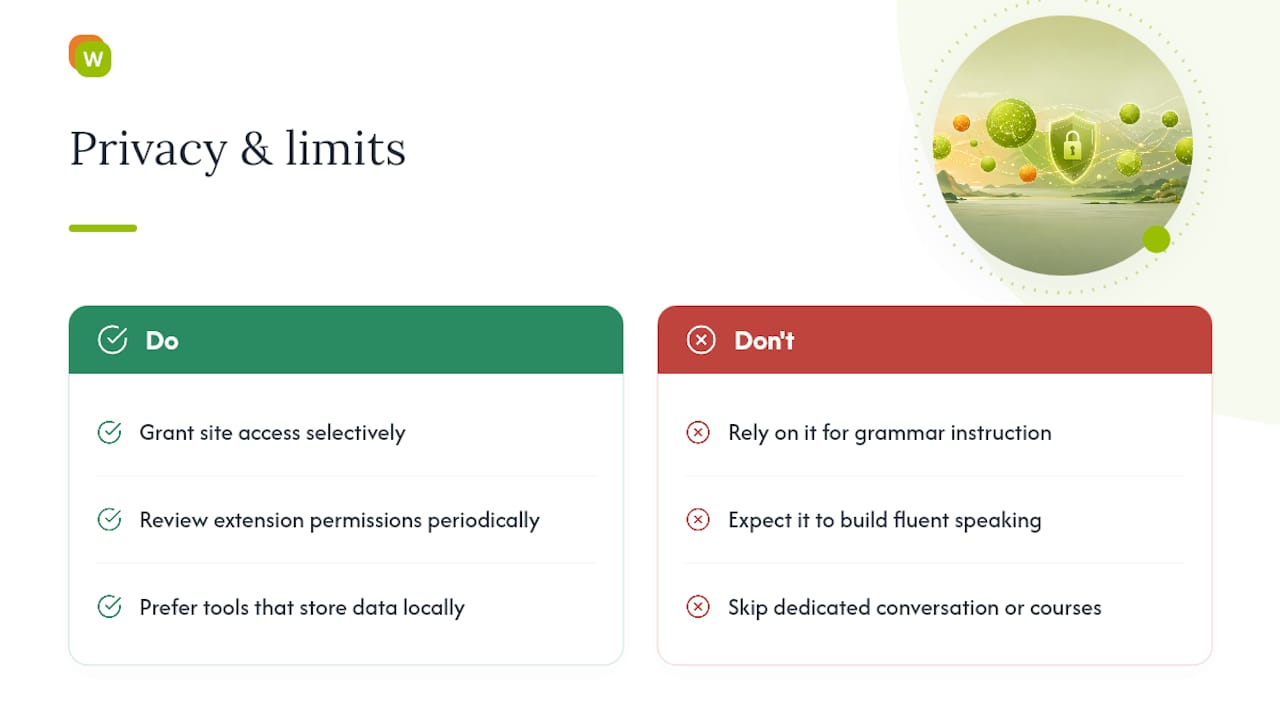
Any browser extension that translates on-page text needs certain permissions to function: access to the page you’re reading, access to subtitle tracks if you want video support, and local storage to hold your captured vocabulary. None of that is unusual, but you should still manage it deliberately.
Grant site access only where you actually plan to study, review permissions periodically, and prefer tools that store your data locally when that option exists.
Set your expectations correctly too. In-page capture is excellent for building receptive vocabulary, the words you recognize when reading or listening. It does far less for grammar structure or spontaneous speaking, which still require dedicated practice, conversation, or a structured course alongside your browsing habit.
How WordByWord Puts This Method Into Practice
This workflow integrates features like Spotlight mode to highlight vocabulary on pages by proficiency and a comprehension level indicator to show how much of content you understand before investing time, supporting more than 50 languages.
Captured words live in collections which can be built by hand, generated with AI, or imported via CSV, then reviewed through multiple training modes scheduled by spaced repetition. Statistics can track learning activity and vocabulary distribution to make progress visible. Learners studying business vocabulary or working from a beginner word list use the same underlying system.
Why Browsing-Based Learning Beats Isolated Study Sessions
Most language apps fail busy learners for one reason: they demand a separate block of time you don’t consistently have. Capture-and-review works because it rides on top of reading and watching you were already doing, so the habit doesn’t compete with your schedule. It builds on the same instinct language learners have discussed in forums for years, saving words while reading real content instead of drilling a fixed curriculum.
Start today with one article and eight captured words. Run one review before bed. That’s the whole checklist.
— WordByWord Team
Get Started With WordByWord Today
This kind of workflow can be supported by tools that integrate translation, vocabulary highlighting, and spaced repetition review, often offering free plans with usage limits for trial purposes.

Paid subscription plans typically remove usage limits and unlock features like unlimited collections, AI-generated vocabulary sets, enhanced voiceover, and deeper personalization, catering to users with more intensive learning needs. The path in is short: install the extension, capture your first ten words from an article you’d read anyway, and run one review session before you close the tab. From there, the habit mostly builds itself. Visit the WordByWord landing page to install it and start your first collection.


