
The fastest way to build usable vocabulary from YouTube is to extract 10 to 20 target words from a video’s subtitles and push them into a spaced-repetition review flow. Skip the passive rewatching. Pick one short video today, pull out 10 to 20 words with real context, and start reviewing tomorrow. WordByWord does this extraction-to-review loop inside the browser, with a free tier that covers the basics.
TL;DR:
- Limiting yourself to 20 new words per video and reviewing them over two weeks yields better retention than tracking larger, unmanageable lists.
- Prioritize words connected to your interests and avoid proper nouns or technical jargon unless relevant to your goals.
- Using tools like subtitle highlighters or transcript extractors can streamline collecting vocabulary but should be paired with systematic review systems like spaced repetition.
- Building flashcards with the original sentence, pronunciation, and part of speech enhances memory by providing concrete contextual cues.
- A daily practice of 5 to 15 minutes with active recall techniques outperforms passive listening, especially when combined with contextual exposure.
Table of Contents
- How To Turn Passive Watching Into Active Study
- Which Tools Actually Fit A YouTube Vocabulary Workflow
- A Step-By-Step Workflow From Video To Flashcard
- How To Choose Videos That Keep Paying Off
- How WordByWord Runs This Exact Workflow For You
- What Learners Get Wrong About Building Vocabulary From Video
- Try WordByWord And Skip The Copy-Paste
- Sources
How To Turn Passive Watching Into Active Study
Watching a video with subtitles on feels like studying. It mostly isn’t. Your brain recognizes words in context without ever committing them to long-term memory, which is why you can watch three hours of English YouTube and still freeze mid-sentence in an actual conversation. The fix isn’t more watching. It’s converting a handful of words per video into deliberate recall practice.
Start by identifying candidate words as you watch or scan the transcript. You’re looking for three categories: words you don’t know at all, words you recognize but couldn’t use yourself, and words tied closely to a topic you care about (cooking, business, gaming, whatever pulled you to the video in the first place). Skip proper nouns and one-off technical jargon unless it’s directly relevant to your goals.
Once you’ve flagged words, the real work begins. Passive recognition has to become active recall, and that only happens through specific techniques:
- Pause and paraphrase. Stop the video right after a target word appears and say the sentence back in your own words. This forces you to process meaning instead of just sound.
- Shadow the audio. Replay a short clip and speak along with it, matching rhythm and stress. This builds pronunciation and listening comprehension at the same time, which is something flashcards alone never touch.
- Type the word from memory. Cover the definition, look at the video’s example sentence, and type the missing word. Typing engages muscle memory that passive multiple-choice review skips entirely.
- Extract the full sentence, not just the word. “Overwhelm” alone is forgettable. “I felt completely overwhelmed by the amount of homework” sticks, because you’re storing a scenario, not a dictionary entry.
Cloze deletion (blanking out the target word in its original sentence) is one of the more reliable ways to shift a word from passive recognition into active recall, and pairing it with audio prompts adds a second retrieval path. This lines up with what language-teaching authorities like the British Council recommend: contextual activities that teach meaning, pronunciation, and spelling together outperform word lists studied in isolation.
The reason the video’s own sentence matters so much comes down to memory hooks. A word tied to a specific scene, a specific speaker’s voice, and a specific moment in a video gives your brain more retrieval cues than an abstract definition ever will. When you see the word again later, you’re not just recalling a translation. You’re recalling a moment.
Pro Tip: Cap yourself at 20 new words per video, even if the content is dense with unfamiliar vocabulary. Twenty well-chosen words reviewed for two weeks beat sixty words abandoned after day one.
Combining contextual exposure with active recall and spaced repetition, rather than passive review alone, is the pattern behind most effective vocabulary approaches taught by language-learning authorities. Video just happens to be one of the richest, cheapest sources of that context available to anyone with a phone.
Which Tools Actually Fit A YouTube Vocabulary Workflow
Not every tool that touches YouTube subtitles solves the same problem, and picking the wrong category wastes more time than it saves. Three tool types cover almost every workflow learners actually use.
Subtitle highlighters and browser extensions sit directly on top of the YouTube page. You click an unknown word in the caption bar, get an instant translation or definition, and the word gets flagged for later review without you ever leaving the video. This category is the lowest-friction option because there’s no copy-pasting transcripts into a separate app.
Transcript extractors and level-based selectors work differently. Instead of clicking word by word, you feed in a video and the tool scans the full transcript, flagging words by frequency or CEFR level so you’re not stuck manually deciding what’s B1 and what’s C1. One example of this category is Stash LM’s YouTube Vocabulary Builder, which filters transcript vocabulary by difficulty and surfaces the example sentence alongside each word.
Exporters and built-in SRS review systems close the loop. A tool that finds words but leaves you no way to actually review them on a schedule has only done half the job.
When you’re comparing options, weigh these factors:
- Export flexibility. Can you send words to Anki or a CSV file, or are you locked into the tool’s own review screen forever? Some YouTube vocabulary extractors offer direct Anki export, which matters if you already have an established SRS habit.
- Level filtering. Does the tool let you set a CEFR range or word-frequency threshold, or does it dump every unfamiliar word at you regardless of difficulty?
- Context retention. Does the exported card keep the original sentence and timestamp, or just the isolated word and a translation?
- Privacy and processing. Cloud-based tools typically need you to sign in and send video data to a server; browser-local tools process everything on your device, which matters if you’re studying from sensitive or work-related video content.
- Cost structure. Most tools cap free usage at a certain number of words or videos per day, with unlimited access behind a subscription.
None of these categories is inherently better. A transcript extractor saves time on level-appropriate selection. A subtitle highlighter keeps you inside the natural viewing experience. The right pick depends on whether you’d rather batch-process a video before watching or capture words as you go.
For a deeper look at how these extensions differ feature by feature, our extension comparison breaks down the trade-offs in more detail.
A Step-By-Step Workflow From Video To Flashcard
Here’s the process, start to finish, whether you’re doing it by hand or with a tool handling the heavy lifting.
Step 1: Choose the right video. Run through a fast checklist before you commit ten minutes of your day: Does the video have accurate captions or a clean transcript? Is the audio clear enough that you’re not fighting background noise to catch words? A video where you understand nothing wastes effort; one where you understand everything teaches nothing new.
Step 2: Extract 10 to 20 target words. Scan the transcript manually, or run it through an extraction tool that flags words by frequency or level. Either way, resist the urge to capture everything unfamiliar. Prioritize words you’re likely to encounter again, not one-off technical terms specific to that single video.
Step 3: Build the flashcard properly. Each card needs four things: the word itself, the exact sentence from the video where it appeared, a pronunciation reference, and the part of speech. Skipping the original sentence is the single most common mistake learners make, because storing a word with its exact source sentence gives your memory a concrete hook that an isolated definition never provides.
Step 4: Schedule the review. This is where most learners fall off. A spaced-repetition system spaces reviews at increasing intervals, so a word you learned Monday might resurface Wednesday, then the following Monday, then two weeks later. Set aside 5 to 15 minutes daily rather than one long weekly session; consistency beats duration by a wide margin. Aim for a target of 10 to 20 new words per week, which keeps your review queue manageable instead of ballooning into a backlog you’ll eventually abandon.
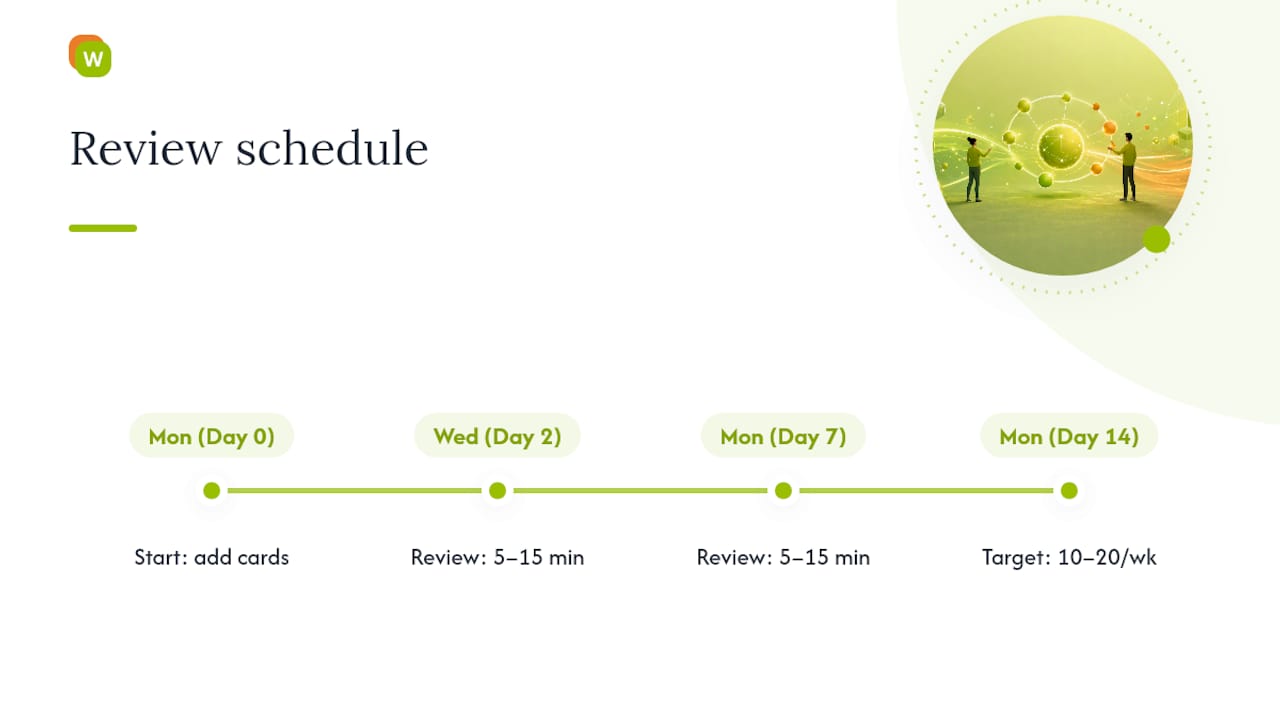
Adaptive practice paired with contextualized definitions is what drives steady vocabulary retention in platforms built around algorithmic review, and the same principle applies whether you’re using dedicated software or a simple spreadsheet. The mechanism matters more than the interface.
If you want a deeper breakdown of interval timing, our guide to spaced-repetition scheduling walks through how to set review gaps that match your retention curve instead of guessing.
How To Choose Videos That Keep Paying Off
The video you pick determines the quality of the vocabulary list you walk away with, and matching format to goal makes the difference between a rich source and a frustrating one.
Explainer videos and carefully scripted lessons work best when you want clean, unambiguous examples of a word in use. A scripted format tends to enunciate clearly and avoid the overlapping speech and slang density of unscripted content, which makes transcript accuracy far higher. Interviews and vlogs serve a different goal: they hand you conversational chunks, filler phrases, and the kind of natural phrasing that textbooks rarely capture, but expect messier captions and faster speech.
A few practical filters keep your video selection productive:
- Check that captions are either manually written or clearly accurate auto-captions; garbled auto-generated subtitles produce garbled vocabulary lists.
- Favor channels where the host enunciates clearly rather than mumbles through fast, casual delivery, especially below an intermediate level.
- Stick with playlists or a single channel for a stretch of weeks instead of jumping topic to topic. Recurring themes mean the same target words resurface in new sentences, which reinforces retention faster than one-off exposure.
- Cross-reference your level against structured course material occasionally. Program pages like Linda Mandarin’s intermediate-level curriculum show how formal courses sequence vocabulary by level, which is a useful sanity check for whether a video actually matches where you are.
BBC Learning English organizes its vocabulary content into themed series that combine listening practice with structured exercises, which is a solid model to imitate: pick a theme, stay with it for a week or two, and let the repetition do the work for you.
How WordByWord Runs This Exact Workflow For You
Everything above works whether you’re doing it manually with a notebook or a spreadsheet. WordByWord just removes the friction between each step.
The extraction step happens with one click. Click any unknown word in a YouTube video’s subtitles, get an instant translation, and it saves straight into a collection without you ever pausing to copy text into a separate app. That’s the extract step and the collection step merged into a single action.
- Spotlight mode highlights words directly in the subtitle stream according to how well you already know them, from unknown to mastered, so the words worth your attention stand out instead of blending into text you’ve already learned.
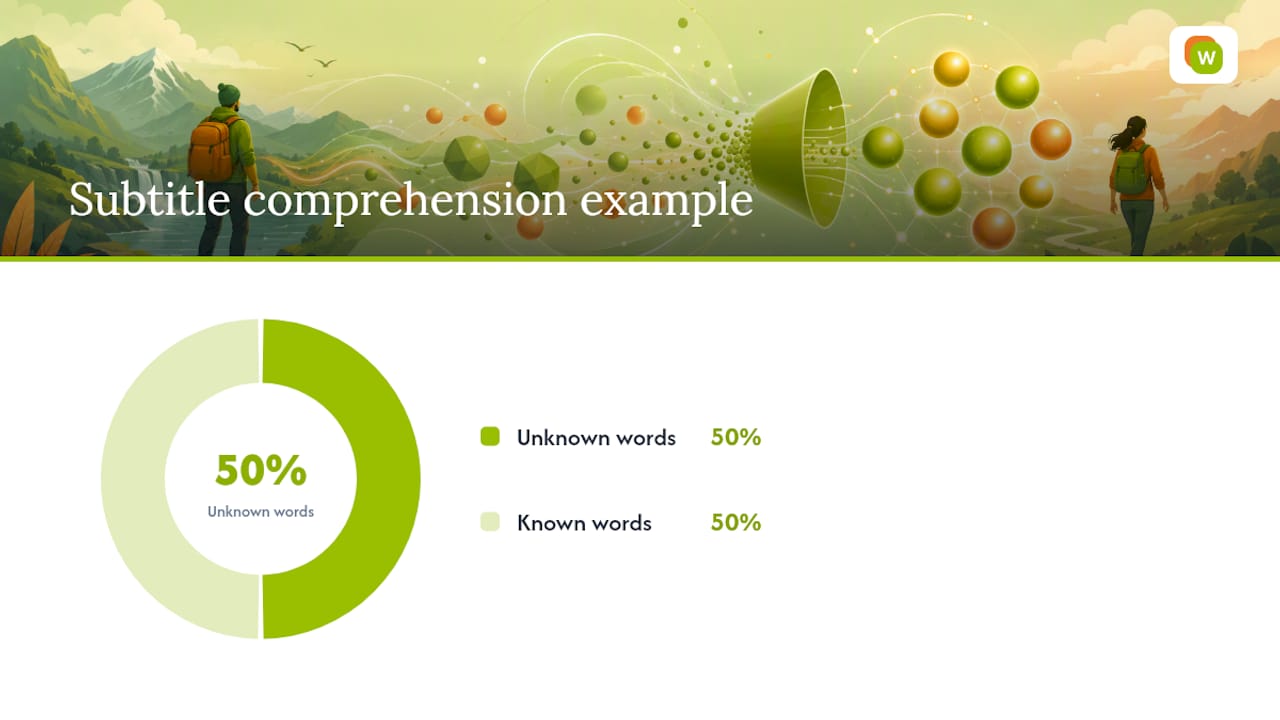
- Comprehension level tells you, before you commit to a video, what share of its vocabulary you already know. That’s a faster filter than eyeballing a transcript and guessing at your level.
- Seven training modes, including typing recall, sentence builder, listening practice, and a 60-second sprint, cover the active-recall techniques described earlier without switching apps.
- Reviews run on spaced repetition automatically, so you’re not manually tracking which words are due today versus next week.
Pro Tip: Turn on Spotlight mode before you start a video you’ve picked for study. If half the subtitle track lights up as unknown, the video is probably above your comfort level, no matter how good the topic sounded.
Collections can be built by hand, generated by AI from a prompt, or imported from Anki, Quizlet, or a CSV file, so a workflow you’ve already built elsewhere doesn’t have to start from zero.
What Learners Get Wrong About Building Vocabulary From Video
The biggest mistake we see is hoarding. Learners pull 80 words from one dense video, feel accomplished, and then never review a single one because the pile is too intimidating to face. Fewer words reviewed consistently beat long lists reviewed never.
The second mistake is stripping context. A word saved with just its translation is nearly as forgettable as one you never wrote down. Keep the sentence.
The third is expecting speed. Five to fifteen minutes a day, spaced out over weeks, is what makes a word stick. There’s no version of this that happens in one sitting.
— WordByWord Team
Try WordByWord And Skip The Copy-Paste
Building vocabulary lists from YouTube by hand means pausing videos, retyping sentences, and manually scheduling reviews in a separate app. WordByWord collapses that into one motion: click a word in the subtitles, and it’s translated, saved, and queued for spaced-repetition review before the video even finishes playing.

The free tier covers this entire loop with usage limits, so you can test the workflow on a real video today without committing to anything. Premium removes those limits if you end up watching (and studying from) more than a couple of videos a week. Since WordByWord isn’t tied to one language, the same click-to-collection flow works whether you’re studying English captions or subtitles in any of the platform’s 50-plus supported languages.
Pull up a short video you’d normally just watch for fun, and try turning it into your next vocabulary set with the WordByWord extension.