
The fastest way to get click-to-translate working right now: install a browser extension that returns an inline popup when you highlight text, or enable your browser’s built-in right-click translation. For learners who want translation and vocabulary retention in one place, WordByWord is the recommended free-tier starting point.
Here’s why this matters before you pick a tool:
- Inline popups keep you on the page. Tools that redirect you to a new tab break your reading flow every single time.
- Built-in browser translation (like Chrome’s right-click option) is zero-install but limited to full-page or selection-only translation with no learning layer.
- Extensions add trigger control, language coverage, and features like saved words and flashcards that a native browser feature never will.
Pro Tip: Before installing anything, decide whether you want pure translation or translation plus vocabulary building. That single decision narrows your options immediately.
Table of Contents
- What do click-to-translate tools actually do?
- How do you set up click-to-translate on desktop and mobile?
- What permissions and privacy trade-offs should you check?
- Which platforms and content types support click-to-translate?
- Why does WordByWord stand out for learners?
- Settings and habits that keep click-to-translate useful
- Troubleshooting common click-to-translate problems
- What are the best next steps after choosing a tool?
- How do popular click-to-translate tools compare?
- Key Takeaways
- Why this approach matters for language learners
- WordByWord fits the click-to-translate job better than a simple popup
- Useful sources
What do click-to-translate tools actually do?
At their core, these tools intercept a text selection (or a tap on mobile) and return a translation in place, without opening a new tab or page. The technical term for this is in-place overlay injection: the extension injects a lightweight popup directly into the page’s DOM. Tools that redirect to a separate page instead break concentration and lose the surrounding context entirely.
Common behaviors you’ll encounter:
- Selection translation: Highlight a word or phrase, and a bubble appears with the translation.
- Tap-to-translate: On Android, a floating icon appears after you copy or select text in any app.
- OCR/image translation: Some extensions read text inside images, though quality varies by font and image resolution.
- Subtitle lookup: Extensions that hook into YouTube’s CC stream let you tap a subtitle word for an instant definition.
- Full-page overlay: Translate every visible element on a page at once, useful for dense foreign-language articles.
Everyday use cases include reading foreign news sites, skimming research PDFs, checking social media posts in another language, and catching unfamiliar vocabulary while watching YouTube videos with subtitles.
Pro Tip: For YouTube specifically, look for extensions that integrate with the CC stream rather than just overlaying a translated transcript. The difference in accuracy is significant.

How do you set up click-to-translate on desktop and mobile?
Desktop (browser extension)
- Open the Chrome Web Store (or your browser’s extension marketplace) and search for your chosen extension.
- Click Add to Chrome and accept the permissions prompt. Most extensions request “read and change data on websites you visit” to inject the translation popup.
- Pin the extension icon to your toolbar so you can toggle it on and off quickly.
- Open any foreign-language page, select a word or phrase, and look for the translation bubble or toolbar icon that appears near your selection.
- Click the bubble to see the translation. From there, most extensions let you copy the result, hear it via text-to-speech (TTS), or save it.
Chrome’s built-in translation also supports right-clicking a selection and choosing “Translate selection to English” — no extension required, though it offers no save or learning features.
Mobile (Android tap-to-translate)
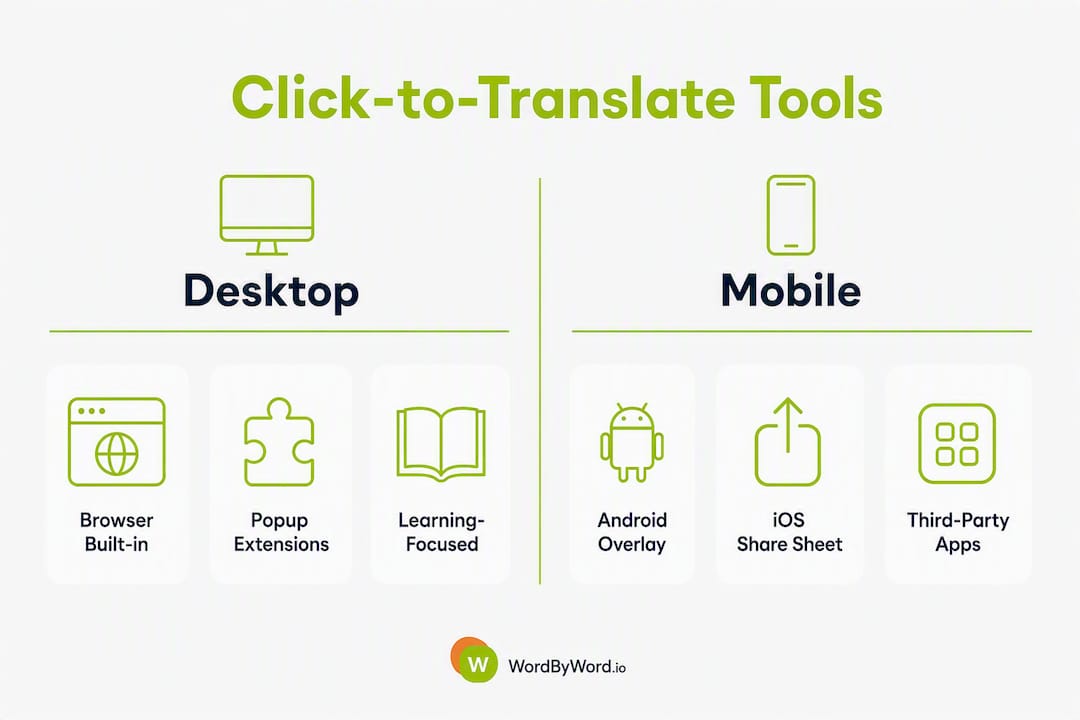
On Android, many translation apps offer a floating overlay that activates when you copy text in any app. Enable it in the app’s settings under “Tap to Translate” or “Overlay permission,” then grant the accessibility or draw-over-apps permission when prompted. After that, copying any text triggers a floating bubble you tap to translate.

iOS is more limited natively. The built-in iOS translation feature works in Safari via the share sheet, but third-party extensions for Safari are narrower in scope than their Chrome counterparts.
Pro Tip: Configure a modifier key trigger (like holding Alt while clicking) instead of auto-translate-on-select. It prevents the popup from firing every time you highlight text to copy it, which gets annoying fast.
What permissions and privacy trade-offs should you check?
Most click-to-translate extensions request broad permissions because they need to read page content to detect selected text. Here’s what to look for before you install:
- “Read and change all your data on websites” is standard but powerful. It means the extension can technically see everything on every page you visit.
- Clipboard access is needed for copy-to-translate features but can expose sensitive copied content.
- Screen overlay / accessibility permission on Android is required for tap-to-translate but grants significant system access.
- Microphone is only needed if the extension offers voice input — skip granting it if you don’t use that feature.
Some third-party extensions may collect browsing data, so always check the extension’s privacy policy and its Chrome Web Store “Privacy practices” tab before installing. Look for explicit statements about no browsing-history tracking and local-only processing where possible.
A practical privacy checklist:
- Does the extension’s store listing include a “Data safety” or “Privacy practices” section?
- Does it offer a whitelist or “disable on this site” option for banking and sensitive pages?
- Does it state whether translation queries are sent to a third-party API (most are) and whether those queries are logged?
Browser-managed translation (Chrome’s built-in feature) routes queries through Google’s servers under Google’s privacy policy, which is a known quantity. A random third-party extension may route queries through an undisclosed API with no stated retention policy.
Pro Tip: Always disable your translation extension on banking, healthcare, and password-manager pages. Extensions that offer a “disable on this site” toggle make this one click.
Which platforms and content types support click-to-translate?
Support varies more than most people expect. Here’s a practical breakdown:
| Content type | In-place translation support | Notes |
|---|---|---|
| HTML web pages | Broad support | Works in nearly all extensions and native browser translation |
| PDFs (browser viewer) | Partial | Requires enabling a custom PDF viewer in extension settings |
| YouTube subtitles/CC | Extension-dependent | Needs CC stream integration, not just page-text injection |
| Images (OCR) | Limited | Quality depends on font clarity and image resolution |
| In-app text (mobile) | Android overlay works broadly; iOS limited | iOS share-sheet workaround available in some apps |
Key limitations to keep in mind:
- Complex web apps (Google Docs, Notion, form fields) can break when an extension injects overlays into editable content.
- OCR on images is inconsistent. Stylized fonts, low contrast, and rotated text all reduce accuracy.
- Language coverage gaps exist: major European and East Asian languages are well-covered; less-resourced languages may return poor quality or no result.
For YouTube subtitle support specifically, check out the best YouTube language learning extensions for a deeper comparison of what actually integrates with CC streams versus what just overlays translated text.
Why does WordByWord stand out for learners?
Most click-to-translate tools stop at the translation. You look up a word, read the popup, close it, and forget it within minutes. WordByWord is built around the assumption that a lookup is only useful if it sticks.
Key features that separate it from a simple popup translator:
- Instant inline translation across websites, PDFs, and YouTube — the core click-to-translate behavior, working across content types.
- Spotlight mode maps every word on a page by how well you know it, color-coding from unknown to mastered. You can see at a glance whether a text is at your level before you start reading.
- Integrated flashcards and AI trainer convert every saved lookup into a spaced-practice item automatically.
- YouTube subtitle support hooks into CC streams so you can translate and save words directly from video content.
- Over 50 languages supported, with voiceover for pronunciation practice.
A basic popup translator answers the question “what does this word mean right now?” WordByWord answers a different question: “will I still know this word next week?” The Spotlight mode makes that second question visible on every page you read.
Some extensions do offer save and history features, but saving a word to a list and building a spaced-repetition practice loop around it are very different things. The gap between “I saved it” and “I learned it” is where most one-off translators fall short.
Settings and habits that keep click-to-translate useful
The biggest complaint about translation extensions is that they get in the way. Here’s how to prevent that:
- Set your trigger to modifier key + click rather than auto-translate-on-select. This keeps the extension invisible until you need it, which matters during long reading sessions.
- Use the whitelist or “disable on this site” feature for interactive pages, forms, and any site where overlay injection causes layout issues.
- Save words immediately after looking them up. The habit of saving takes one extra click but turns a throwaway lookup into study material.
- Configure TTS to a non-conflicting hotkey. TTS can loop or conflict with other shortcuts if you leave it on the default key, especially if you use keyboard shortcuts for other tools.
Pro Tip: For pronunciation practice beyond basic TTS, dedicated pronunciation tools pair well with a translation extension — use the extension to find the word, then use a pronunciation app to drill it.
Troubleshooting common click-to-translate problems
| Symptom | Likely cause | Quick fix |
|---|---|---|
| Popup not appearing | Extension disabled or permissions not granted | Check extension toggle; re-grant “read data” permission |
| Conflicts with site scripts | Overlay injection breaking page functionality | Use “disable on this site” for that domain |
| PDF not translating | Browser PDF viewer blocking injection | Enable custom PDF viewer in extension settings |
| TTS looping or repeating | Hotkey conflict with another shortcut | Reassign TTS hotkey in extension options |
| Wrong text selected | Selection mode set to word vs. phrase | Switch selection mode in settings |
A few practical limits worth knowing: machine translation quality drops on idiomatic expressions and domain-specific jargon. OCR on images fails on stylized or low-contrast text. And for less common language pairs, coverage gaps mean you may get a partial result or none at all.
Extensions that inject overlays can also interfere with copy/paste and drag-and-drop in complex web apps. The fastest fix is always “disable on this site.”
What are the best next steps after choosing a tool?
Pick the tool that matches your actual goal, install it, and test it on a real foreign-language article within the first five minutes. Here’s a short checklist:
- Install the extension or enable the mobile overlay feature.
- Set your trigger preference (modifier key recommended for long reading sessions).
- Open a foreign-language article and translate five words you don’t know.
- Save those five words to your vocabulary list or flashcard deck.
- Check the extension’s privacy settings and disable it on any sensitive sites you visit regularly.
For learners, WordByWord covers all of this in one install: inline translation, word saving, Spotlight vocabulary mapping, and spaced-practice flashcards, all on a free tier.
How do popular click-to-translate tools compare?
Rather than naming every extension on the market, here’s how the main types of tools stack up:
Built-in browser translation (Chrome, Edge, Safari): Zero install, works on full pages and selections via right-click. No learning features, no word saving, no customization. Best for occasional one-off translation needs.
Lightweight popup extensions: Install in seconds, translate selected text into a bubble, support TTS and copy. Some offer basic word history. Privacy varies widely by developer. Good for quick lookups with no interest in vocabulary building.
Learning-focused extensions (WordByWord): Inline translation plus vocabulary tracking, Spotlight mode, flashcards, AI-powered practice, PDF and YouTube support. More features to configure, but the payoff is retention rather than just comprehension. The hover translation guide covers the UX differences in detail if you want to go deeper on trigger settings.
The honest trade-off: a simple popup extension has almost nothing to configure and works immediately. A learning-focused extension takes ten minutes to set up properly and returns far more value over time if you’re actually trying to build vocabulary.
Key Takeaways
The most effective click-to-translate setup combines a modifier-key trigger, a privacy-checked extension, and a word-saving habit that turns lookups into study material.
| Point | Details |
|---|---|
| Install method | A browser extension gives more control and learning features than native browser translation alone. |
| Privacy first | Check the extension’s data safety disclosure and disable it on banking or sensitive sites before regular use. |
| Trigger settings | Use a modifier-key trigger to keep the popup invisible until you need it, preventing distraction during long reading. |
| Save to learn | Saving a translated word to a flashcard deck converts a one-off lookup into long-term vocabulary retention. |
| WordByWord | Covers instant inline translation, Spotlight vocabulary mapping, and AI-powered flashcards across websites, PDFs, and YouTube. |
Why this approach matters for language learners
Most translation tools are built for comprehension in the moment. That’s useful, but it’s not learning. The WordByWord team built the extension around a different premise: every time you look up a word while reading, that’s a learning opportunity, and the tool should capture it automatically rather than let it disappear.
Spotlight mode makes vocabulary gaps visible at a glance. The AI trainer turns saved words into practice that actually sticks. And because it all happens inside your normal browsing, you’re not carving out separate study time — the learning happens while you read the things you were already going to read. Over 50 languages are supported, and the free tier covers the core translation and saving features without a time limit.
The goal was always to make the tool invisible until needed, and useful the moment it appears.
WordByWord fits the click-to-translate job better than a simple popup

If you want instant inline translation that also builds your vocabulary, WordByWord does both without switching apps or opening a second tab. Highlight a word on any webpage, PDF, or YouTube subtitle, and the translation appears inline. Save it with one click, and it goes straight into your flashcard deck for spaced practice later.
The free tier covers unlimited inline translations and word saving across all supported languages. The paid upgrade adds AI-generated exercises, enhanced voiceover, and unlimited vocabulary collections. No commitment required to start.
Install WordByWord free and run your first translation on a foreign-language article today. It takes under two minutes to set up, and the privacy controls let you whitelist any site where you’d rather keep the extension off.
Useful sources
- WordByWord — install and feature overview
- One-Click Translator — Chrome Web Store
- Hover translation UX and trigger settings — WordByWord Blog