

Capture unknown words the instant you hit them, attach one short note about where they came from, then queue them into a spaced-repetition schedule instead of trying to memorize them on the spot. Skip the lookup rabbit hole. The words that stick are the ones you save fast and review later, not the ones you stop to study mid-sentence.
TL;DR:
- Capturing a word requires only three seconds and includes the word, its source sentence, and a short personal cue for effective retention.
- Spaced repetition scheduling ensures ongoing review by automatically queuing words and gradually increasing review intervals based on recall success.
- The best capture methods vary by format, with quick highlight and screenshot techniques minimizing disruption during reading on websites, PDFs, and videos.
- Saving entire sentences with personal notes creates stronger memory associations than isolated dictionary definitions.
- Limiting daily new words to eight to twelve prevents backlog overload and maintains a sustainable vocabulary growth process.
Table of Contents
- How Do You Save Words While Reading Without Breaking Focus?
- How Do You Turn Saved Words Into Long-Term Memory?
- What’s the Best Way to Capture Words From Web Pages, PDFs, and Video?
- How Do You Write Notes That Actually Help You Remember a Word?
- How Many New Words Should You Review Each Day?
- How WordByWord Handles Capture and Review in One Place
- Why Capture-First Beats Look-It-Up-Now
- Start Saving Words on Every Page You Read
- Further Reading and How-To Resources
- FAQ
How Do You Save Words While Reading Without Breaking Focus?
The trick isn’t finding more time to study. It’s cutting the gap between seeing a word and capturing it down to almost nothing. Every extra step, opening a dictionary tab, typing a definition, switching apps, is a chance you’ll just keep reading and forget the word existed.
A workable capture, done in under three seconds, needs three things:
- The word itself, exactly as it appeared (including the conjugation or inflection you saw).
- The source sentence, not just the word in isolation.
- A three to five word personal cue, something like “sounded like a French word” or “the villain’s line.”
One-click highlighting or a single hotkey handles the first two automatically if your tool supports it. The cue is the only manual part, and it takes seconds. Skipping it is the single biggest reason saved-word lists turn into graveyards nobody reviews.
It also pays to capture a little metadata along with the word: the source URL, roughly where in the text it appeared, and a half-sentence note on why it mattered. Was it a word you’d seen five times and still couldn’t place? A word tied to something embarrassing you almost said wrong in conversation? Tracking vocabulary while you read works best when each entry carries enough context that, three weeks later, you remember not just the word but the moment.
How Do You Turn Saved Words Into Long-Term Memory?
Saving a word is step one. Without a review system behind it, most saved vocabulary lists become digital junk drawers, hundreds of entries nobody opens again. Spaced repetition fixes this by showing you a word right before you’d naturally forget it, which is a more efficient use of review time than cramming everything daily or reviewing at random.
A minimal, sustainable workflow looks like this:
- New captures enter a queue automatically as you read, rather than requiring a separate data-entry session later.
- The system schedules first review within a day or two, then stretches the interval each time you recall the word correctly.
- You run a daily micro-review, five to ten minutes, to clear whatever’s due that day.
- You add a longer session two to three times a week, twenty to thirty minutes, for consolidation and for words that keep slipping.
- You prioritize by three signals: how often the word shows up in what you’re reading, how useful it is for your actual goals (travel, work, a book series you’re plowing through), and how emotionally memorable the moment of capture was.
WordByWord’s guide on spaced repetition scheduling lays out pacing in more detail, but the core idea is simple: little and often beats occasional and intense.
What’s the Best Way to Capture Words From Web Pages, PDFs, and Video?
Every format interrupts you differently, so the capture method has to match the medium.
- Web pages: select the word, get an instant lookup, save it in one motion. If you don’t want to stop at all, highlight it and batch-process highlights during a dedicated review pass later instead of mid-article.
- PDFs and ebooks: use the reader’s built-in highlight tool when text is selectable. Scanned PDFs need OCR before a word is selectable at all, so check that your extension or app handles that conversion. Export highlights in bulk rather than transcribing them one by one.
- YouTube and other video: pause on a subtitle line, save the line plus a timestamp, and grab a screenshot if the visual adds context (a menu item, a street sign, a facial expression tied to the word’s tone). A single video can realistically yield ten to twenty new words if you’re capturing consistently through subtitles rather than only when something jumps out.
The common thread: never let the capture method force you to leave the page you’re on for more than a second or two. The moment you tab away to a separate dictionary or spreadsheet, you’ve broken the habit that makes this sustainable.
How Do You Write Notes That Actually Help You Remember a Word?
A saved word with just a dictionary definition attached is close to useless six weeks later. What sticks is the sentence you found it in, plus something personal layered on top. This is sentence mining, and the practice recommendation among vocabulary tools and serious learners alike is to save the entire sentence rather than the isolated word, because context does the memory work that a bare definition can’t.
Two things turn a flat capture into a sticky one:
- A short personal cue, one or two lines: an image, an association, or a plain note on why the word mattered in that moment.
- A real usage example, ideally the collocation you saw it in (“heated argument,” not “argument: a disagreement”), rather than a textbook definition.
Pro Tip: Write your cue in your own words, even if it’s a little embarrassing. “This is the word my landlord used when he was annoyed at me” beats any dictionary entry for staying power.
Some learners keep a running diary-style log of the moment each word was learned, an approach VocabDiary is built around, and the underlying logic holds regardless of which tool you use: the story around a word is often more memorable than the word itself. WordByWord’s mnemonics guide covers more specific techniques for building these hooks.

How Many New Words Should You Review Each Day?
Consistency beats intensity here. A realistic capture target during active reading sessions is eight to twelve words, fewer if the text is dense, more if you’re skimming lighter material.
- Daily: five to ten minutes clearing whatever the spaced-repetition queue has due.
- Weekly: one longer twenty to thirty minute session for consolidation, ideally on a day you’re not adding many new captures.
- Retirement rule: a word graduates out of active review only after you recall it correctly across several spaced intervals, not after one lucky guess.
Go past twelve or fifteen new words a day for long and the backlog outpaces what daily micro-reviews can clear, which is when people quit the whole system.
How WordByWord Handles Capture and Review in One Place
WordByWord builds the workflow above directly into the browser rather than asking you to run a separate app alongside your reading. The extension translates and saves any word in one click across websites, PDFs, and YouTube subtitles, in over 50 languages, so the capture step described earlier takes a single motion instead of a tab switch.
A few specifics worth knowing:
- Spotlight mode highlights words on the page itself based on how well you know them, from unknown to mastered, so you see what needs attention without hunting for it.
- Collections organize saved words by hand, by AI-generated prompt, or by importing existing lists from Anki, Quizlet, or a CSV file.
- Seven training modes, including typing, listening, and a sixty-second sprint, run on a spaced-repetition schedule so review stays varied instead of monotonous.
- Comprehension level shows what percentage of a text you already know before you commit to reading it.
The step-by-step tracking guide walks through setup for readers starting from zero.
Why Capture-First Beats Look-It-Up-Now
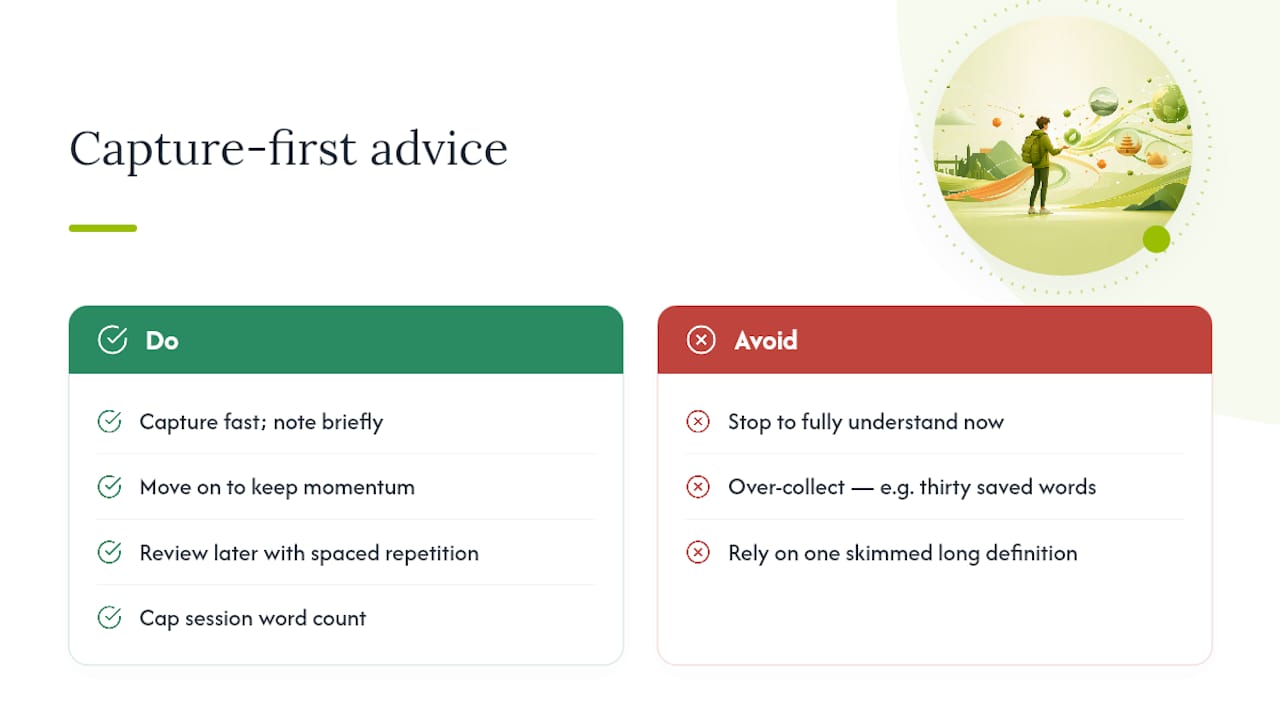
The instinct to stop and fully understand every unfamiliar word the second you see it feels responsible. It’s usually the wrong move. Every interruption costs you narrative momentum, and momentum is what makes reading in another language pleasant enough to keep doing daily instead of dreading.
What separates people who build real vocabulary from people who quietly give up on a reading habit isn’t intelligence or discipline. It’s whether they let themselves defer the studying. Capture fast, note briefly, move on, then review later when you’re not mid-scene or mid-argument. Over-collecting is the other trap, thirty saved words from one article look productive but guarantee you’ll never clear the backlog. Cap your sessions. A short personal note paired with a spaced-repetition schedule outperforms a long definition you’ll skim once and never see again.
— WordByWord Team
Start Saving Words on Every Page You Read
WordByWord turns the workflow in this article into something you set up once and then forget about, no separate study app, no copying words into a spreadsheet after the fact. Install the Chrome extension, and every website, PDF, and YouTube video you already visit becomes a source of one-click captures with automatic spaced-repetition scheduling behind them.

The service offers both free and paid plans; details on usage limits and features can be found on the official website. A practical way to start: read one article today, capture your first five words with a short personal note on each, and let the review queue handle the rest tomorrow. If you’re building vocabulary for a specific context, browse a ready-made collection like business English for meetings to see how a finished set looks before building your own.
Further Reading and How-To Resources
For step-by-step setup, see WordByWord’s guides on tracking vocabulary while reading and choosing level-appropriate texts. Advanced users exploring local sentence-mining tools can look at open-source projects like vocabsieve.
FAQ
What Does “Save Words While Reading” Actually Mean?
It means capturing unfamiliar vocabulary the moment you encounter it, usually with a click or hotkey, so you don’t lose the word or its context by the time you finish the page.
How Many Words Should I Save Per Reading Session?
Eight to twelve words per session is a practical ceiling for most learners; going higher tends to overload your review queue faster than you can clear it.
Do I Need to Look Up Every Word Immediately?
No. Deferred study, capturing now and reviewing later, preserves reading comprehension better than stopping to fully process each new word in the moment.
What Should I Save Besides the Word Itself?
Save the full sentence it appeared in and a short personal note on why it stood out. Isolated definitions are far easier to forget than a word tied to context.
Can WordByWord Help Me Capture Words From YouTube and PDFs?
Yes. WordByWord’s extension supports one-click translation and saving across websites, PDFs, and YouTube subtitles, feeding everything into the same spaced-repetition review system.


