

Press your lookup shortcut on any word, hit the save hotkey to send it to a collection, then open review when you’re ready to study. That’s the whole loop. The keys are remappable on both Mac and Windows, and every word you save this way feeds into a spaced-repetition queue that helps turn studied words into long-term knowledge.
TL;DR:
- Shortcuts should use one or two modifiers with easy-to-recall keys, avoiding conflicts with browser or system shortcuts that could delay responses.
- Customizing shortcuts requires checking for conflicts in browser extension settings and keeping key combinations simple, ideally with only one or two modifiers.
- Using quick, passive lookup and save workflows helps maintain reading flow or actively reinforce vocabulary, depending on the user’s focus, with daily limits to prevent review overload.
- The background API architecture may cause a slight delay in word lookups due to message passing between extension components, especially as collections grow larger.
- Clear, visible shortcut labels and in-stream UI hints improve discoverability, encouraging consistent use and better long-term retention of learned vocabulary.
Table of Contents
- What Are the Best Browser Translation Shortcuts to Start With?
- How Do I Customize or Remap My Shortcuts?
- How Do Shortcuts Turn Into Words You Actually Remember?
- Why Do Some Shortcuts Feel Slightly Delayed?
- How WordByWord Designs Shortcuts Around Real Reading Habits
- Turn Every Page You Read Into a Vocabulary Collection
- Sources
- FAQ
What Are the Best Browser Translation Shortcuts to Start With?
You don’t need to memorize a dozen combinations. Three actions cover almost everything a language learner does while reading: look up a word, save it, and open your review deck. Here’s a starting set that avoids the keys most browsers and operating systems already claim for something else.
- Lookup: Alt+Click (Windows/Linux) or Option+Click (Mac) on any word or highlighted phrase
- Quick save: Alt+S (Windows) or Option+S (Mac) adds the last looked-up word to your default collection
- Save to a named collection: Alt+Shift+S (Windows) or Option+Shift+S (Mac) opens a quick picker
- Open review: Alt+R (Windows) or Option+R (Mac) jumps straight into your flashcard queue
Treat these as patterns, not gospel. The point is a simple, one or two-modifier combination you can trigger without looking at your keyboard. A study on natural keyboard shortcut mapping found that users who learned intuitively mapped shortcuts recalled significantly more of them 24 hours later than users who learned the same commands through menu clicking. Simple beats clever every time.
Windows and Linux browsers use Ctrl and Alt as their primary modifiers; Mac substitutes Command and Option for the same job. If you use both operating systems, expect to remap once and keep a mental note of the swap, since muscle memory doesn’t transfer automatically between Alt and Option.
Watch for two common collisions. Alt+S sometimes opens a browser’s “Save page” dialog, and Alt+Shift+S can be claimed by screenshot tools on Windows. Check your browser’s own shortcut page before locking in a combo: chrome://extensions/shortcuts in Chrome, about:addons under the gear icon in Firefox, and edge://extensions/shortcuts in Edge.
Pro Tip: Pick shortcuts that use the hand you’re not using to scroll or hold your mouse. If you’re right-handed and mousing constantly, put your save and review keys on the left side of the keyboard so you never have to let go of anything.
How Do I Customize or Remap My Shortcuts?
Getting shortcuts to feel automatic takes about a week of deliberate use, but only if the keys you pick don’t fight your browser or your other extensions first.
- Open Chrome’s shortcut manager. Go to
chrome://extensions/shortcutsto see every command WordByWord and your other extensions have registered, all in one list. - Check for conflicts before you commit. If a field shows another extension’s name next to a key you want, that combination is already taken. Chrome won’t let two extensions share the same global shortcut.
- Open WordByWord’s own settings page. Beyond what Chrome’s shortcut manager allows, the extension’s settings let you assign separate keys for lookup, quick save, named-collection save, and review.
- Choose one or two modifiers, never three. A key combo like Ctrl+Alt+Shift+V asks a lot of your hand and your memory. Stick to a single modifier plus a letter, or at most two modifiers.
- Test it on a real page immediately. Open an article in your target language and run through lookup, save, and review once before moving on.
If a shortcut refuses to fire, the usual suspects are a duplicate assignment, a browser-level shortcut with priority (like Ctrl+S for “Save As”), or an accessibility tool intercepting the same keys. Screen readers and sticky-keys settings can override extension shortcuts entirely, so if you rely on assistive technology, check your OS accessibility settings first.
Pro Tip: Print a small cheat sheet of your four shortcuts and tape it near your monitor for the first few days. NN/g’s research on shortcut discoverability found that users rarely memorize hotkeys on first exposure, no matter how well-designed the shortcut is. A visible reminder closes that gap fast.
How Do Shortcuts Turn Into Words You Actually Remember?
A shortcut only matters if the word survives past the tab you closed it in. Two workflows handle that, and which one you use should depend on how much attention you have to spare in the moment.
Low-friction immersion is built for reading you want to enjoy. You hit the lookup shortcut, glance at the translation, and press save. No typing, no pause. This keeps your reading speed close to normal and works well for articles, YouTube subtitles, or PDFs where stopping to type would break your concentration.
Active-encoding trades speed for retention. Instead of a plain save, the shortcut opens a one-line typing prompt: you type the word once before it’s added to your collection. Research on keyboard-based vocabulary practice found that active entry, even something as small as typing a word once, increases the cognitive effort behind encoding compared to a passive click.
Neither workflow beats the other outright. Use immersion when you’re reading for enjoyment or comprehension, and switch to active-encoding when you’re deliberately building vocabulary in a weaker language.
A few ground rules make either workflow sustainable:
- Cap daily captures at a moderate number of words to keep review sessions manageable. More than that and review sessions start to feel like homework instead of five minutes of flashcards.
- Tag words by source or topic as you save them, so a collection built from a cooking video doesn’t get buried under travel vocabulary.
- Set one fixed time each day to open your review queue rather than reviewing whenever you remember to.
ReCALL’s research on personalized vocabulary practice backs this up directly: intentional flashcard practice complements the incidental learning you get from reading, and tailoring practice trials to the individual learner improves long-term retention more than one-size-fits-all review schedules. Saved words that never enter a spaced-repetition system are just a longer word list. Saved words that do enter one are vocabulary.
Why Do Some Shortcuts Feel Slightly Delayed?
A half-second lag between pressing a key and seeing a translation isn’t a bug most of the time. It’s the architecture.
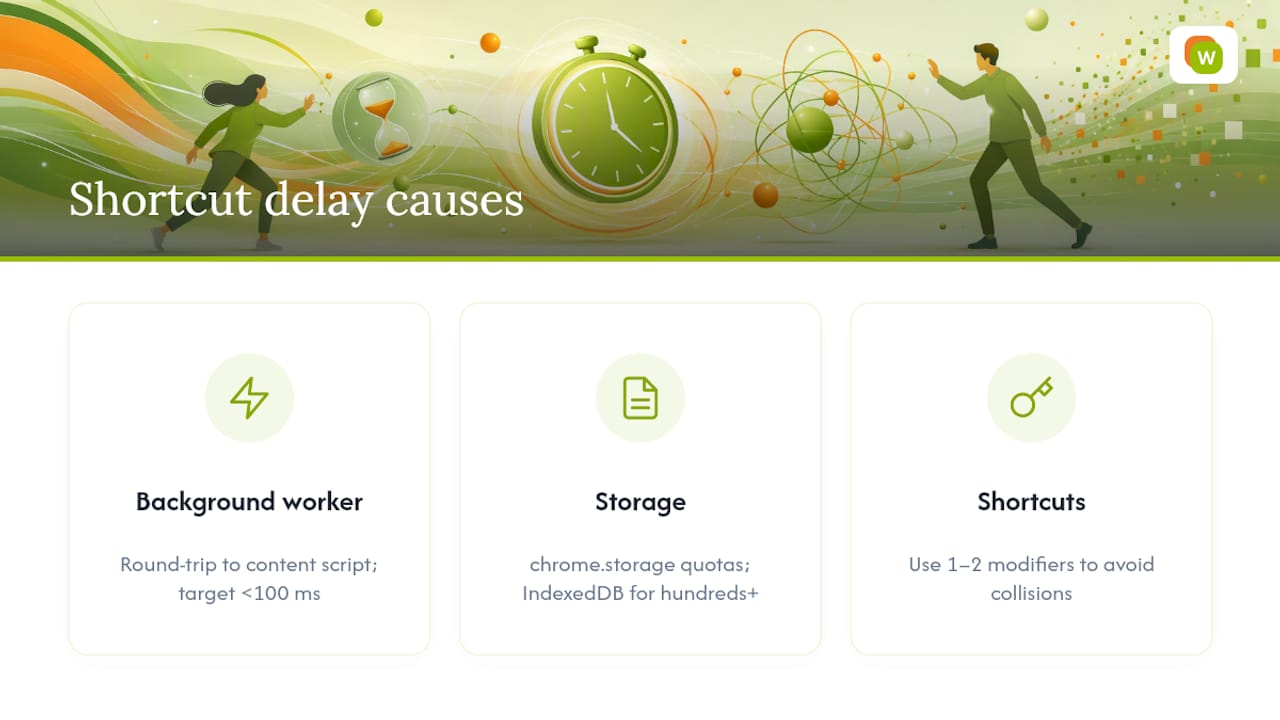
Chrome extensions register their shortcuts through the chrome.commands API, which runs in a background service worker rather than directly on the page you’re viewing. When you press a hotkey, that background worker has to send a message to the content script running on your current tab before anything visible happens. Chrome’s own developer documentation describes this round-trip as something developers actively optimize for, since keeping it under 100 milliseconds is what makes a lookup feel instant instead of sluggish.
Storage plays a role too. chrome.storage.sync has strict size quotas that a serious vocabulary collection will blow through fast, which is why extensions built for language learning tend to lean on IndexedDB for larger word lists instead. That choice affects how quickly saved words appear in your review deck, especially once a collection grows past a few hundred entries.
The other reason to keep your shortcuts to one or two modifiers isn’t just memorability. Simple combinations are less likely to collide with other extensions or with operating system shortcuts fighting for the same keys.
How WordByWord Designs Shortcuts Around Real Reading Habits
Spotlight mode and comprehension tracking shape how we think about shortcuts, not just where we place them. Spotlight highlights words on the page by how well you know them, so the lookup shortcut naturally lands on what’s actually unfamiliar instead of words you’ve already mastered. Comprehension level tells you before you start reading whether a piece is a good fit, which cuts down on wasted lookups entirely.
Discoverability gets equal weight, demonstrated by practical examples of surfacing UI tooltips and small overlay tools that show discoverable shortcut labels like those found in Emoji Tools. Following NN/g’s guidance on shortcut labeling, we surface hotkey hints directly in tooltips and onboarding overlays rather than burying them in a settings menu nobody opens. If you want to go deeper on setup, our guides on translate on hover and building vocabulary while browsing cover the workflows this article only sketches.
— WordByWord Team
Turn Every Page You Read Into a Vocabulary Collection
WordByWord is the shortcut pipeline this whole article describes, built into one extension instead of stitched together from browser defaults and guesswork. Instant lookup on any word, a save hotkey that drops it straight into a collection, and a review queue that runs on spaced repetition so nothing you capture gets forgotten by next week.

Getting started takes four steps: install the WordByWord extension, set a default collection so quick saves have somewhere to land, try the lookup shortcut on a real page in your target language, then press the save hotkey and open your review deck to confirm the word actually showed up. If you want a sense of how saved words get organized once you have a few dozen, browse a built collection like common French vocabulary to see the format. For readers who want a lighter-weight comparison of translation approaches before committing to shortcuts, our guide to the best web page translator options is worth a read first.
Head to the WordByWord homepage to start free. Usage limits apply, but the free plan doesn’t expire.
Sources
- KeyMap: Improving Keyboard Shortcut Vocabulary Using Norman’s Mapping
- UI copy: UX guidelines for command names and keyboard shortcuts - NN/g
- ReCALL (2024) — personalization and CALL in vocabulary learning
- Migrate extensions | Chrome Developers
FAQ
What’s the Fastest Way to Save a Word While Reading?
Click or tap your lookup shortcut on the word, then press your save hotkey immediately after. With WordByWord, that’s typically two keystrokes total, and the word lands in your default collection without opening a menu.
Can I Use Different Shortcuts on Mac and Windows?
Yes. Windows and Linux use Ctrl or Alt as modifiers, while Mac substitutes Command or Option for the same commands, and you can remap either set independently in your extension’s settings.
Why Isn’t My Shortcut Working?
The most common cause is a conflict with another extension or a browser-level shortcut that takes priority; check chrome://extensions/shortcuts to see which command is already claiming that key combination.
Do Saved Words Automatically Go Into Spaced Repetition?
With WordByWord, yes. Every word saved through a lookup shortcut enters your collection and becomes available for spaced-repetition review, following the same personalization principle ReCALL’s research links to stronger long-term retention.
Should I Use One Shortcut for Lookup and Another for Saving?
Yes. Separating lookup from save lets you chain the two actions without lifting your hands from the keyboard, which is the exact pipeline design the KeyMap research found improves shortcut recall over time.


