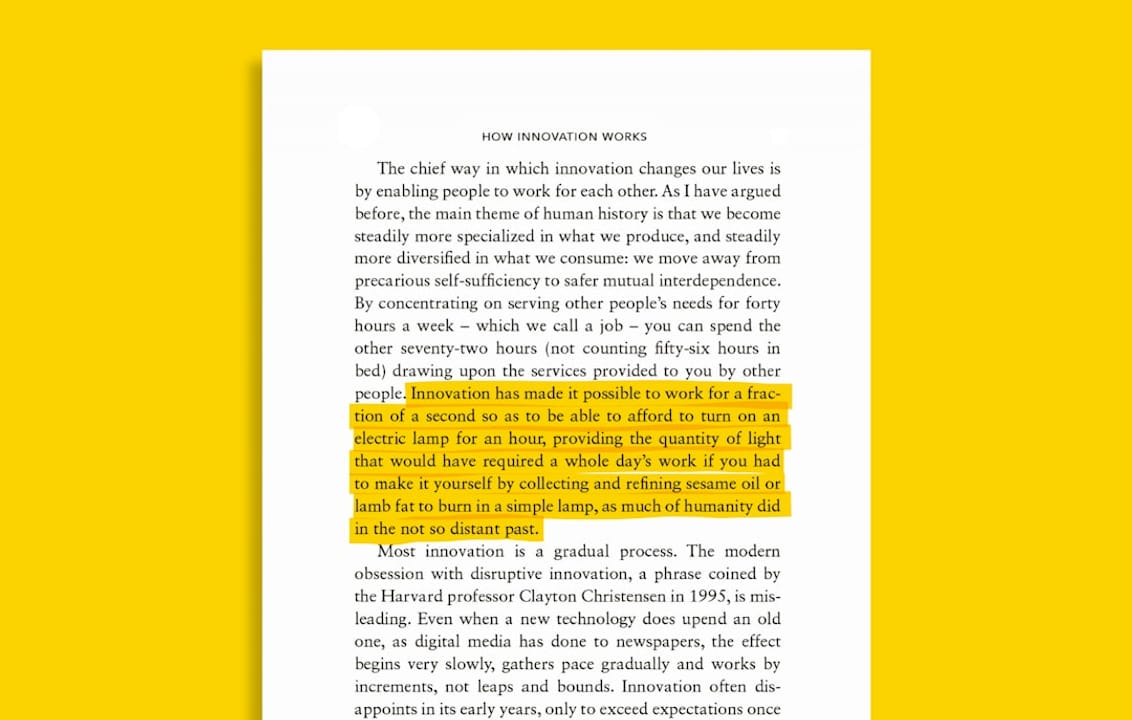
In-context translation is instant, on-page translation of unknown words or phrases in the content you’re already reading or watching, paired with a one-click way to save them for review. Use it to keep your reading flow intact, then send the words worth keeping into spaced repetition. Skip it for deep grammar study.
-
Speed: no tab-switching to a dictionary
-
Flow: you stay inside the article, PDF, or video
-
Capture: one click turns a lookup into a flashcard
Key Takeaways
In-context translation works best as a discovery tool that feeds a spaced repetition system, not as a replacement for active recall practice.
| Point | Details |
|---|---|
| Translate to discover, not to master | Use in-page translation to keep reading flow, then move high-value words into a review system. |
| Sentence-mine instead of hoarding | Save full sentences with context rather than isolated words to avoid diluting your review deck. |
| Commit to short daily reviews | Even brief daily spaced-repetition sessions produce measurably stronger retention than occasional long ones. |
| Check privacy settings before syncing documents | Confirm export and storage options before running sensitive PDFs through any translation tool. |
| WordByWord maps the full workflow into one extension | Hover translation, PDF and YouTube support, Spotlight filtering, and built-in spaced-repetition flashcards run in one place, with a free tier and Premium for unlimited use. |
Table of Contents
What In-Context Translation Actually Does (and When to Use It)
In-context translation means the translation appears where you’re already reading. Hover a word on a webpage, tap a line in a PDF, or click a YouTube subtitle, and the meaning shows up without leaving the page. The better tools also let you capture that word into a vocabulary list on the spot, so the moment of confusion becomes a study item instead of a dead end.
Reach for this when you want to keep momentum: extensive reading, a technical article outside your comfort zone, a lecture with subtitles, or a quick comprehension check on something you half understand. It’s the wrong tool when you’re doing deliberate grammar work or need certainty for something high-stakes, like a contract or medical form, where a professional translator matters more than a browser extension.
-
Good fit: news articles, YouTube videos, PDFs, casual reading
-
Poor fit: legal documents, exam-level precision checks, formal grammar drills
Pro Tip: Treat every machine translation as a draft, not a verdict. When one looks off, that’s usually your best learning moment; dig into why, and you’ll remember it longer than a card you accepted blindly.
What Should a Learner-Facing Translation Tool Include?
A handful of features separate a tool that fits into real reading from one that just adds friction. Before installing anything, check for these:
-
Inline, click-based translation that doesn’t pull you into a separate window or tab
-
PDF support for textbooks, papers, and work documents, not just web pages
-
YouTube subtitle or transcript overlays, since video is where a lot of casual listening practice happens
-
One-click save to a vocabulary collection, ideally with CSV or Anki export if you already run a separate deck
-
Built-in flashcard creation so saved words don’t just sit in a list you never open again
-
Comprehension or difficulty filtering (some tools call this a Spotlight or highlight mode) that flags which words in a text you already know versus which ones are new
-
Privacy controls, including local export options, especially if you plan to run PDFs or documents from work through the tool
Missing any one of these usually shows up later as a workflow problem. No PDF support means you lose your textbook workflow. No save-to-vocab means every lookup evaporates the second you scroll past it.
How Do You Turn Translations Into Long-Term Vocabulary?
Translating a word is the easy part. Making it stick requires a workflow, and the research on spaced repetition is pretty consistent about what that workflow needs to include.
-
Consume first. Keep reading or watching. Use hover or click translation to check meaning without stopping to write anything down yet.
-
Select selectively. Not every unknown word deserves a flashcard. Prioritize words you’ll likely meet again, and target full sentences over isolated words. This is sentence mining, and it works better than saving every unfamiliar token you hit.
-
Capture with context. Save the word along with its source sentence, not just the translation. A bare word loses the clue that helped you understand it the first time.
-
Process briefly. Add a short note (part of speech, a common collocation) and pick a review mode that matches how you’ll actually use the word.
-
Review on a schedule. This is where spaced repetition earns its keep. Adaptive vocabulary systems that enforce short daily sessions, around 10 minutes a day, show measurable gains over ad-hoc review.
Pro Tip: Skip the rare, one-off word you’ll probably never see again (linguists call these hapax legomena). A card for a word you’ll meet twice a year clutters your deck without paying off.
What Mistakes Reduce the Value of In-Context Translation?
The tool itself rarely causes bad results; misuse does. The most common traps:
-
Over-relying on translation for comprehension. It handles recognition, not production. If you never practice recalling the word without the translation next to it, you’ll recognize it forever and never speak it.
-
Saving everything. A deck bloated with low-value words dilutes your review sessions and increases the odds you quit. Prioritize words you’ll actually reuse.
-
Trusting machine output blindly. Machine translation gets nuance wrong often enough that treating imperfect translations as parallel text and noticing the errors can actually sharpen your grammar, rather than undermine it.
-
Skipping the review schedule. Looking a word up once and moving on rarely builds retention. Structured spacing does the work that casual re-reading doesn’t.
-
Syncing sensitive documents carelessly. If you’re translating work PDFs or personal files, check what the tool stores or exports before you feed it something private.
Quick Setup: Start Using In-Context Translation Today
You don’t need a long onboarding process to try this. Here’s a version you can run in under ten minutes:
-
Install a learner-facing browser extension and confirm it handles both PDFs and YouTube subtitles, not just plain web pages.
-
Set your target language (or languages) and decide whether you prefer word-level or sentence-level translation by default.
-
Turn on save-to-vocab and name a default collection so captured words don’t scatter across random lists.
-
If you already run Anki or another SRS tool, check the export or CSV settings now, before you’ve saved fifty cards you’ll have to migrate manually.
-
Run the real test: read one article, save five sentence-mined cards, then review them once using spaced repetition before you close the tab.
That fifth step matters most. A setup you never test is just an extension sitting idle in your toolbar.
Does the Research Actually Support This Workflow?
Yes, and the numbers are more specific than most vocabulary advice gets. A 2021 study on spaced repetition, feedback, and testing found that combining spacing with corrective feedback and testing boosted learning significantly compared to massed practice without feedback. In the same research, users spending a few minutes a day on automated spaced review increased their long-term retention substantially.
That durability holds up over time, too. A 2024 study of university learners tracked retention after a 10-day spaced-repetition period and found roughly 79.77% recall at the 10-day mark, still around 75.27% after 60 days. Schedule design matters at the margins: research on expanding versus equal spacing found a modest advantage for expanding intervals, though the total amount of spacing was more influential than the exact pattern.
-
Short, daily sessions beat occasional long ones
-
Sentence-level cards outperform bare word lists
-
Corrective feedback on wrong answers drives most of the gain
-
In-context translation lowers the mental load of reading itself, which is what makes extensive reading sustainable in the first place
How WordByWord Maps Onto This Workflow
WordByWord is built around exactly the steps above rather than a separate study app you have to remember to open. It’s a Chrome extension paired with a web app that translates words in one click across websites, PDFs, and YouTube subtitles in more than 50 languages.
-
Discover: click-to-translate handles the “consume” step without breaking your reading pace
-
Filter: Spotlight mode highlights words on the page by how well you already know them, from unknown to mastered, so the “select” step happens visually as you read
-
Capture: saving a word takes one click into a collection, whether you build it by hand, generate it with AI from a prompt, or import from Anki, Quizlet, or a spreadsheet
-
Review: flashcards come with voiceover and seven training modes, including typing, sentence builder, and a 60-second sprint, all scheduled through spaced repetition
-
Check fit: Comprehension level shows what percentage of a text’s words you already know before you commit to reading it
The free plan stays free indefinitely with usage limits. Premium removes those caps and adds unlimited collections and deeper personalization. Data export options exist for learners who want control over what stays on their own device versus what syncs.
A Simple Seven-Day Test Worth Running
The simplest way to know if this workflow fits how you learn is to run it for a week: ten minutes of reading a day, five sentence-mined cards saved, one short review session. Success looks like fewer hover-checks on words you’ve already seen and faster recognition inside real text, not just inside a flashcard deck.
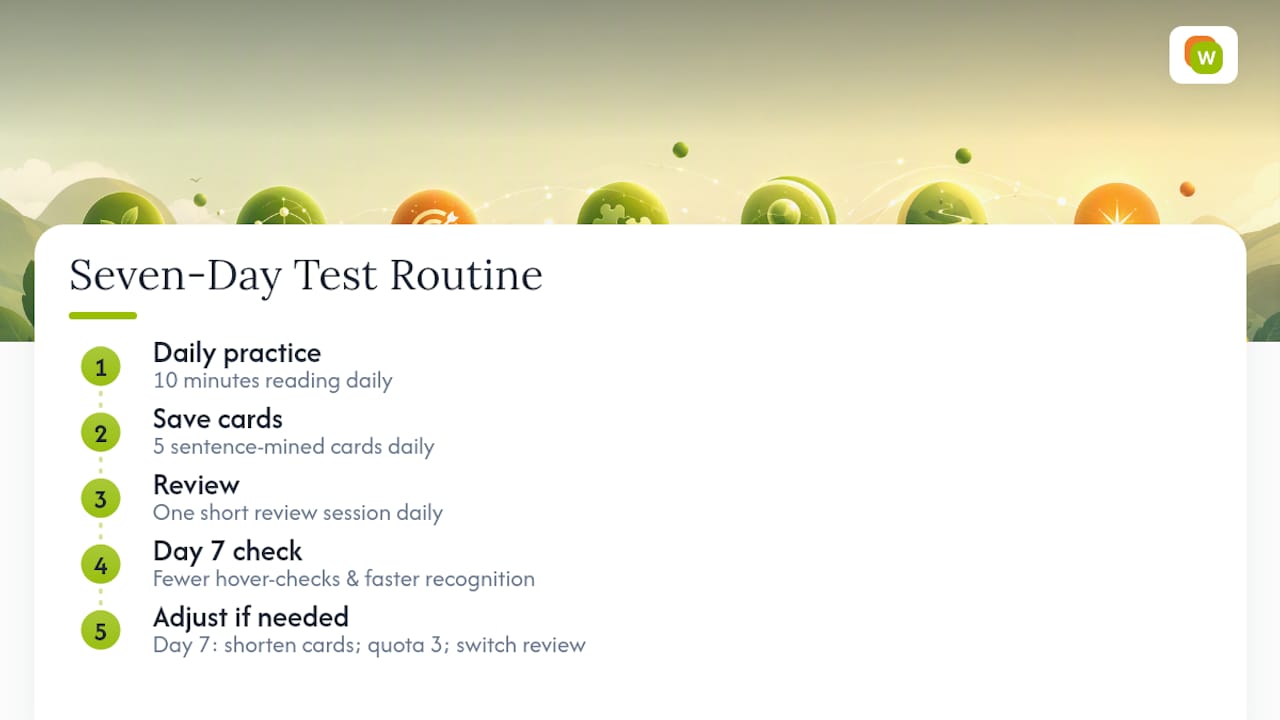
If it’s not clicking by day seven, don’t abandon the idea, adjust it. Shorten the card format, cut your daily quota to three words, or switch review modes. The workflow is meant to bend around your reading habits, not the other way around.
Try In-Context Translation With WordByWord
WordByWord is the alternative to bouncing between a dictionary tab and a study app: one extension handles the lookup and the flashcard in the same click, on the same page you’re already reading. You get in-page translation across websites, PDFs, and YouTube subtitles in more than 50 languages, plus Spotlight highlighting that shows which words in a text you already know before you commit to reading it.

Getting started takes about a minute. Install the extension, open a PDF or YouTube video you were already planning to read or watch, hover a word to confirm the translation appears, then save one to a collection to confirm the sync works. The free plan covers this indefinitely with usage limits; Premium removes those limits and adds unlimited collections plus AI-generated exercises for learners who want to push past casual use.
Frequently Asked Questions
Is in-context translation the same as machine translation? It uses machine translation under the hood, but the difference is placement: the translation appears directly on the page, PDF, or video you’re already engaging with, instead of in a separate app or browser tab.
Does relying on translation slow down language learning? Not if you pair it with active recall. Translation supports recognition and comprehension; without a review step like spaced repetition, it won’t build the recall skill you need for speaking or writing.
How many words should I save per day? Five to ten sentence-mined items per day is a sustainable range for most independent learners, based on the short daily practice windows used in adaptive vocabulary research. More than that tends to overload review sessions.
Can I use in-context translation with PDFs and videos, not just web pages? Yes, and it’s worth checking for this specifically before installing anything. Tools that only work on web pages leave out a lot of real reading and listening material, including textbooks, work documents, and YouTube subtitles.
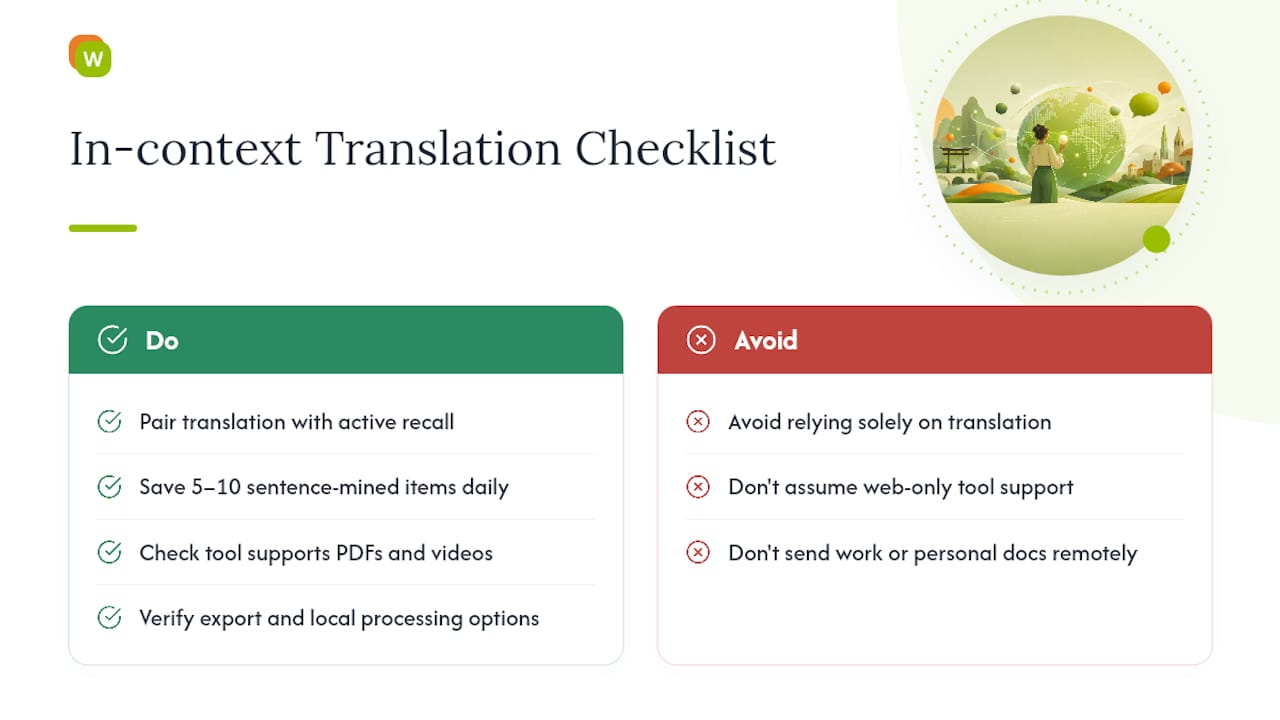
What should I check for data privacy before using a translation extension? Look for export options and confirm whether documents you translate are stored remotely or processed locally, especially before running work files or personal documents through any browser tool.
Sources
-
Frontiers in Psychology — 2021 study on spaced repetition, feedback, and testing
-
Journal of Online and Multimedia Learning & Development — 2024 spacing study
-
Studies in Second Language Acquisition — effects of expanding and equal spacing (2015)