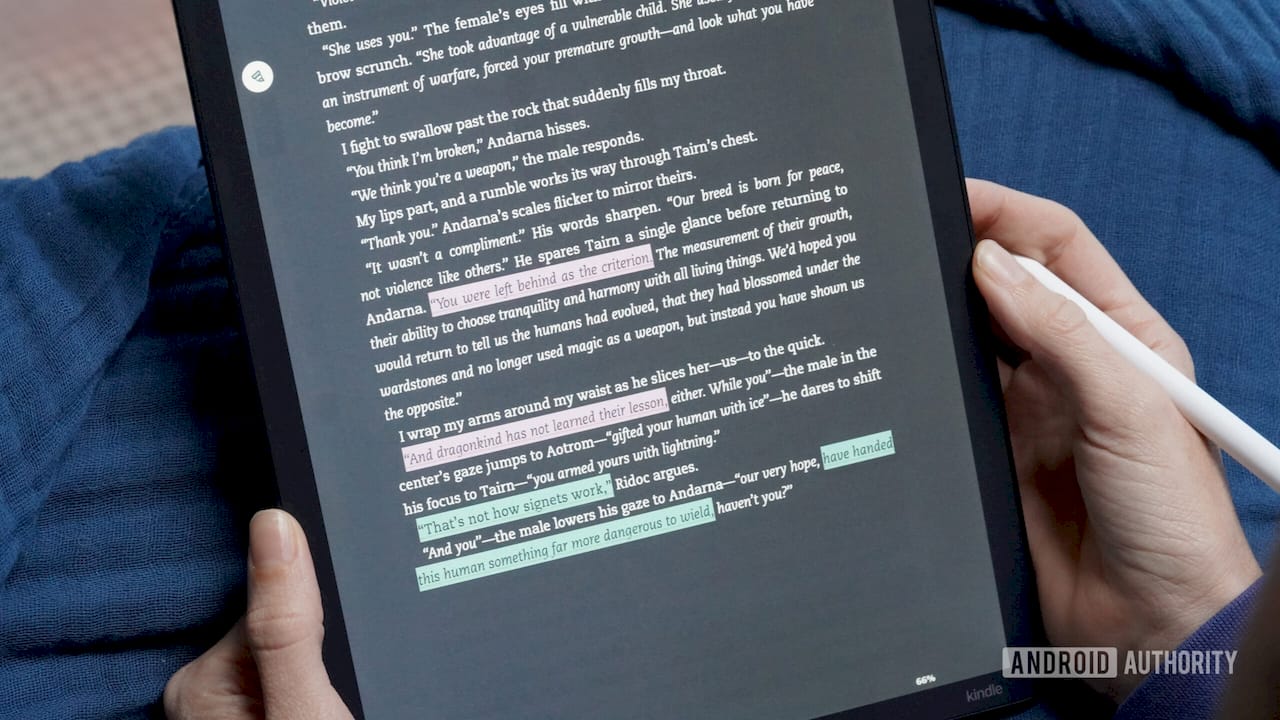
The fastest way to highlight words in a PDF is a browser-based annotator like Smallpdf if you need a one-time fix with no software install, a desktop reader like Adobe Acrobat or Mac Preview if you’re working with the file regularly, or Markup on your phone if you’re reading on the go. The one thing that decides which method actually works: whether the PDF has a real text layer or is just a scanned image. Acrobat and browser annotators write highlights as standard annotation objects defined in the PDF specification, meaning the highlight is a separate object sitting on top of the page, not baked into the pixels. If your cursor won’t select individual words no matter what you try, the file is likely scanned, and you’ll need OCR (optical character recognition) to create a selectable text layer before any highlighter tool will work. If you’re building a vocabulary habit from PDFs, articles, and video subtitles at once, a tool like WordByWord can turn those highlights into flashcards later, but that’s a later step, not the first one.
Here’s what to do right now:
-
Open the file in a PDF reader or browser annotator that shows a text cursor when you hover over words (that confirms a text layer exists).
-
Pick the highlighter tool, usually a marker icon in the toolbar.
-
Click and drag across the words you want to mark.
-
If nothing selects, run OCR first, then repeat.
Key Takeaways
The fastest fix for a stubborn PDF highlight is almost always OCR, and the safest choice for sensitive files is a local, client-side tool that never uploads your document.
| Point | Details |
|---|---|
| Match the tool to the job | Use a browser annotator for one-time edits, Acrobat or a desktop reader for ongoing work, and mobile Markup for quick highlights on the go. |
| Diagnose before you troubleshoot | Check whether the PDF is scanned, permission-locked, or opened in a viewer without annotation support before assuming the tool is broken. |
| Run OCR on scanned files | A PDF that won’t let you select individual words needs OCR to create a text layer before any highlighter will work. |
| Save as annotation objects | Export highlights as standard annotation objects, not flattened images, if you plan to reuse, edit, or extract them later. |
| Prefer local tools for sensitive files | Client-side browser tools like LuraPDF keep documents off third-party servers for privacy-sensitive work. |
| Turn highlights into retained vocabulary | WordByWord lets you click unfamiliar words directly in a PDF and adds them to a spaced repetition collection instead of leaving them as static marks on a page. |
Table of Contents
How to Highlight Text in a PDF Using a Browser Tool
A browser-based annotator is the quickest option when you need to highlight something once and don’t want to install anything. Tools like Smallpdf’s PDF Annotator, pdfFiller, and PDFAid all work the same basic way: open the file in your browser tab, mark it up, download the result. No account setup, no waiting on a desktop app to load.
-
Go to the tool’s site and upload your PDF, or drag it into the browser window.
-
Select the Highlighter tool from the toolbar (usually shown as a marker or pen icon).
-
Choose a color and, if the tool supports it, adjust opacity so text stays readable underneath.
-
Click and drag across the words or phrases you want to mark. Repeat across pages.
-
Click Export or Download to save the highlighted version to your device.
Smallpdf’s annotator actually runs in two different modes depending on the file: selectable-text highlighting for normal PDFs, and a visual “draw-over” mode for scanned pages where there’s no text to select yet. If your document is a scan, run OCR before highlighting so the marks attach to actual words instead of just floating over an image.
Pro Tip: If privacy matters, look for a tool that processes the file locally in your browser instead of uploading it to a server. LuraPDF is one example that renders the text layer and writes highlights as standard annotation objects without the file ever leaving your device.
Multi-page documents generally hold up fine in browser tools, though very large files (100+ pages, heavy image content) can slow uploads or time out depending on the service. Most tools keep your edits in the session until you export, but few autosave, so download before closing the tab.
Highlighting a PDF in Adobe Acrobat
Acrobat writes every highlight as a standard annotation object, which is why marks made in Acrobat show up correctly when someone opens the same file in a different reader. That consistency is the main reason to reach for Acrobat over a lighter browser tool when the file needs to circulate through a team.
Desktop Acrobat:
-
Open the PDF in Acrobat and select the Highlight tool from the Comment toolbar.
-
Click and drag across the text you want to mark.
-
Click the highlighted text again to open a small toolbox where you can change the color, add a note, or delete the highlight.
-
Save the file (Ctrl/Cmd+S) to keep the annotations attached.
Acrobat online: the flow is nearly identical. Upload the PDF, select Highlight from the toolbar, drag across text, then download or save the annotated copy directly from the browser.
A few Acrobat features are worth knowing about beyond the basic highlight:
-
The Comments panel lists every highlight and note in one sidebar, so you can jump between them without scrolling the whole document.
-
Export Comments creates a summary file of every annotation, useful for sending feedback without sharing the whole marked-up PDF.
-
Print with Comments Summary lets you print a document alongside a separate page listing every highlight and note.
Acrobat makes the most sense when a document is going to pass through multiple people, live in a shared workflow, or need a clean audit trail of comments. For a quick personal highlight job, a browser tool is faster and skips the software overhead entirely.
Highlighting on Mac Preview and Windows Readers
Preview on Mac and the built-in PDF viewers on Windows both support native highlighting, and the process is close enough between them that switching platforms won’t leave you guessing for long.
On Mac, open the PDF in Preview, click the markup toolbar icon (it looks like a pen tip inside a circle), then choose the highlight tool and drag across text. Click the small arrow next to the highlight icon to pick a different color, and use View > Show Markup Toolbar if it’s hidden. Notes attach through the same markup menu.
On Windows, Microsoft Edge’s built-in PDF viewer has a highlighter in its toolbar that works the same way: open the PDF, click the marker icon, choose a color, drag across text. Foxit Reader and Adobe Reader on Windows both support full annotation tools, though Reader (the free version) limits some editing features that require a paid Acrobat license.
A few things to watch for across platforms:
-
Some readers save highlights only when you explicitly hit Save, not automatically, so check before closing the file.
-
A highlight made in one app doesn’t always render identically in another. If you’re sending the file to someone else, open it in a second reader first to confirm the marks show up.
-
Permission-restricted PDFs sometimes block Preview or Edge from adding annotations at all, even when the highlighter tool appears clickable.
Highlighting a PDF on iPhone, iPad, and Android
On mobile, use the built-in Markup tool on iOS or a PDF app with annotation support on Android; the steps differ slightly but the outcome is the same highlighted file synced across your devices.
iOS (Markup):
-
Open the PDF in Files, Mail, or a PDF app that supports Markup.
-
Tap the Markup icon (a pen tip) in the toolbar.
-
Select the highlighter tool and drag your finger across the text.
-
Tap Done to save the changes back to the file.
Android (typical PDF app):
-
Open the PDF in an app that supports annotation, such as Adobe Acrobat Reader mobile.
-
Tap the annotation or edit icon, then choose Highlight.
-
Tap and drag across the words you want to mark, or tap individual words to select them.
-
Save or export the file from the app’s menu.
A few tips for mobile-specific quirks:
-
Store large PDFs in cloud-synced storage (iCloud Drive, Google Drive) rather than only on the device, so annotations aren’t lost if you switch phones.
-
Some mobile apps flatten highlights into the page image on export, which means they can’t be edited or extracted later. Check the export settings before sharing.
-
Open the file on a desktop reader afterward to confirm mobile-made highlights actually show up. Not every app renders annotation objects the same way.
Why You Can’t Highlight Text and How to Fix It
Three things break highlighting almost every time: the PDF is a scanned image with no text layer, the file has permission restrictions blocking edits, or the viewer you’re using simply doesn’t support annotation tools. Each has a specific fix, and figuring out which one you’re dealing with usually takes under a minute.
| Cause | How to tell | Fix |
|---|---|---|
| Scanned image PDF | Cursor won’t select individual words; whole page looks like a photo | Run OCR to add a selectable text layer, then highlight normally |
| Protected/restricted file | App shows a lock icon or an “editing restricted” message | Request the password from the file owner, or use the official unlock process if you have rights to the document |
| Viewer lacks annotation tools | Highlighter option is missing or grayed out | Switch to a reader or browser tool that supports annotations, like Acrobat or Smallpdf |
If you’re not sure which situation you’re in, the most common failure is the scanned PDF, especially with older documents, faxed forms, or anything photographed with a phone. Try selecting a single word with a double click. If nothing highlights blue, you’re looking at an image, not text.
Pro Tip: To check whether an existing highlight is a real annotation object or just burned into the page, open the file in a second PDF reader. If the highlight still shows up as a distinct, editable layer (you can click it, move it, or delete it), it’s a proper annotation. If it looks like part of the flattened image and you can’t interact with it, someone exported it as a flattened file.
One more thing worth saying plainly: if a PDF is locked and you don’t have the right to open or edit it, stop there. Request access from whoever owns the document rather than trying to work around the restriction.
Saving, Exporting, and Printing Highlighted PDFs
Save the file as a regular PDF to keep highlights as editable annotation objects; only flatten the file when you specifically want the highlights locked permanently into the page. That distinction matters more than it sounds, because a flattened highlight can’t be edited, removed, or extracted later, while an annotation object can be updated indefinitely.
-
Save vs. Export: saving usually keeps the file in its original, editable annotation state; exporting sometimes offers a flattened version as an option, so check the export menu before assuming you’re getting the same file.
-
Export Comments/Summary: Acrobat and a few other tools can generate a standalone summary of every highlight and note, separate from the marked-up PDF itself.
-
Flattened export: use this only when you want the highlights to appear exactly as marked, permanently, with no risk of someone accidentally deleting them, such as before printing a final copy for distribution.
-
Print settings: most readers include a checkbox for “Comments” or “Markups” in the print dialog. If it’s unchecked, your printed copy will show the plain text with no highlights at all.
Before sending a highlighted PDF to someone else, open it in a second reader first. Annotation rendering isn’t perfectly consistent across every app, and a highlight that looks fine in the tool you made it in can occasionally disappear or shift in another viewer.
Keeping Highlights Private While Building a Study Workflow
If you’re marking up something sensitive like a legal contract or medical record, prefer a browser tool that processes the file locally rather than uploading it to a server. Client-side tools like LuraPDF render the PDF and write highlights entirely in your browser, so the document never touches a third-party server. That’s a meaningfully different privacy posture than a cloud-based annotator that stores your file, even temporarily, to process it.
For readers highlighting PDFs specifically to build vocabulary or study material, the workflow looks a bit different from a one-off annotation job:
-
Highlight words or phrases in a local browser tool or desktop reader that writes standard annotation objects, not flattened marks.
-
Export the annotations, either as a comment summary or through a plugin built for extraction.
-
Import that exported text into a vocabulary or flashcard tool for review.
Tools built specifically for this exist. Zotero Highlight Collector, for instance, pulls highlighted text and metadata out of Zotero’s PDF viewer, maps different highlight colors to categories, and exports everything as CSV or Anki-ready text. If you’re highlighting research papers or long-form articles for study rather than quick reference, that kind of extraction step turns scattered highlights into an actual review system instead of colored marks you’ll forget about.
Pro Tip: Before you build an extraction workflow around a set of highlights, confirm they’re saved as annotation objects rather than rasterized into the page. A flattened highlight can’t be pulled back out as text, which means an extraction tool has nothing to grab.
Rules of Thumb for Highlighting That Actually Helps
Highlight less than you think you need to, stick to two or three colors with a consistent meaning for each, and pair every highlight with a plan to actually revisit it. A page covered in yellow marker isn’t a study aid, it’s just a page you’ll skim past later, because everything looks equally important.
-
Highlight short phrases or key terms, not entire sentences or paragraphs.
-
Use two to four colors with fixed meanings (one for vocabulary, one for definitions, one for questions) rather than picking colors at random.
-
Add a short note next to a highlight when the reason you marked it isn’t obvious at a glance.
-
Export or review your highlights on a regular schedule instead of letting them pile up across dozens of documents.
Pro Tip: Highlighting without follow-up review does almost nothing for retention. Pair your highlights with spaced repetition or a flashcard export, so the words you marked actually turn into vocabulary you remember instead of colored text you scroll past once.
Which Tool Should You Use? A Quick Decision Guide
Pick a browser annotator for a fast, one-time edit; pick Acrobat or a full desktop reader for ongoing annotation work or team collaboration; run OCR first for any scanned document; and choose a local-processing tool whenever the file is sensitive.
If your reason for highlighting is building vocabulary rather than marking up a contract for review, the tool that matters most isn’t the highlighter itself, it’s what happens to those words afterward. That’s the gap WordByWord is built to close, turning marked-up text into something you actually review and remember.
How the WordByWord Team Handles PDF Study Workflows
Our team’s own process for study PDFs is compact: highlight locally in a browser reader or desktop app, export the annotations as text, then bring that text into a WordByWord collection for spaced repetition. Keeping the annotation step separate from the vocabulary step turns out to matter more than it seems, because it lets you choose the right tool for each job instead of forcing one app to do both.
For anything sensitive, we default to local, client-side annotation tools rather than uploading to a cloud service, for the same reason any privacy-conscious reader should: the file never has to leave the device to get marked up. And we only rely on tools that write highlights as real annotation objects, never flattened marks, because a flattened highlight can’t be exported into anything useful later. It just sits there as a colored rectangle with no data behind it.
Turn Your PDF Highlights Into Vocabulary You Actually Retain
Highlighting a word in a PDF is the easy part. Turning that highlight into vocabulary you actually remember weeks later is the part most tools skip entirely. WordByWord is built for exactly that gap: when you’re reading a PDF and hit an unfamiliar word, one click translates it and adds it to a personal collection, no separate export step, no copying text into a spreadsheet first.

A typical workflow looks like this: you’re reading a research paper or work document in your browser, you click an unknown word instead of reaching for a highlighter, and it’s automatically saved to a collection tied to whichever language you’re learning. From there, spaced repetition flashcards with voiceover and seven training modes turn that single word into something you’ll actually recall the next time you see it, whether that’s in another PDF, a YouTube video, or a random article. If you’re already using highlights to flag vocabulary across PDFs, articles, and subtitles, start with WordByWord and let the words you mark turn into vocabulary that sticks instead of colored text you never revisit.
Frequently Asked Questions
Can you highlight words in a PDF without Adobe Acrobat? Yes. Browser tools like Smallpdf, pdfFiller, and PDFAid all support highlighting without any Acrobat license, and Mac Preview along with Microsoft Edge both include built-in highlighters at no extra cost.
Why won’t my PDF let me highlight any text? The three usual reasons are a scanned image with no text layer, a permission-protected file, or a viewer that doesn’t support annotation tools. Try double-clicking a word: if nothing selects, the file is likely a scan and needs OCR first.
Do I need to pay for OCR to highlight a scanned PDF? Several browser annotators, including Smallpdf, include OCR as part of their highlighting workflow, so you don’t necessarily need separate OCR software before you can mark up a scanned document.
Will highlights I make in one PDF reader show up in another? Usually, yes, as long as they’re saved as standard annotation objects rather than flattened into the page. It’s still worth opening the file in a second reader before sharing it, since rendering isn’t perfectly consistent across every app.
How do I extract highlighted words from a PDF for studying? Export the highlights as annotation data or comments, then bring that text into a vocabulary tool. Extraction plugins like Zotero Highlight Collector automate this by mapping highlight colors to categories and exporting Anki-ready text, and a tool like WordByWord can turn individual clicked or highlighted words into flashcards directly.