WordByWord is the best Chrome translator for anyone learning a language through real reading, not textbook drills. It translates individual words on any web page, inside PDFs, and across YouTube subtitles in one click, and it does something no plain translator does: it saves what you looked up and schedules it for review with spaced repetition, in more than 50 languages.
-
Inline translation on pages, PDFs, and YouTube subtitles without switching tabs
-
Automatic vocabulary collection with spaced-repetition flashcards built in
-
A free plan with no expiration date, plus a Premium tier that removes usage caps
Before you install anything, check the extension’s privacy settings. WordByWord’s product page lays out what stays on your device versus what gets processed in the cloud.
Pro Tip: Install one translator at a time and test it on your actual reading material before adding a second. Two translation extensions running on the same page will fight over the click.
Key Takeaways
The best Chrome translator for language learners pairs instant inline translation with a system for capturing and reviewing new vocabulary, not just accurate one-off definitions.
| Point | Details |
|---|---|
| Match tool to task | Pick an in-browser learning tool for reading, a PDF-capable one for documents, and a subtitle-aware one for video. |
| Check the six feature axes | Evaluate content types, engine quality, inline workflow, privacy policy, free-plan limits, and retention design before installing. |
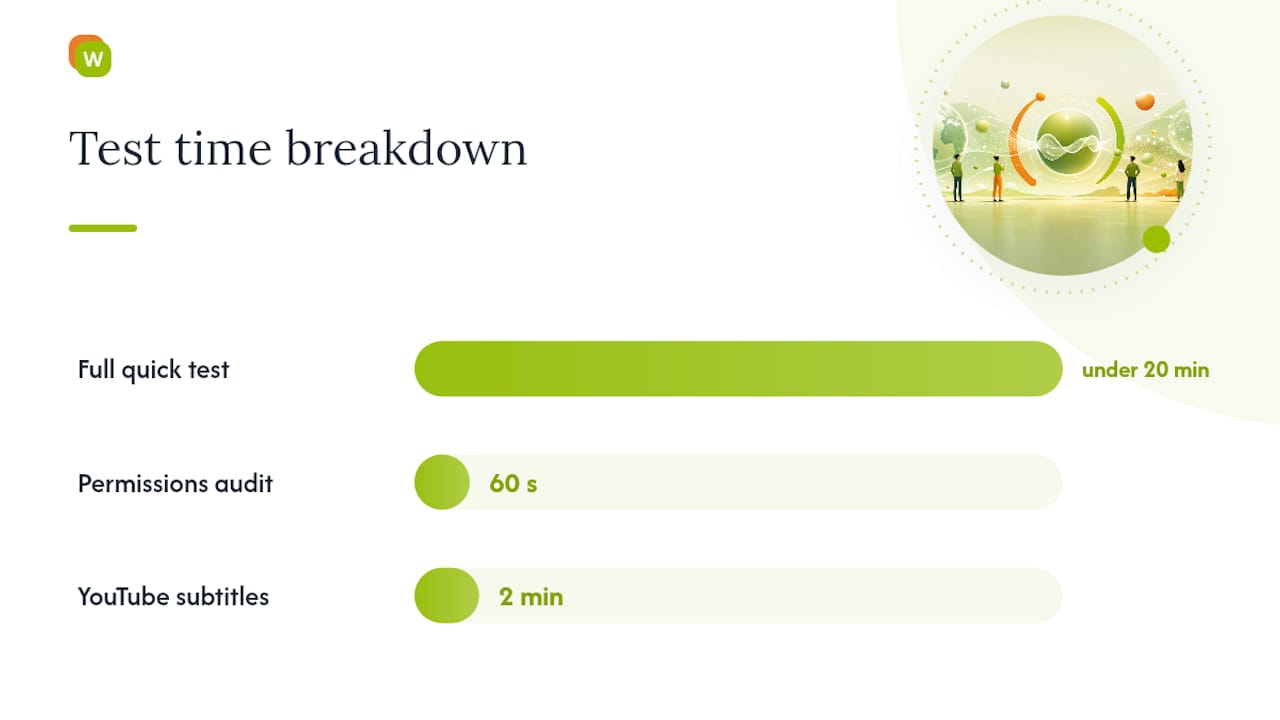
| Test before committing | Try the extension on one article, one PDF, and one subtitled video within 20 minutes to spot gaps fast. |
| Watch permissions closely | Flag any extension requesting clipboard or file access with no clear feature behind it. |
| WordByWord fits the retention gap | It combines one-click translation on pages, PDFs, and YouTube subtitles with Spotlight mode and spaced-repetition review. |
Primary Sources and Where to Read More
-
Best Translation Extensions for Chrome in 2026: Ranked: comparison guide covering extension categories in depth.
-
Best PDF Translator for Language Learners: covers PDF and OCR translation specifics for study material.
-
What Is Online Language Learning and How It Works: background on in-context learning models.
Table of Contents
Which Chrome Translator Fits Your Specific Task?
Not every translation job needs the same tool, and that’s where most “best translator” lists fall short. They rank extensions by star count instead of by what you’re actually trying to do at 9 p.m. with a half-finished article open in another tab. Match the task first, then pick the category.
-
Reading news, blogs, or articles while building vocabulary. You want an in-browser translator that captures words as you click them rather than just flashing a definition and forgetting it. This is the category WordByWord occupies, and it’s the right pick if retention matters more than a one-time answer.
-
Working through PDFs, ebooks, or scanned documents. You need a translator with real PDF handling, ideally OCR support for scanned pages where the text isn’t selectable. Plenty of general-purpose translators choke on PDFs entirely, so test this specifically before committing.
-
Watching subtitled videos, especially on YouTube. Look for subtitle-aware extensions that translate captions in real time without breaking sync. Standard page translators usually can’t touch subtitle text at all.
-
Translating anything sensitive, personal, or work-related. Prioritize privacy-first tools that advertise zero content retention over free-for-all cloud translators, since your message content shouldn’t become training data for someone else’s model.
-
Quick one-word lookups while skimming. A lightweight hover or selection tool is enough here. You don’t need vocabulary tracking for a word you’ll never see again.
Each category trades something for something else. In-browser learning tools ask you to build a habit around saving and reviewing words, which pays off over weeks but does nothing for a single afternoon of reading. PDF-capable tools tend to have smaller free tiers because OCR processing costs more to run. Subtitle translators are the newest category and the most inconsistent, so timing accuracy varies a lot between extensions. Privacy-first tools sometimes sacrifice translation quality for the sake of keeping everything local.
Pro Tip: Pick the category that matches your most frequent task, not your rarest one. If you read ten articles a week and watch one subtitled video a month, optimize for reading first.
What Features Actually Matter in a Translation Extension?
Star ratings on the Chrome Web Store tell you almost nothing about whether a translator fits your workflow. Six feature axes do the real work, and understanding them lets you evaluate any extension in about two minutes flat.
Supported content types. The floor is page and selection translation. Above that, PDF support separates casual tools from ones built for serious reading, and subtitle support on YouTube is rarer still. Image and OCR translation, useful for scanned documents or photos of menus and signs, is becoming standard across the higher-end extensions rather than a premium add-on.
Translation engine and glossary support. Generic machine translation handles everyday reading fine. It falls apart on specialized text. If you’re reading legal, medical, or technical material, an extension with customizable glossaries or domain-specific terminology handling will outperform a generic engine by a wide margin, because it stops guessing at jargon and starts applying the term you actually meant.
Inline workflow. Hover translation shows a definition without leaving the page. Sidebar translation opens a panel alongside the text. Click-to-translate requires a deliberate action each time. Hover is fastest for reading flow; sidebar suits deep study where you want the translation to stick around; click-to-translate suits people who don’t want unsolicited pop-ups interrupting a page they’re only half-reading.
Privacy and data policy shape. Some extensions process everything through a cloud API and keep no record of what you translated. Others process locally and never send your text anywhere. Zero-retention claims matter most for translating messages, contracts, or anything you wouldn’t want stored on a third-party server.
Free-plan usefulness. A free tier that caps you at ten translations a day is functionally a trial, not a plan. A free tier with generous daily limits and no expiration date is usable indefinitely. Read the fine print before assuming “free” means “free for your workload.”
Platform and compatibility notes. Check whether the extension works inside PDFs opened in Chrome’s built-in viewer, whether it interferes with other extensions injecting content into the same page, and whether it supports the specific language pair you need. Fifty-plus supported languages sounds impressive until you check whether your specific pair is one of them.
Run through this list before installing anything:
-
Does it translate PDFs, or only web pages?
-
Does it handle YouTube subtitles, or just static text?
-
What does the privacy policy say about content retention?
-
Does the free plan cover your actual daily volume?
-
Does it save what you translate, or does the lookup disappear the moment you close the tab?
That last question is the one most comparison articles skip entirely, and it’s the one that determines whether you retain any of what you looked up.
How Do You Test a Chrome Translator in Under 20 Minutes?
You don’t need to read twenty reviews to know if a translator works for you. You need three test pages and a checklist.
-
Install the extension and open a news article in your target language. Test hover or click-to-translate on five or six unfamiliar words. Note whether the translation appears instantly or lags, and whether it interrupts your reading or sits quietly until you ask for it.
-
Open a PDF, ideally one with a mix of regular text and at least one scanned or image-based page. If the extension claims OCR support, this is where you find out if that claim is real. Translators that only work on selectable text will fail silently on scanned pages.
-
Pull up a subtitled YouTube video and watch two minutes with translation active. Check whether the subtitles stay in sync or drift, and whether the translation is bilingual (showing both languages) or replaces the original entirely, since bilingual display tends to support comprehension better than a full swap.
While you’re testing, run a permissions audit at the same time. Chrome shows you what an extension can access before you finish installing it, and that list is worth actually reading. An extension asking for “access to all sites” is normal for a translator, since it needs to read page text to do its job. An extension asking for clipboard access, file system access, or the ability to read your browsing history with no explanation in its description is a red flag worth investigating before you grant it.
Watch for a few specific warning signs: heavy DOM modification that breaks page layouts, a privacy policy that’s vague about whether it stores or trains on your content, and permission requests that don’t map to any feature the extension advertises. Extensions requesting far more access than their function requires are common enough in this category that a quick permissions check is worth the sixty seconds it takes.
Pro Tip: Test the PDF and subtitle cases even if you think you’ll mostly use the extension for articles. You’ll eventually need it for one or the other, and it’s better to find the gap now than mid task.
How WordByWord Solves the Reading and Learning Problem
Most translator extensions treat every lookup as disposable. You hover, you read the definition, you move on, and the word is gone the moment you close the tab. WordByWord treats every lookup as an investment, and that difference shows up in two features specifically.

As your vocabulary grows, the highlights fade, which gives you a visible signal of progress that a plain translator never provides.
Comprehension level tells you, before you commit to reading something, what percentage of the words in that article, PDF, or video you already know. That single number answers a question every learner asks constantly: is this text actually at my level, or am I about to drown in unfamiliar vocabulary for the next twenty minutes?
The workflow ties together like this: you highlight a word on a page or in a PDF, WordByWord translates it instantly and adds it to a collection, and that word then enters a spaced-repetition rotation with flashcards, voiceover, and seven training modes, including typing and listening exercises. You never leave the browsing you were already doing to open a separate study app.
Learners retain more vocabulary when translation and review happen inside the same habit loop as their normal reading, rather than as two disconnected activities. That’s the logic behind pairing instant inline translation with a save-and-review workflow instead of treating each lookup as a one-off.
WordByWord works across YouTube subtitles the same way it works on articles and PDFs, and none of it is locked to a single language. You can study French on Monday and Japanese on Tuesday inside the same collection system. The free plan runs indefinitely with usage limits, and Premium removes them for learners who want unlimited collections and deeper personalization. Setup takes about two minutes: install the extension, pick your target language, and start clicking words on whatever you were already about to read.
-
Spotlight mode for at-a-glance vocabulary progress on any page
-
Comprehension level scoring before you commit to a text
-
Native PDF and YouTube subtitle support alongside standard web pages
-
Collections buildable by hand, by AI prompt, or imported via CSV from Anki or Quizlet
What Should You Look for When Ranking Translator Extensions?
Accuracy matters, but it’s the most overrated criterion in most comparison articles, mostly because it’s the easiest one to write a paragraph about without testing anything. In practice, six criteria decide whether an extension earns a permanent spot in your browser.
Language coverage should match your actual target language, not just a large total count. Inline and hover behavior determines whether translation interrupts your reading rhythm or supports it. PDF and subtitle support separates tools built for serious study from tools built for casual browsing. Privacy and data handling matters more the more personal your content gets. Free versus paid limits decide whether the tool survives past your first week of curiosity. And retention design, whether the extension helps you keep what you looked up or just answers the question once, is the criterion almost nobody ranks by, despite it being the one that determines whether you actually learn anything.
Weigh these against your own habits rather than a generic star rating. A traveler translating menus needs speed and language coverage. A student working through academic PDFs needs OCR and glossary support. A learner building long-term vocabulary needs the retention piece above everything else.
Does Translation Slow Down Your Browsing?
Every translator extension adds some overhead, since it has to scan page content and inject translated text or overlays. The question is whether that overhead is noticeable.
Lightweight hover tools that translate only on demand tend to have minimal impact, because they’re idle until you click something. Extensions that auto-translate entire pages on load do more work up front, scanning and processing every visible element, which can add a brief delay on text-heavy pages or slow-loading sites.
PDF and OCR processing is the heaviest lift in this category. Reading text off a scanned image takes real computation, and extensions handling this well typically process it server-side rather than trying to run it entirely in your browser, which keeps your tab responsive but depends on a stable connection.
Subtitle translation on video platforms runs continuously while the video plays, syncing to caption timing in real time. Poorly built subtitle translators can cause stutter or delay; well-built ones run in the background without you noticing them at all.
A practical test: open your browser’s task manager (Shift+Esc on Windows, or Chrome’s own Task Manager under the three-dot menu) and check the memory footprint of your translator extension while it’s active. If a single extension is consistently eating far more memory than your open tabs combined, that’s worth investigating, especially if you keep several tabs open while studying. Most well-built translation extensions, WordByWord included, are designed to stay quiet until you actually interact with a word or page.
Will Your Translator Play Nicely With Other Extensions?
Chrome extensions that inject content into the same page can occasionally step on each other. If you run an ad blocker, a grammar checker, and a translator simultaneously, all three are modifying the page’s DOM, and conflicts do happen, usually showing up as a translation popup that won’t close or highlighted text that won’t render correctly.
The most common friction point is having two translation extensions active at once. Both try to intercept your click or hover event, and one usually wins while the other just breaks silently. If you’re testing a new translator, disable your old one first rather than running both.
Password managers, grammar tools like spell checkers, and note-taking extensions generally coexist fine with translation tools, since they operate on different parts of the page or trigger on different actions. The bigger compatibility question for language learners is whether the translator integrates with your existing study system. An extension that only translates but doesn’t export or sync anywhere means you’re stuck copying words into a separate flashcard app by hand. WordByWord sidesteps this by handling both halves of the job itself, from click to collection to spaced-repetition review, so there’s nothing else to sync.
If you use multiple browsers or devices, check whether your vocabulary or settings sync through your Google or extension account, since losing your saved words when you switch from a laptop to a phone defeats the point of collecting them in the first place.
How Often Should a Translator Extension Actually Update?
An extension that hasn’t updated in over a year is a warning sign, not a sign of stability. Chrome’s underlying APIs change, translation models improve, and language support expands. A stagnant extension usually means an abandoned one.
Check the “Version history” or last-updated date on the Chrome Web Store listing before installing anything long-term. Extensions maintained by an active team tend to push updates every few weeks to a couple of months, fixing bugs, adding language pairs, and patching compatibility issues as Chrome itself evolves.
Developer support matters just as much as update cadence. Look for a working support page, an active blog, or a changelog that explains what actually changed release to release, rather than a generic “bug fixes and improvements” note repeated every time. WordByWord’s blog publishes ongoing guides on translation workflows and extension comparisons, which is a reasonable proxy for whether a team is still actively thinking about the product rather than letting it run unattended.
Read the reviews section for a pattern, not a star average. A handful of one-star reviews complaining about a specific bug that got fixed within a week says more about reliability than a flat 4.5-star score with no recent activity. If a developer responds to negative reviews with fixes or clarifications, that’s a better future-proofing signal than review volume alone.
Can You Customize How a Translator Looks and Feels?
Interface customization sounds like a minor detail until you’re staring at cramped white text on a bright background for the fortieth article of the week. The extensions worth keeping usually let you adjust at least font size, translation display style, and whether definitions appear inline or in a separate panel.
Dark mode support matters more than it sounds like it should, especially for anyone reading in the evening. Some translators inherit the host page’s styling automatically; others impose their own overlay regardless of the page’s theme, which can clash badly with dark-themed sites.
For language learners specifically, look for a setting that controls how much translated text shows at once. A tool that translates every word on a page into your native language defeats the purpose of practicing the target language at all. Tools like WordByWord’s Spotlight mode instead let you control the intensity of what’s highlighted, based on your existing vocabulary level, so beginners see more support and advanced learners see less clutter.
Accessibility options worth checking for include adjustable contrast, screen-reader compatibility, and keyboard shortcuts for triggering a translation without needing a precise mouse click. None of these show up in a feature list headline, but they’re the difference between a tool you use daily and one you uninstall after a week of mild irritation.
What the Research on Learner Behavior Actually Supports
The conventional advice on choosing a Chrome translator obsesses over raw accuracy, as if the winning tool is whichever one nails the trickiest idiom. That’s the wrong metric for most readers. Machine translation accuracy has been “good enough” for casual reading for years now; the differentiator that actually changes outcomes is what happens to a word after you look it up.
Where most comparisons fall short is treating translation as a single event instead of a habit. A tool that shows you a definition and forgets it the instant you close the tab is solving a smaller problem than the one most learners actually have, which is vocabulary that leaks out as fast as it goes in. The research on inline translation paired with a save-and-review loop backs this up: retention improves when the lookup and the practice live in the same workflow instead of two separate apps you have to remember to open.
If you’re choosing a translator purely to survive one document, pick whatever handles your content type best and move on. But if you’re actually trying to get better at a language over months, prioritize the extension that tracks what you’ve already learned over the one that claims the fanciest engine. Accuracy gets you through today’s article. Retention gets you through next year’s.
Get Started With WordByWord Today
WordByWord turns the browsing and video watching you already do into vocabulary that actually sticks, instead of asking you to carve out separate study time you don’t have. Where a plain translator answers one question and disappears, WordByWord keeps every word you look up, tracks how well you know it, and brings it back through spaced repetition until it’s yours.

It fits language learners at any stage, from someone reading their first simplified articles to someone chewing through technical PDFs at work. The free plan runs indefinitely with usage limits, so you can test Spotlight mode and comprehension scoring on your own reading material before deciding whether Premium’s unlimited collections and deeper personalization are worth it. Install the extension, pick the language you’re learning, and open the next article, PDF, or YouTube video you were already planning to watch. Start building a vocabulary collection from Wordbyword instead of letting today’s new words disappear the moment you close the tab.
Frequently Asked Questions
What is the best Chrome translator for language learners specifically? WordByWord fits that role best, since it combines one-click translation across pages, PDFs, and YouTube subtitles with a built-in vocabulary collection and spaced-repetition review, rather than treating each lookup as disposable.
Is Chrome’s built-in translation good enough on its own? Chrome’s native translator handles full-page translation well but has no vocabulary memory, no PDF handling, and no subtitle support, which makes it fine for a single unfamiliar page but limited for ongoing study.
Do translation extensions slow down browsing? Lightweight, on-demand tools have minimal impact, while extensions that auto-translate entire pages or process PDFs and subtitles do more background work and can add brief delays on heavier pages.
What permissions should a translator extension have? Access to page content on sites you visit is normal and necessary. Requests for clipboard access, file system access, or browsing history with no stated reason are worth investigating before you approve them.
Can I use a Chrome translator for more than one language at a time? Yes, tools like WordByWord aren’t tied to a single language, so you can build separate vocabulary collections for multiple languages you’re studying at once.