
Four methods handle sentence translation on a page: highlight text and use your browser’s selection translate, click the address-bar icon to translate the whole page, install an inline extension for ongoing bilingual reading, or paste text into an online translator when nothing else works. Selection translate is fastest for a single sentence. Page translate suits full articles. Extensions win for daily reading or study, and paste-in translators are the fallback when a site blocks everything else.
TL;DR:
- Highlighting a sentence and using the browser’s selection translate is the fastest way to get a quick translation without leaving the page.
- Inline extensions provide side-by-side translations for paragraphs, ideal for language learners and daily readers of foreign content.
- Dynamic content load and strict security policies can block translation extensions, and reloading or manual copying and pasting serve as effective workarounds.
- On-device translation offers better privacy for sensitive texts, while cloud translation provides higher quality but involves data sending to external servers.
- Saving translated sentences and unfamiliar words for review enhances language acquisition more effectively than temporary lookups.
Table of Contents
- Quick Methods for Translating a Sentence on a Web Page
- How to Translate a Sentence Using Your Browser’s Selection Tool
- Setting Up an Inline Extension for Sentence and Paragraph Translation
- Why Sentence Translation Sometimes Fails on a Page
- Should You Choose On-Device or Cloud Translation?
- Turning Sentence Translations Into Actual Vocabulary
- Picking the Right Workflow for How You Actually Read
- Try WordByWord for Sentence Translation That Actually Sticks
- Sources
- FAQ
Quick Methods for Translating a Sentence on a Web Page
Each method trades speed for control, and picking the wrong one wastes more time than people realize.
Selection translate is built into Chrome, Edge, and most Chromium browsers. Highlight a sentence, right-click, and a popup shows the translation without leaving the page. It’s the fastest option when you just hit one unfamiliar sentence in an otherwise readable article, and Chrome’s own support documentation confirms this context-menu path works alongside full-page translation.
Whole-page translation rewrites everything on the screen at once. Use it when the entire page is in a language you don’t read, not when you only need one line clarified. Reaching for full-page translate on a single sentence is a common misstep. One browser support insight notes that people frequently confuse the two workflows and end up translating far more text than they need.
Inline extensions insert translations directly below or beside the original paragraph, so you read both languages at once.
- Best for language learners who want to compare phrasing, not just get a rough meaning.
- Best for anyone reading multiple foreign-language pages a day, where triggering a menu every time gets tedious.
Paste-in online translators are the fallback. Copy the sentence, paste it into a translator app or site, and read the result there. It works when a page actively blocks extensions, but it breaks your reading flow every single time.
How to Translate a Sentence Using Your Browser’s Selection Tool
This takes under ten seconds once you know where to look.
- Highlight the sentence you want translated by clicking and dragging across it.
- Right-click the highlighted text and choose the translate option from the context menu, or use your browser’s assigned keyboard shortcut if one is set.
- Read the result in the small popup that appears near your selection. Most inline bubbles offer four actions: swap languages, copy the translated text, replace the original on the page, or close the popup, a design pattern documented in projects like chrome-inline-translate.
- If nothing happens, check that selection translation is enabled. In Chrome, this lives under Settings > Languages, where you can also set your default target language.
- For repeated single-language reading, lock in that target language so you’re not adjusting it every session.
The whole point of this method is that you never leave the page. If you find yourself opening a new tab to paste text, you’ve skipped a faster option.
Setting Up an Inline Extension for Sentence and Paragraph Translation
Inline extensions go further than the browser’s built-in tool. Instead of a temporary popup, they insert a translated line directly beneath each paragraph, so the original and the translation sit side by side as you scroll. Some also add small dictionary bubbles for individual words you hover over, and preserve links, bold text, and formatting rather than dumping a wall of plain text, an approach Ultratransalte documents through its paragraph batching and DOM-safe rendering.
Before installing one, run through this checklist:
- Confirm the extension requests only the site permissions it needs, typically “read and change page content.”
- Check whether it supports per-site memory, so it remembers which pages you want translated automatically.
- Look for a keyboard shortcut to trigger translation without touching your mouse.
- Verify it lets you pause translation on specific sites, useful for pages already in your native language.
Pro Tip: If an extension won’t translate anything on a particular page, try forcing a manual selection translate first. Some sites block automatic page scanning but still allow you to highlight and translate text by hand.
Why Sentence Translation Sometimes Fails on a Page
Most translation failures come down to a handful of repeat offenders, and knowing which one you’re hitting saves you from restarting your browser for no reason.
- Browser internal pages (anything starting with
chrome://) and pages with strict Content Security Policy block extensions from modifying content, since script injection is exactly what CSP is designed to stop. - Single-page apps that load content dynamically can outrun the extension’s scan, so a paragraph you just scrolled to never gets picked up.
- Reloading the page after the extension activates often resolves dynamic-content misses.
- When nothing else works, copy the visible text and paste it into a standalone translator as a manual workaround.
- If translation stops working across multiple sites, toggle the extension off and on, recheck its permissions, or fall back to your browser’s built-in translate feature.
A public guide on translating web content covers these same fallback steps for anyone translating official documents or government pages, and the logic holds for ordinary browsing too.
— WordByWord Team
Should You Choose On-Device or Cloud Translation?
The privacy trade-off here is straightforward. On-device translation downloads a language model once, then runs entirely on your machine, meaning the sentence you’re translating never touches an outside server, a design several inline translation projects build around explicitly. Cloud translation sends your text to remote servers first, which usually means broader language support and stronger model quality, but less control over where that text goes.
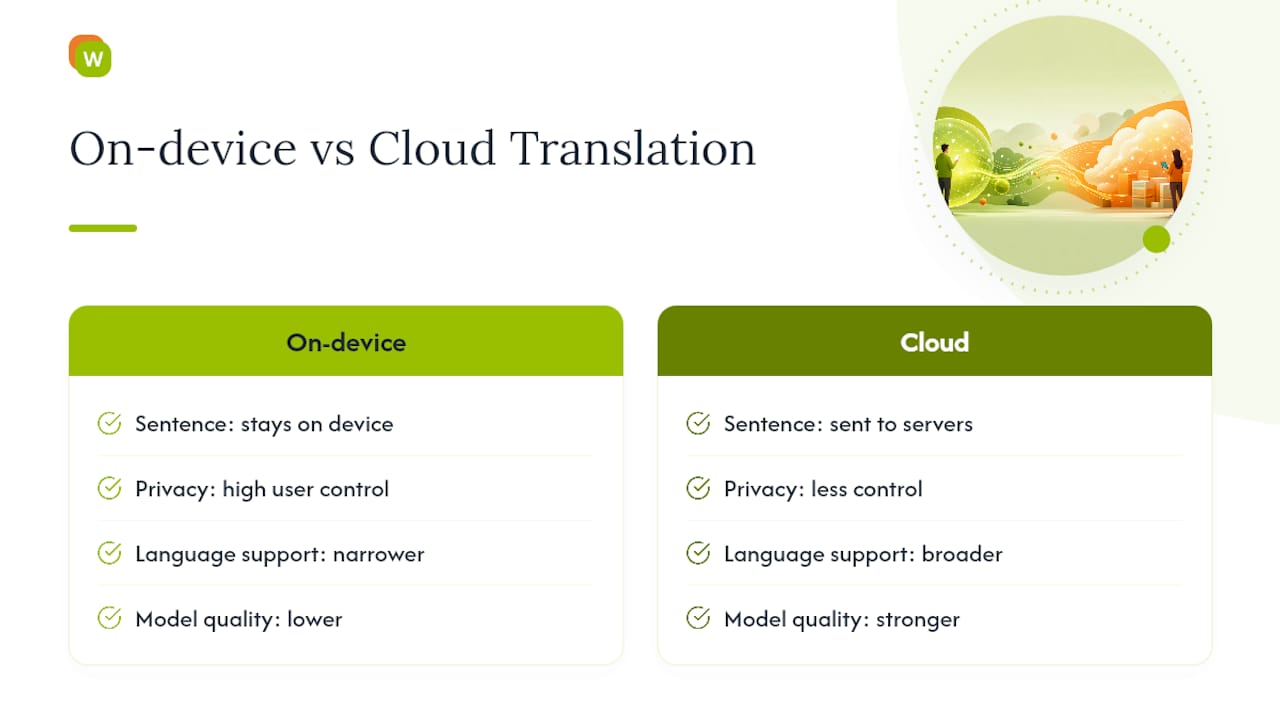
Choose on-device for anything sensitive: medical notes, legal documents, personal messages. Cloud tools make more sense for casual reading where quality matters more than privacy. Either way, check your extension’s permissions page and your browser’s translation settings before assuming your data stays put.
Turning Sentence Translations Into Actual Vocabulary
A translated sentence that vanishes the moment you scroll past it teaches you almost nothing. The gap between casual lookup and real learning is what you do with that sentence afterward.
- Save the sentence and the specific word that tripped you up into a collection instead of letting the translation disappear.
- Check comprehension before you start reading, so you know whether a page is actually at your level or five steps above it.
- Let unfamiliar words stand out visually on the page itself, rather than hunting for them one at a time.
This is where WordByWord’s inline sentence translator differs from a plain translation popup: every lookup becomes a saved item you can review later with spaced repetition instead of a one-time answer you’ll need again next week. If you read foreign-language pages daily, a save-then-review workflow beats ad-hoc lookups by a wide margin over a month of use.
Picking the Right Workflow for How You Actually Read
If you hit one confusing sentence in an otherwise clear article, selection translate or a quick paste into a translator gets you moving again in seconds. If you’re reading foreign-language content daily, whether for work, travel prep, or study, an inline extension that keeps a record of what you looked up pays off far more than repeating the same lookup every few days. And if what you’re reading is sensitive, medical records, legal contracts, private messages, lean toward on-device tools or copy the text into a local app instead of sending it anywhere.
Try WordByWord for Sentence Translation That Actually Sticks
Some inline sentence translators turn every sentence you translate into material you can study later, not just an answer you forget the moment you close the tab. Highlight text on any website, in a PDF, or in YouTube subtitles, and the extension translates it inline while saving the word or phrase into a collection tied to your own vocabulary progress.

Spotlight mode highlights unfamiliar words directly on the page based on vocabulary mastery, and Comprehension level tells you upfront what percentage of a given article or video you can already read before you commit to it. If you watch foreign-language content, the YouTube subtitle translator applies the same save-and-review approach to subtitles, so a translated line from a video becomes a flashcard instead of a fleeting subtitle.
The Free Forever plan covers core translation and vocabulary tracking at no cost, and Premium, at a modest monthly fee, removes the usage limits for readers who want unlimited collections and full access to the spaced repetition review modes. Install the extension and try it on the next page you were going to paste into a translator anyway.
Sources
- Translate pages and change Chrome languages - Computer
- WINEEL/chrome-inline-translate
- How to translate a website, webpage, or document into your language
FAQ
How Do I Translate Text on a Page?
Highlight the sentence, right-click, and select the translate option from your browser’s context menu, which works in Chrome and most Chromium browsers without installing anything extra. For a full page instead of one sentence, click the translate icon in the address bar.
How Do I Trigger Google Translate on a Page?
Click the translate icon that appears in Chrome’s address bar when it detects a foreign language, or right-click anywhere on the page and choose “Translate to [your language]” from the menu, per Chrome’s own documentation. If the icon doesn’t appear automatically, check that translation is enabled under Settings > Languages.
How Do I Auto-Translate Text on My Screen?
Inline browser extensions can auto-translate paragraphs as you scroll, inserting the translated text directly below the original without any manual selection. This differs from the browser’s built-in tool, which typically requires you to trigger translation manually for a selection or a full page.
Can I Translate Text Directly Inside Web Pages?
Yes. Both your browser’s built-in translator and inline extensions like the WordByWord sentence translator work directly inside the page, without redirecting you to a separate translator site. The difference is that WordByWord also saves what you translate for later review.
What’s the Difference Between Page Translate and Selection Translate?
Page translate rewrites or overlays translations across the entire document at once, while selection translate handles only the exact text you highlight. Use selection translate for single sentences and page translate when the whole page is in a language you don’t read.