
The fastest way to hear and learn accurate pronunciations in your browser is to use an in-page tool that gives you native-speaker audio or high-quality text-to-speech, plus a way to save what you hear for later practice. That combination matters more than any single feature. WordByWord is built exactly this way: highlight a word on any page, hear it, save it, and review it later without ever leaving what you were reading.
If you want alternatives instead of an all-in-one tool, three routes work reasonably well on their own:
- Standalone TTS tools for quick, on-demand playback of any typed sentence
- Editorial dictionaries like Cambridge for authoritative, IPA-backed audio
- Contextual video clips for hearing words the way native speakers actually say them in conversation
Key Takeaways
Accurate in-browser pronunciation depends less on finding the perfect voice and more on pairing audio with a system that brings words back for review.
| Point | Details |
|---|---|
| Match the tool to the task | Use native recordings for rare words, TTS for volume, and video clips for natural rhythm. |
| Slow playback fixes detail | Drop to roughly 0.75 to 0.9x speed to isolate sounds you can’t catch at full speed. |
| IPA makes correction repeatable | Audio shows you the sound; IPA gives you a map to reproduce it consistently. |
| Switch voices before blaming yourself | A mispronunciation from one TTS voice often disappears with a different accent setting. |
| WordByWord ties audio to retention | Highlight, listen, and save on any page, then review through spaced-repetition flashcards. |
Table of Contents
- Types of In-Browser Pronunciation Resources and When to Use Each
- How to Get Accurate Pronunciation Audio in Your Browser
- How to Evaluate an In-Browser Pronunciation Tool Fast
- Why WordByWord Fits This Job
- What Actually Matters When You’re Learning Pronunciation in a Browser
- Try WordByWord Free
- Sources
Types of In-Browser Pronunciation Resources and When to Use Each
Not all pronunciation audio is built for the same job. Picking the wrong type wastes time and, worse, teaches you a pronunciation that does not hold up in conversation.
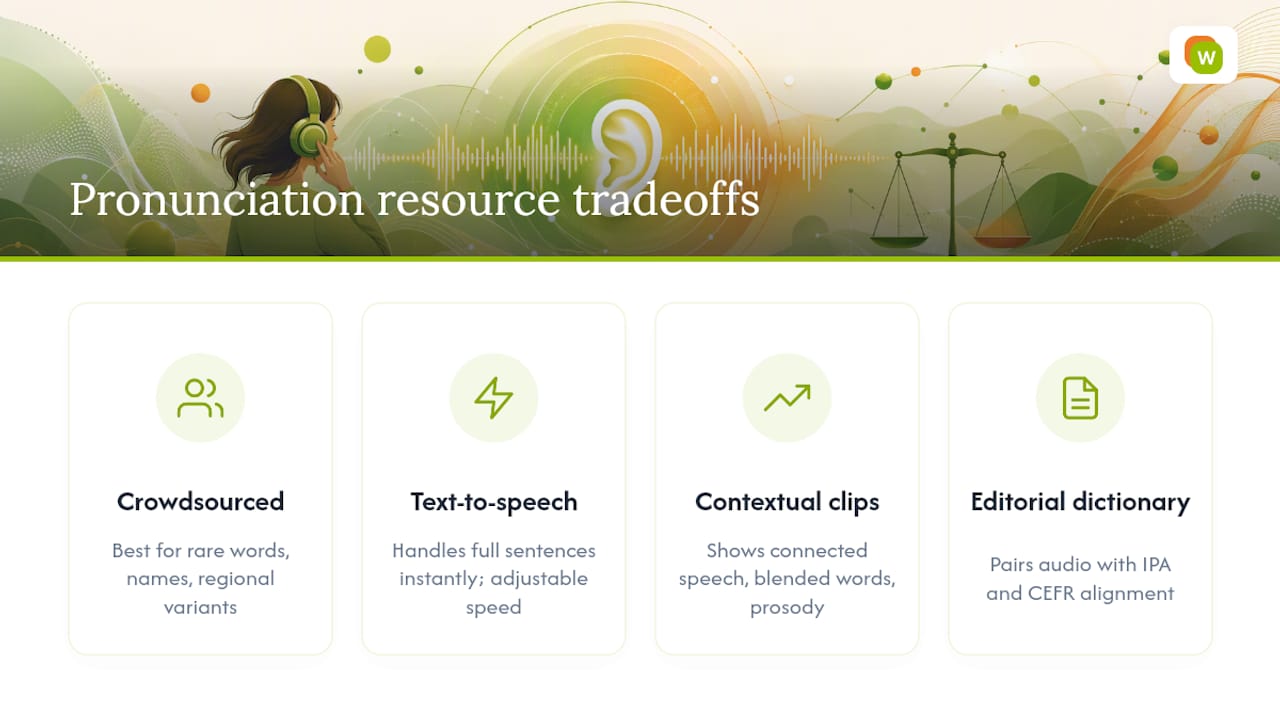
Crowdsourced native-speaker audio works best for rare words, proper names, and regional variants that dictionaries skip. Forvo, for instance, hosts recordings across hundreds of languages contributed by native speakers, which makes it useful when you hit a surname or a local dish name that no algorithm was trained to say.
Text-to-speech is your workhorse for volume. It handles full sentences instantly, lets you adjust speed, and never gets tired of repeating the same phrase back to you. Tools like PronounceText generate side-by-side US and UK audio with slow-playback controls, which is exactly what you want when comparing accents on the fly.
Contextual clips capture something audio alone cannot: connected speech, where words blend, stress shifts, and prosody carries meaning. Real conversational examples, the kind partner resources on natural spoken Spanish point to, teach the rhythm that isolated words never show.
Editorial dictionary audio is your accuracy anchor. Cambridge pairs pronunciation entries with IPA transcriptions and CEFR alignment, so when a TTS voice sounds off, this is where you check the truth.
The tradeoff across all four: naturalness goes up as availability goes down, and speed usually runs the opposite direction from accuracy.
How to Get Accurate Pronunciation Audio in Your Browser
Most learners overcomplicate this. Here’s the workflow that actually holds up across a normal reading session.
- Look up a single word. Highlight it or type it into your tool of choice, play the native audio or TTS version, and check the IPA if it’s shown. IPA matters because it gives you a repeatable map instead of just an impression of a sound, which is especially useful when you keep mispronouncing the same phoneme.
- Learn without leaving the page. With a browser extension installed, highlight-to-listen works on the article, PDF, or subtitle track you’re already viewing, and you can add the word straight to a vocabulary collection.
- Practice at the sentence level. Capture the full sentence, not just the word, then slow playback to roughly 0.75 to 0.9x speed and repeat it aloud. This slower range is what AI pronunciation tools like FairStack recommend specifically for untangling consonant clusters and vowel sounds you can’t catch at full speed.
- Move captures into real study. A saved word that never gets reviewed is wasted effort. Export or shift it into a spaced-repetition system so it actually sticks.
- Troubleshoot bad audio. If a TTS voice mangles a word, switch voices or regional accents before assuming the word is just hard. Different models are trained on different dialect data, so one voice’s failure is often another voice’s clean read.
Pro Tip: Layer your listening. Play the word at natural speed first, slow it down once to catch detail, then check the IPA to lock in the mouth position. Skipping straight to slow playback trains your ear to expect slow speech, which backfires in real conversation.
How to Evaluate an In-Browser Pronunciation Tool Fast
You don’t need a week of testing to know if a tool is worth keeping. Run through this in under two minutes:
- Accuracy first. Does it offer native-speaker recordings, or at minimum a TTS engine that doesn’t garble stress patterns?
- IPA alongside audio. A tool that shows phonetic transcription next to playback gives you something to correct against, not just something to imitate.
- Playback controls that matter. Slow mode and repeat are non-negotiable; accent switching (US, UK, or otherwise) is a strong bonus.
- On-page integration. Highlight-to-play or click-to-play beats copying text into a separate tab every single time, especially browser addons that expose configurable audio sources directly on the page you’re reading.
- Save and export options. Collections, CSV export, or flashcard integration turn a one-off lookup into something you’ll actually remember.
- A quick privacy check. Notice whether the tool sends your text to a third-party API before you paste anything sensitive into it.
Why WordByWord Fits This Job
WordByWord was built around exactly this workflow: highlight a word on any page, in a PDF, or in YouTube subtitles, hear it, and save it without breaking your reading flow. The Chrome extension and web app work together, so a word you look up on a news site this morning is waiting for you in a flashcard deck tonight.
A few specifics worth knowing:
- Vocabulary review runs through spaced-repetition flashcards with voiceover, across seven training modes including typing, sentence builder, and a 60-second sprint.
- Spotlight mode highlights words on the page itself based on how well you already know them, so unfamiliar vocabulary jumps out instead of blending into text you’ve half-mastered.
- Comprehension level tells you what percentage of an article, PDF, or video you already understand before you commit time to it.
- Support spans 50+ languages, and collections import from Anki, Quizlet, or a plain CSV file if you already have lists built elsewhere.
A realistic example: you’re reading a news article and hit an unfamiliar word. You highlight it, hear the pronunciation, and save it to a collection in one click. That evening, you run a 60-second sprint and the word shows up again, this time with voiceover reinforcing the sound you heard hours earlier. Compare that to bouncing between five browser tabs and a separate flashcard app, and the difference in friction is the whole point.
What Actually Matters When You’re Learning Pronunciation in a Browser
Most advice on this topic obsesses over finding the “most accurate” voice, as if pronunciation were a single correctness score you could chase down. It isn’t. Accents vary, native speakers disagree on stress in plenty of words, and a TTS engine that nails Spanish will still stumble on Portuguese. Chasing perfect audio is a losing game.
What actually moves the needle is retention, not the marginal quality difference between two decent voices. A learner who hears a word once and never revisits it forgets it within days, no matter how crisp the recording was. A learner who hears an imperfect TTS version but reviews it three times over two weeks remembers it. The audio quality argument is mostly a distraction from the real bottleneck, which is whether you ever see the word again.
That’s why we built WordByWord around the highlight-listen-save loop instead of a standalone pronunciation lookup. Instant audio matters, but only if it feeds a system that brings the word back to you later.
— WordByWord Team
Try WordByWord Free
Getting started costs nothing. The free plan gives you in-page audio playback, word saving, and basic flashcards, enough to build a real habit before you decide whether you need more.

If you outgrow the limits, Premium removes them, unlocking unlimited collections and enhanced voiceover across every language you’re learning at once. Nothing about the core workflow changes between the two tiers. You still highlight, listen, and save exactly the same way. If you want to see how this fits into a broader practice routine, our guide on text to speech for reading walks through it in more depth, and our IPA pronunciation guide is worth a look if phonetic symbols still feel like a foreign alphabet. To get started, install the extension and set up your first collection at the WordByWord landing page.
Sources
- Pronunciation generator with audio & IPA | PronounceText
- AI Pronunciation Guide – Hear Any Text Spoken Clearly | FairStack
- How2Say browser addon (How2Say / How2Pronounce)