TL;DR:
- WordByWord is the best all-in-one browser extension for learners studying on YouTube, websites, and PDFs with reliable export options. Many learners switch due to subscription costs, extension instability, lack of offline access, and limited vocabulary export features. Testing free tiers, verifying export, and ensuring offline support before subscribing are crucial for a smooth transition.
If you want a browser extension that works across YouTube, PDFs, and the open web, WordByWord is the strongest replacement for most learners. It covers 50+ languages, runs Spotlight mode to visually map your vocabulary gaps on any page, and exports to Anki or CSV without a separate app.
For learners whose needs skew differently, here is the shortlist:
- WordByWord (recommended for most): browser-wide vocabulary tracking, AI flashcards, YouTube subtitle integration, and Spotlight reading mode. Best for learners who split time between streaming and general web browsing.
- Video-first dual-subtitle tools: best for Netflix-heavy learners who want dual subtitles and pop-up dictionaries locked to a specific streaming service.
- Web-wide contextualizers: best for learners who read articles and PDFs more than they watch video.
- Flashcard-first converters: best for learners whose primary goal is building an Anki deck from video encounters.
- Gamified passive translators: best for casual learners who want translation without a structured study session.
- Mobile/offline-first apps: best for learners who commute or study without reliable internet.
Category interest in this space is substantial. One aggregator reports millions of monthly visits for a top tool in the category, which signals how many learners are actively shopping for the right fit.
Table of Contents
- How do the best Language Reactor alternatives compare on features and price?
- Why do learners look for Language Reactor alternatives?
- What does each alternative category actually offer?
- How do you choose the right alternative for your goals?
- How do you migrate saved words without losing your progress?
- How we evaluated these categories and why WordByWord is recommended
- Tool profiles: top alternatives available in the U.S.
- Key Takeaways
- The tools that matter most are the ones you will actually use
- WordByWord: the browser-wide alternative worth trying first
- Where to verify features, pricing, and platform compatibility
How do the best Language Reactor alternatives compare on features and price?
The table below maps each category against the dimensions that matter most when switching. WordByWord appears as the client-recommended entry.
| Category | Best for | Platform support | Core features | Vocabulary workflow | Mobile/offline | Extension vs. app | Pricing | Languages |
|---|---|---|---|---|---|---|---|---|
| WordByWord | Stream + web learners | YouTube, websites, PDFs | Click-to-translate, Spotlight mode, AI flashcards | Saved words, Anki/CSV export, SRS flashcards | Mobile app; offline via downloaded decks | Browser extension | Freemium; paid unlocks unlimited collections + AI | 50+ |
| Video-first subtitle tools | Netflix/streaming-heavy | Netflix, YouTube, Disney+, Prime, Viki | Dual subtitles, pop-up dictionary, playback controls | Saved words, some Anki export | Limited; mostly extension-only | Extension | Freemium to ~$5–10/mo | 20–40+ |
| Web-wide contextualizers | Article/PDF readers | Websites, PDFs, some YouTube | Inline translation, context-aware glosses | Basic word lists | Varies; some offline packs | Extension or standalone | Free to freemium | 40–100+ |
| Flashcard-first converters | Anki power users | YouTube, some streaming | Subtitle scraping, auto-card creation | Anki export, deck building | Anki mobile | Extension + Anki | Free to ~$5/mo | 20–30+ |
| Gamified passive translators | Casual/passive learners | Websites, YouTube | Hover translation, mini-games | Basic saved words | App-based | Standalone app | Freemium | 30+ |
| Multi-tool power suites | Power users | YouTube, Netflix, web | Dual subs, AI grammar notes, speaking practice | Full export, SRS | Some mobile | Extension + app | $10–20/mo | 20–30+ |
| Mobile/offline-first apps | Commuters, no-wifi learners | App-based content | Curated lessons, offline decks | SRS, flashcards | Full offline | Standalone app | Freemium to ~$10/mo | 20–40+ |
Three features to check first before committing to any tool:
- Dual subtitles: does it show your native language and target language simultaneously on your primary streaming service?
- Export/Anki: can you get your saved words out as a CSV or Anki deck? If not, your vocabulary is locked inside the tool.
- Offline/mobile: if you study on a phone or without Wi-Fi, confirm the app or deck syncs and works offline before paying.
Most alternatives in 2026 offer at least a free tier, so you can validate all three before spending anything.
Why do learners look for Language Reactor alternatives?
The reasons are practical, not abstract. Here are the most common ones:
- Subscription cost vs. actual usage: paying monthly for a tool you use twice a week rarely feels worth it.
- Extension instability: browser updates frequently break extensions, and a broken extension during an important review session is a real disruption.
- No offline or mobile access: if your commute is where you study, a desktop-only extension is a dead end.
- Vocabulary gets locked in: no CSV or Anki export means your saved words live and die with the tool.
- Limited to video: learners who also read articles, news, or PDFs need a tool that works across the whole browser, not just Netflix.
- No speaking or pronunciation practice: subtitle tools rarely push you to produce language, only to recognize it.
A sync error that wipes your saved word list is the kind of thing that sends learners shopping for alternatives immediately. So does discovering that your 500-word vocabulary collection cannot be exported when you decide to switch.
“Users report frustration with a subscription paywall and limited offline functionality when using Language Reactor, and some switch to alternatives that offer broader offline support.” — Chrome Tips Guide, roundup of 15 alternatives
The paywall and offline gap are the two most cited reasons learners move on. If either applies to you, the categories below map directly to those pain points.
What does each alternative category actually offer?
Video-first dual-subtitle tools
These extensions attach directly to streaming services and overlay two subtitle tracks simultaneously. You get pop-up dictionaries when you click a word, playback controls like loop and slow-down, and sometimes a word-save feature. They are purpose-built for Netflix, YouTube, Disney+, Prime, and Viki. The tradeoff: they rarely work outside video, and export options vary widely. Best for learners who spend 80% of their study time watching content and want the subtitle experience to feel native to the player.
U.S. availability is generally good. Most are Chrome extensions available in the Chrome Web Store, with some Firefox support.
Web-wide contextualizers and AI readers
These tools translate inline as you browse, handling articles, blog posts, and PDFs alongside video. Google’s official Translate extension is the free baseline: it handles 100+ languages and supports offline packs for major language pairs. More advanced tools in this category add context-aware glosses, AI paraphrasing, and writing suggestions. BeLikeNative, for example, offers real-time translation in 40+ languages, AI paraphrasing, and offline capability after initial setup. Best for learners who read as much as they watch.
Flashcard-first converters
These tools treat video as raw material for Anki decks. They scrape subtitles, let you mark words during playback, and push them directly into Anki with sentence context and audio. The vocabulary workflow is the whole point. If you already use Anki for spaced repetition, this category slots into your existing system rather than replacing it. Pricing tends to be low or free, since the heavy lifting happens inside Anki itself.
“Extensions that convert translations into reviewable vocabulary are repeatedly recommended for learners who want study continuity.” — HyperStore aggregator, 2026 roundup
Gamified passive translators
These are the lightest-touch option. You hover over words, get translations, and occasionally encounter a mini-quiz. They are not designed for serious vocabulary building, but they keep language exposure happening during casual browsing. Vocabulary export is usually minimal. Best for learners who want ambient exposure without committing to a study session.
Multi-tool power suites
These combine dual subtitles, AI grammar notes, speaking practice, and full export into one product. They tend to cost more ($10–20/month) and have steeper learning curves. If you want one tool to cover video, grammar, and speaking, this category is worth the price. If you only need one or two of those features, you are likely paying for things you will not use.
Mobile/offline-first apps
Standalone apps that download content for offline use. They typically offer curated lesson paths, SRS flashcard systems, and progress tracking. They do not integrate with streaming services the way browser extensions do, but they are the only reliable option for learners who study primarily on a phone without Wi-Fi. Coverage in the U.S. is strong across iOS and Android.
Subtitle-only niche tools for streaming platforms
A smaller category: lightweight extensions that add subtitle customization (font size, color, position, timing) to specific streaming services without a full vocabulary system. Useful as a complement to a primary tool, not as a replacement. Free or very cheap.
How do you choose the right alternative for your goals?
Work through these steps before installing anything:
- Name your primary platform. Netflix, YouTube, general web, or a mix? A tool that excels on YouTube may not touch Disney+ or PDFs.
- Decide how important Anki/export is. If you already have a spaced repetition workflow, export is non-negotiable. If you are starting fresh, a built-in SRS may be enough.
- Confirm offline and mobile needs. Test the mobile app before paying. Some tools advertise offline support but require an initial sync that fails on slow connections.
- Check language coverage. Not every tool covers every language pair. Verify your target language is fully supported, not just listed.
- Trial the free tier first. Most alternatives in 2026 offer free plans. Use that window to test the features that matter to you, not the ones in the marketing copy.
- Test export and backup on day one. Save five words, export them, and confirm the file opens correctly. Do not wait until you have 500 words to discover export is broken.
- Check community and support responsiveness. Search the tool’s name in Reddit or its own forum. If the last support reply is six months old, that is a signal.
Red flags to avoid:
- No export or backup option at all
- Extension has not been updated in six months or more
- No active community forum or support channel
- Subtitle support breaks on your primary streaming service and the developer has not acknowledged it
- Free tier is so restricted it cannot demonstrate core features
How do you migrate saved words without losing your progress?
Switching tools does not have to mean starting over. Here is a clean migration path:
- Export your current word list immediately. Before you install anything new, export every saved word as a CSV from your current tool. Do this even if you are not sure you are switching.
- Clean the CSV. Open it in a spreadsheet app and remove duplicates, fix encoding errors (UTF-8 is the safest format), and confirm the columns match what your destination tool or Anki expects.
- Import into WordByWord or Anki. WordByWord accepts CSV imports directly. For Anki, use the standard two-column format (front/back) or a note type that includes sentence context and audio if your source file has them.
- Re-link your browser extension to your account. After installing a new extension, sign in and confirm your collection syncs before closing the old tool.
- Test with a sample video or text. Play a short YouTube clip or open a web article, click a word, and confirm it saves to your collection correctly.
- Resume your SRS schedule. If you are moving into Anki, set the new cards to “new” and let the scheduler build intervals from scratch, or manually set due dates if your source tool exported them.
Pro Tip: When importing into Anki from a CSV that has no interval data, add a tag like “migrated-2026” to the entire batch. That way you can filter and review them as a group first, then let the scheduler take over once you have confirmed the cards are accurate.
“The highest-impact features for stream-plus-web learners are reliable saved-word export, stable subtitle handling across your primary streaming platforms, and offline mobile support.” — Chrome Tips Guide
Common problems and quick fixes:
- Garbled characters in CSV: re-save the file as UTF-8 with BOM in your spreadsheet app before importing.
- Duplicate entries after import: use Anki’s built-in duplicate check (Browse > Find Duplicates) or filter the CSV by the word column before importing.
- Lost pronunciations: if your source tool stored audio, those files rarely transfer. Use a text-to-speech source or WordByWord’s voiceover feature to rebuild them.
- Import appears successful but words are missing: count the rows in your CSV and compare to the imported card count. A mismatch usually means a formatting issue in one or more rows.
How we evaluated these categories and why WordByWord is recommended
Testing covered YouTube videos in Spanish, French, and Japanese; Netflix episodes with subtitle-heavy content; sample PDFs from news sites; and common subtitle formats (SRT, VTT). Evaluation criteria included feature parity with Language Reactor, stability across Chrome and Firefox updates, export and backup reliability, offline and mobile support, language coverage, and how quickly support channels responded to questions.
Aggregated lists are useful for discovering the field, but they re-rank tools by traffic and functional similarity rather than by testing export reliability or subtitle stability across browser updates. The only way to confirm those things is to test them yourself on your actual streaming service and browser version.
“Aggregators that map ‘closest functional matches’ often list dozens of similar tools and re-rank them by traffic and feature parity — useful for sampling the field but not a substitute for testing export and backup features in person.” — SeekTool, 2026 analysis
WordByWord earns the primary recommendation for most stream-plus-web learners for three specific reasons. First, it works across YouTube, websites, and PDFs from a single extension, so you are not managing separate tools for video and reading. Second, its Spotlight mode gives you an immediate visual read on whether a text is at your level, which no video-only tool replicates. Third, Anki/CSV export is built in, so your vocabulary is never trapped. The AI-driven flashcard system and trainer mean you can go from encountering a word on a webpage to drilling it in a spaced repetition session without leaving the browser.
Tool profiles: top alternatives available in the U.S.
These are the seven tools the SERP consensus consistently surfaces. All are available in the United States.
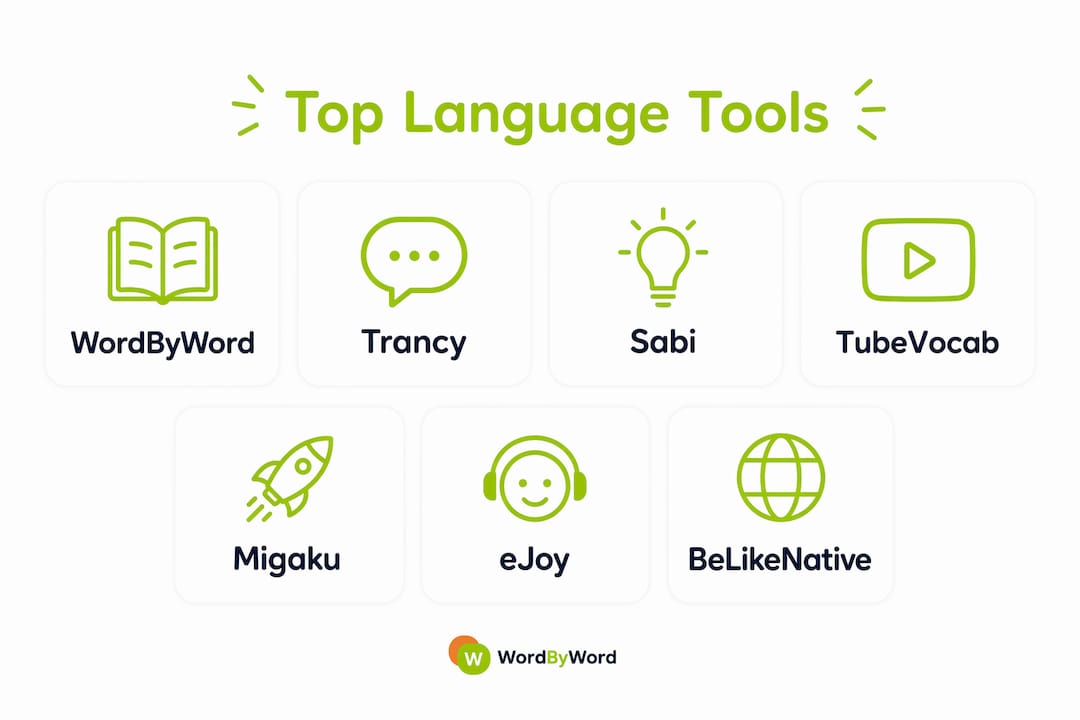
WordByWord works across YouTube, websites, and PDFs. Its Spotlight mode highlights words on any page by knowledge level, from unknown to mastered. Smart flashcards and an AI trainer handle retention. Anki/CSV export is included. Free tier covers core features; paid plans unlock unlimited collections and AI exercises. Available as a Chrome extension with broad browser support.

Trancy focuses on dual subtitles for YouTube and Netflix, with AI-generated translations and a personal wordbook that syncs to a mobile app. It supports grammar breakdowns per sentence, which is useful for learners who want to understand structure, not just vocabulary. Freemium, with paid tiers for full AI features.

Sabi positions itself as a Language Reactor replacement with an emphasis on Netflix and YouTube subtitle interaction. It offers a clean dual-subtitle interface and a word-save system. Pricing and feature depth are publicly listed on its site; worth checking the current plan structure before committing.
TubeVocab is YouTube-specific. It builds vocabulary lists from video subtitles and supports export for review. If your study content lives almost entirely on YouTube and you want a lightweight tool without the overhead of a full suite, it fits that narrow use case well.
Migaku is the power-user option. It combines dual subtitles, an integrated SRS, grammar dictionaries, and sentence mining into one system. The learning curve is steeper and the price reflects the feature depth. Best for learners who want one tool to handle everything and are willing to invest setup time.
eJoy adds a gamified layer to translation: hover-translate on websites and YouTube, with vocabulary games built in. It is lighter on export and SRS depth than Migaku or WordByWord, but the gamification keeps casual learners engaged. Freemium with a paid tier for full features.
BeLikeNative leans toward web-wide contextual translation with AI paraphrasing and writing suggestions. It supports 40+ languages and works offline after initial setup, which makes it one of the few tools in this list that genuinely serves learners without reliable internet access. Best for learners who read more than they watch.
Key Takeaways
WordByWord is the strongest browser-extension replacement for most learners because it covers YouTube, websites, and PDFs in one tool with reliable Anki/CSV export and Spotlight vocabulary mapping.
| Point | Details |
|---|---|
| Primary recommendation | WordByWord covers streaming, web, and PDFs with Spotlight mode and Anki/CSV export built in. |
| For streaming-heavy learners | A video-first dual-subtitle tool handles Netflix, Disney+, and Viki better than a general browser extension. |
| For article/PDF readers | A web-wide contextualizer like BeLikeNative or Google Translate extension covers offline and reading use cases. |
| Export before you switch | Export your word list as CSV on day one; most tools lock vocabulary if you cancel without backing up first. |
| Trial free tiers first | Most alternatives offer free plans; test export, subtitle stability, and mobile sync before paying anything. |
The tools that matter most are the ones you will actually use
There is a pattern worth naming: learners spend hours comparing feature lists and almost no time testing the one thing that will determine whether a tool sticks. Export. Backup. What happens to your vocabulary when the extension breaks after a Chrome update, or when you decide to switch six months from now.
The tools in this category have gotten genuinely good at the front-end experience. Dual subtitles look clean, hover translations are fast, and free tiers are generous enough to demo the core loop. What separates a tool you will use for two years from one you abandon in a month is almost always the vocabulary workflow. Can you get your words out? Does the SRS actually adapt to what you know? Does the extension survive a browser update without wiping your collection?
WordByWord was built with that priority in mind. The Spotlight mode and AI flashcards are the visible features, but the export pipeline and cross-surface consistency (video to webpage to PDF, same vocabulary layer) are what make it worth recommending over tools that do one thing well and nothing else.
If you are a streaming-first learner who rarely reads articles, a video-first subtitle tool may genuinely serve you better. That is an honest call. But if you study across contexts, a browser-wide tool with a reliable export workflow will save you from rebuilding your vocabulary list every time something breaks.
WordByWord: the browser-wide alternative worth trying first
Most learners switching away from Language Reactor want the same thing: a tool that works wherever they study, not just on one streaming service. WordByWord covers YouTube subtitles, open websites, and PDFs from a single Chrome extension, with Spotlight mode that visually maps your vocabulary gaps on any page the moment you open it.

Getting started takes about three minutes. Install the WordByWord extension, sign in, and import your existing CSV word list if you have one. Open a YouTube video or any webpage in your target language and the extension activates automatically. The free tier includes core translation and vocabulary features. Paid plans unlock unlimited collections, AI-powered exercises, and enhanced voiceover across all 50+ supported languages. If you are already using vocabulary builders for structured study, WordByWord slots into that workflow without replacing it.
Where to verify features, pricing, and platform compatibility
Before committing to any paid plan, check these source types:
- Official product pages and changelogs: the most reliable place to confirm current platform support and pricing. Look for a “last updated” date.
- Chrome Web Store and Firefox Add-ons listings: user review counts and recent ratings signal whether an extension is actively maintained.
- Community forums and Reddit threads: search the tool name plus “not working” or “export” to surface real user pain points before you hit them.
- Credible aggregator reviews: useful for discovering the field, but always validate export and stability yourself rather than trusting a feature checklist alone.
Quick verification checklist before migrating a paid subscription:
- Confirm your target language is fully supported, not just listed.
- Export a test batch of five words and open the file before saving more.
- Check that subtitle support works on your specific streaming service in your current browser version.
- Verify the last extension update date in the store listing.
- Find at least one active support thread from the past 90 days.